 YouTube→
 Apple Music
YouTube overzetten naar Apple Music
Zet je afspeellijsten over van YouTube naar Apple Music zonder iets met de hand opnieuw op te bouwen. Koppel beide accounts, kies wat je wilt overzetten en FreeYourMusic maakt alles opnieuw aan op Apple Music, met dezelfde namen en dezelfde volgorde van nummers.
★★★★★ 4,7 · meer dan 12 mln. downloads · Wachtwoord nooit gedeeld


Waarom overstappen van YouTube naar Apple Music?
FreeYourMusic zet je afspeellijsten over van YouTube naar Apple Music. Het matcht de nummers één voor één en toont alles wat niet op Apple Music staat, zodat je het kunt herstellen voordat je overstapt.
Ondersteunde overdrachten
Afspeellijsten (met originele namen + volgorde)
Ontbrekende nummers controleren
Muziekcatalogi verschillen. Bekijk de overdrachtsresultaten om te zien welke nummers niet op de doeldienst zijn gevonden.
Zo zet je afspeellijsten over van YouTube naar Apple Music
Vier stappen. Hetzelfde op iPhone, Android, Mac, Windows en Linux.
Kort antwoord
Om YouTube over te zetten naar Apple Music installeer je FreeYourMusic, kies je YouTube als bron en Apple Music als bestemming, selecteer je de gewenste afspeellijsten en start je de overdracht. De app zoekt elk nummer op Apple Music en toont elk nummer dat niet gematcht kon worden.
- 1
Koppel YouTube als bron
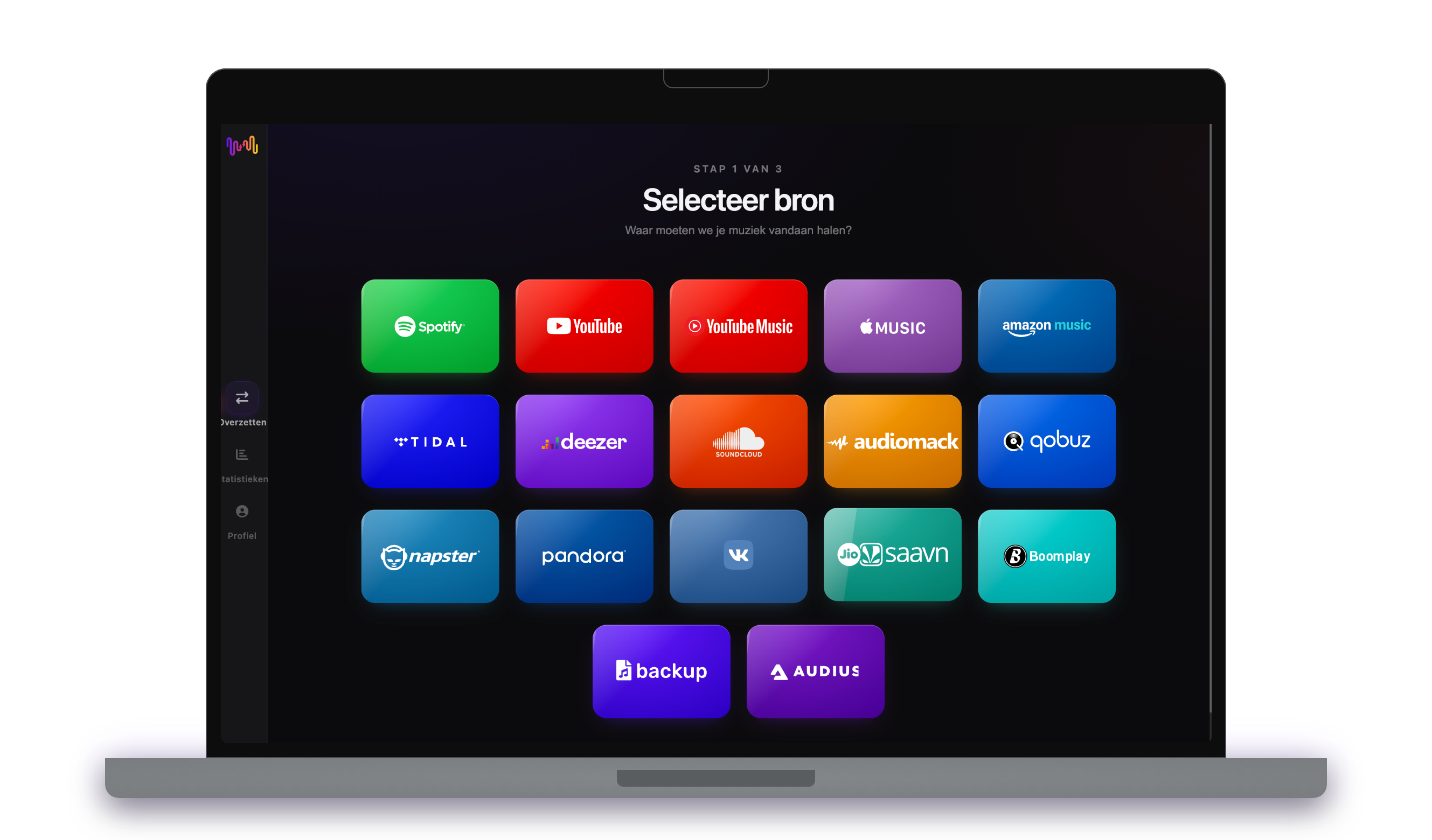
Open FreeYourMusic, tik op de tegel YouTube in het scherm "Selecteer bron" en log in op de inlogpagina van YouTube. FreeYourMusic bewaart je YouTube-wachtwoord niet.
- 2
Kies Apple Music als bestemming
Tik in het scherm "Selecteer bestemming" op Apple Music en log in. FreeYourMusic heeft toegang tot je Apple Music-bibliotheek nodig om daar de afspeellijsten aan te maken.
- 3
Kies wat je wilt overzetten
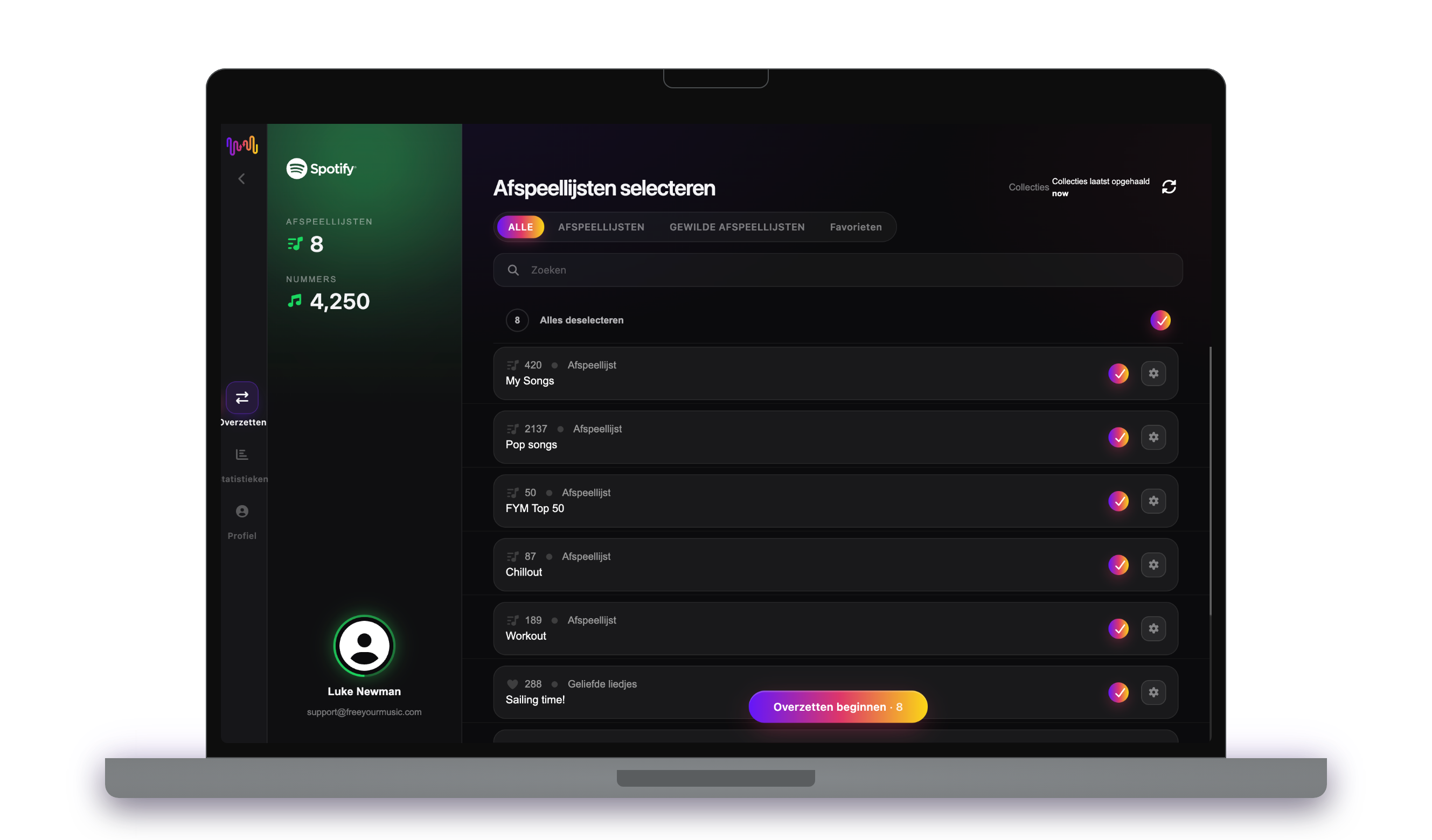
Vink de afspeellijsten aan die je op Apple Music wilt hebben. Gebruik de filters en het zoekveld om ze te vinden, of selecteer alles om je hele YouTube-bibliotheek in één keer over te zetten.
- 4
Start de overdracht en controleer de resultaten
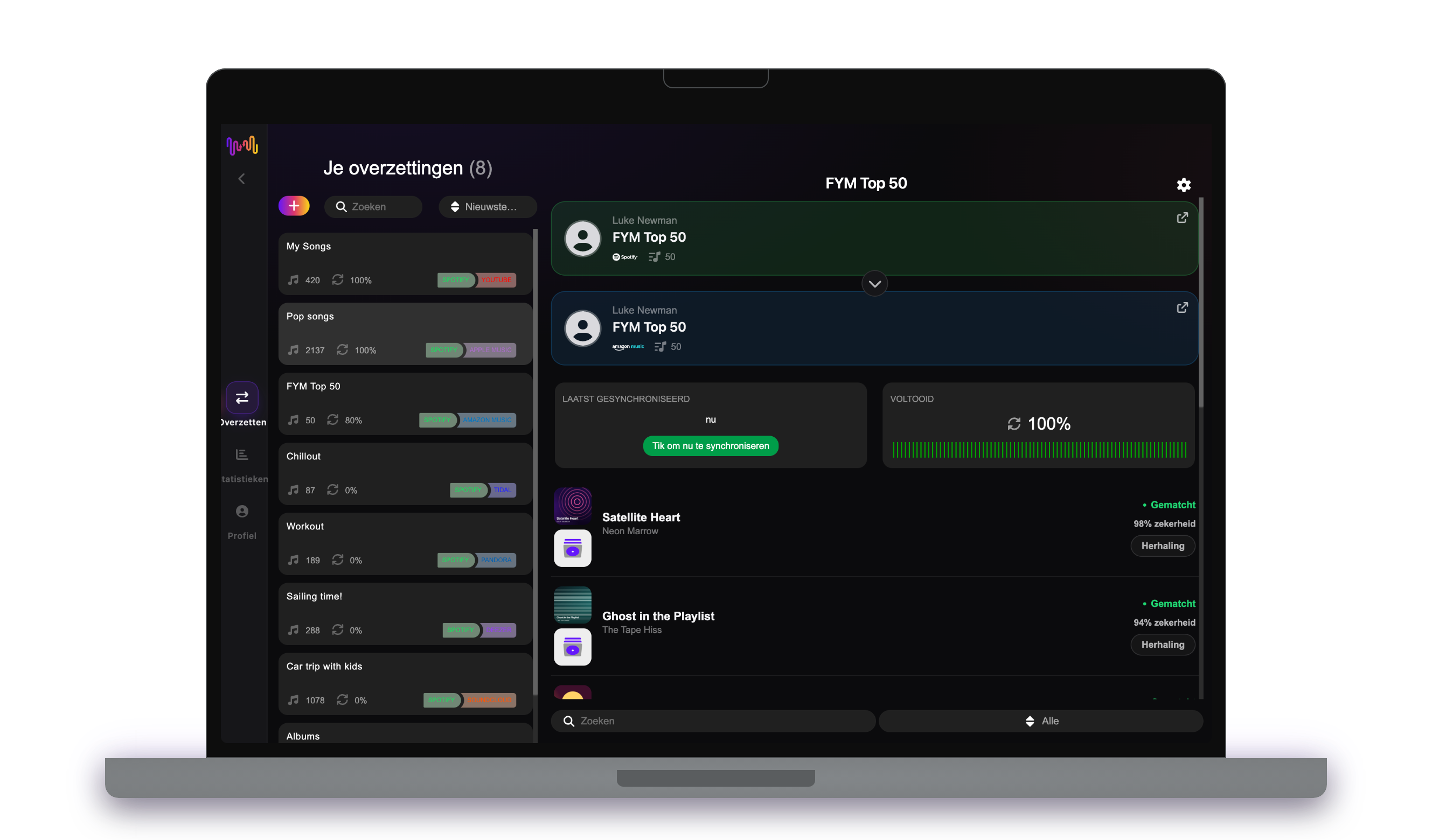
Tik op "Overzetten beginnen". FreeYourMusic matcht elk nummer op Apple Music, behoudt de namen van de afspeellijsten en de volgorde van de nummers, en toont voor elke match een betrouwbaarheidsscore. Gebruik Rematch om nummers te herstellen die niet gevonden werden.
Goed om te weten voordat je van YouTube naar Apple Music overstapt
YouTube als bron
FreeYourMusic zet je YouTube-afspeellijsten met muziekvideo's over en zoekt de nummers op in de nieuwe dienst. Gelikete video's worden niet overgezet.
Apple Music als bestemming
Voor Apple Music heb je een actief abonnement nodig om muziek toe te voegen. Apple staat apps niet toe om nummers in een afspeellijst te verwijderen of te herschikken, dus synchronisatie voegt daar alleen nieuwe nummers toe.
Wat wordt er overgezet van YouTube naar Apple Music
Op elk apparaat
Overzetten, omzetten of importeren: één overdracht van YouTube naar Apple Music
Hoe je het ook noemt, het is hetzelfde werk. Je kunt je YouTube-afspeellijsten overzetten naar Apple Music, een YouTube-afspeellijst omzetten naar een Apple Music-afspeellijst of je YouTube-bibliotheek importeren in Apple Music. FreeYourMusic doet alle drie in één overdracht, voor één afspeellijst of voor een bibliotheek met duizenden nummers.
Houd YouTube en Apple Music gesynchroniseerd
Voeg je nog steeds nummers toe op YouTube? Met Premium controleert Auto-Sync je overgezette afspeellijsten en voegt het nieuwe nummers automatisch toe aan Apple Music, zodat beide bibliotheken gelijk blijven. Prijzen →
YouTube overzetten naar een andere dienst




Bekijk alle overdrachten vanaf YouTube →
Vanaf een andere dienst overzetten naar Apple Music
Veelgestelde vragen
Hoe zet ik mijn YouTube-afspeellijst over naar Apple Music?
Om YouTube over te zetten naar Apple Music installeer je FreeYourMusic, kies je YouTube als bron en Apple Music als bestemming, selecteer je de gewenste afspeellijsten en start je de overdracht. De app zoekt elk nummer op Apple Music en toont elk nummer dat niet gematcht kon worden.
Wat wordt er precies overgezet van YouTube naar Apple Music?
FreeYourMusic zet je afspeellijsten over van YouTube naar Apple Music. Het matcht de nummers één voor één en toont alles wat niet op Apple Music staat, zodat je het kunt herstellen voordat je overstapt.
Kan ik YouTube-afspeellijsten gratis overzetten naar Apple Music?
Ja — de gratis versie verplaatst 300 nummers zonder kaart, en je krijgt er 300 bij na een gratis aanmelding met je e-mail. Upgrade voor onbeperkte overdrachten, Auto-Sync en Cloud Backup.
Wat gebeurt er met nummers die niet op Apple Music staan?
Catalogi verschillen per dienst en per regio. FreeYourMusic toont elk nummer dat het niet kon matchen op Apple Music, zodat je met Rematch een andere versie kiest of het nummer overslaat. Er verdwijnt niets zonder dat je het ziet.
Worden mijn YouTube-afspeellijsten verwijderd?
Nee. FreeYourMusic kopieert je muziek naar Apple Music en laat je YouTube-bibliotheek zoals hij is. Later beslis je zelf of je je YouTube-account houdt of opzegt.
Hoe lang duurt een overdracht van YouTube naar Apple Music?
De meeste afspeellijsten zijn in een paar minuten overgezet. Grote bibliotheken duren langer, want de tijd hangt af van het aantal nummers en van de limieten van YouTube en Apple Music. Je kunt je apparaat gewoon blijven gebruiken terwijl de overdracht loopt.
Kan ik YouTube op mijn telefoon overzetten naar Apple Music?
Ja. FreeYourMusic werkt op iPhone, iPad en Android, en op Mac-, Windows- en Linux-computers. De stappen zijn op elk apparaat hetzelfde.
Klaar om over te stappen naar Apple Music?
Download FreeYourMusic en verplaats je hele bibliotheek in minuten.
Gratis downloaden →