How to Upload Local Files to Spotify on Desktop and Mobile
How to Upload Local Files to Spotify on Desktop and Mobile
Spotify can play music that isn't in its catalog, like rare tracks, concert recordings, DJ mixes, personal demos, or your own recordings, using its Local Files feature. You add the files on desktop, then sync them to your phone. And if you're an artist looking to release original music for the world to stream, there's a separate route through a music distributor.
Both paths are straightforward once you know the steps. Let's walk through each one.
Local Files vs. Releasing Music: Which Path Do You Need?
Local Files lets you play audio stored on your computer through the Spotify app, right alongside your streamed music. Once enabled, Spotify treats these tracks like any other song in your library: you can add them to playlists, queue them up, and sync them to your phone for offline listening. This is the path for tracks you own that aren't in Spotify's streaming catalog.
Spotify for Artists is the route for musicians who want their music available to Spotify's 750+ million users. Spotify does not accept direct uploads from most artists. Instead, you work with an authorized music distributor who delivers your tracks to Spotify (and usually other streaming platforms too). More on this process below.
Step 1: Prepare Your Files for Upload
Not every audio file will play nice with Spotify, so a few minutes of prep saves hours of frustration later.
Spotify supports a limited set of formats for local files. Your best bet is always MP3.
| Format | Supported by Spotify | Notes |
|---|---|---|
| MP3 | Yes | Best compatibility; 320 kbps recommended |
| M4A | Partially | AAC files generally play; iTunes lossless (ALAC) does not |
| MP4 | Yes (audio only) | May require QuickTime on some systems; no video |
| M4P | Yes (no video) | Older DRM-protected iTunes files usually won't play |
| WAV | No | Convert to MP3 first |
| FLAC | No | Convert to MP3 first |
| OGG | No | Convert to MP3 first |
Check your current music library. Do you have WAV files? FLAC recordings? Those won't work directly, and you'll need to convert them. Plenty of free audio conversion tools can turn your music into Spotify-friendly MP3s in a few clicks. When converting, aim for 320 kbps MP3 to keep the sound crisp.
A few more prep tips:
- Use clear, simple file names without special characters, and keep file extensions lowercase. Spotify can be picky about unusual names, which can prevent local files from showing up.
- Create a dedicated folder for your local music before adding it to Spotify. It keeps things organized and makes importing much easier.
- Avoid DRM-protected files. Spotify cannot play them.
Step 2: Add Local Files on Desktop (Windows and Mac)
- Open the Spotify desktop app and click your profile icon in the top-right corner.
- Go to Settings (or press Ctrl + , on Windows / Cmd + , on Mac).
- Scroll down to "Local Files" and toggle on "Show Local Files".
- Click "Add a Source" and select the folder on your computer that contains your music files.
- Go to Your Library and click on Local Files in the left sidebar. Your tracks will appear here.
- Add songs to a playlist by right-clicking a track and selecting "Add to Playlist."
That's it. Your local files now live alongside your streamed music. You can mix them into playlists with songs from Spotify's catalog, create custom workout mixes with tracks only you have, or build a playlist of unreleased demos from your favorite artists.
Note: Local Files only works in the desktop app, not the web player.
Step 3: Get Your Local Files on Mobile
Android
Newer versions of the Spotify app can play audio files stored directly on your phone:
- Open your Home tab and tap your profile picture > Settings and privacy.
- Tap Apps and devices and toggle on Local audio files.
- Head back to Your Library. A Local Files folder appears alongside your playlists (grant Spotify access to your media when prompted).
Syncing from desktop (Android and iOS)
Local files don't upload over the internet, so the classic method is syncing them through a playlist:
- Follow the desktop steps above to add local files and put them in a playlist.
- Open the Spotify app on your phone and make sure both devices are connected to the same Wi-Fi network and signed into the same account.
- Find the playlist containing your local files.
- Toggle "Download" on the playlist to sync those tracks to your phone.
Once downloaded, you can play those local files on the go, even without an internet connection. The tracks stay available as long as you keep the playlist downloaded and maintain your Premium subscription.
Important: You need a Spotify Premium subscription to sync and play local files on your mobile device. The free tier only supports Local Files on desktop. Curious about Premium pricing? Check out our guide on how much Spotify Premium costs.
iOS note: iPhones can't scan phone storage the way Android can. Files need to arrive either through the desktop playlist sync above or an import via a dedicated music management app. If you've transferred files through iCloud or USB, take a moment to play each track to confirm the transfer completed.
Step 4: Verify Everything Plays
You've done the hard work. Now make sure it actually worked:
- On mobile, confirm offline mode is disabled and the playlist is marked as downloaded.
- Play a few tracks and check sound quality and that every song transferred.
- If a track won't play, check that it's a supported, non-DRM format and that the source folder hasn't moved. A renamed or relocated folder is the most common reason local files disappear.
- Still stuck? The simple reset works surprisingly often: delete the playlist, recreate it on desktop, and resync.
Also worth knowing: local files can't be streamed to other devices via Spotify Connect. Playback is limited to the device where the files live or were synced.
How to Upload Music to Spotify as an Artist
If you create original music and want it available for streaming on Spotify, you need to use a music distributor. Here is how the process works.
Using a Music Distributor
Spotify does not have a direct upload portal for artists. Instead, it partners with a network of authorized distributors who handle delivery to the platform. These distributors act as the bridge between you and Spotify (and usually dozens of other streaming services at the same time). Popular options include DistroKid, TuneCore, CD Baby, and Amuse, among many others. Each has different pricing models and features, so it is worth comparing them before you commit.
Here is the general process:
- Choose a distributor that fits your needs. Some charge an annual fee, others take a percentage of royalties, and some offer free tiers with limited features.
- Create an account and upload your tracks (WAV or high-quality MP3 recommended).
- Fill in your metadata: song title, artist name, album art, genre, release date, and ISRC codes (your distributor can generate these).
- Submit your release for delivery to Spotify (and usually other platforms like Apple Music, Amazon Music, and more).
- Claim your Spotify for Artists profile at artists.spotify.com to manage your page, see analytics, and pitch songs to editorial playlists.
Timeline and Requirements
| Step | Typical Timeline |
|---|---|
| Distributor review | 1-3 days |
| Delivery to Spotify | 2-5 business days |
| Total (upload to live) | 5-10 business days |
Plan ahead. If you have a specific release date in mind, submit your tracks at least 2-3 weeks early. This gives you time to pitch your song to Spotify's editorial playlist team through Spotify for Artists.
Requirements for artist uploads:
- Original music only (no copyrighted samples without clearance)
- High-quality audio files (WAV, 16-bit/44.1kHz minimum)
- Album artwork: 3000x3000 pixels, JPEG or PNG
- Complete and accurate metadata (song titles, artist credits, genre tags)
- An ISRC code for each track (most distributors generate these for you)
- UPC/EAN barcode for albums and EPs (also typically provided by your distributor)
Pro tip: Set up your Spotify for Artists profile before your first release goes live. This way, you can customize your artist page with a bio, photos, and social links from day one. You can also use the platform to pitch unreleased tracks to Spotify's editorial playlist curators; aim to submit at least 7 days before your release date.
How to Import Playlists From Other Services to Spotify
Switching to Spotify from another streaming service? The biggest headache is usually losing all the playlists you spent months or years building. You don't have to rebuild them from scratch.
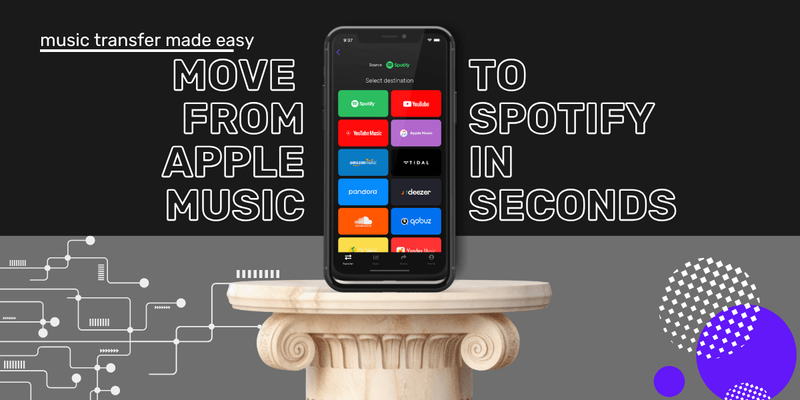
Free Your Music transfers your entire playlist library automatically, moving your music from every major streaming service to Spotify in just a few clicks. No manual searching, no re-adding songs one by one. It works everywhere too: macOS, Windows, Linux, Android, and iOS.
Here is how it works:
- Download Free Your Music from freeyourmusic.com/download (available on desktop and mobile).
- Connect your source service (Apple Music, YouTube Music, Amazon Music, Tidal, Deezer, or any other supported platform).
- Connect Spotify as your destination.
- Select the playlists you want to transfer.
- Start the transfer and watch your playlists appear on Spotify within minutes.
Free Your Music matches your songs across platforms with high accuracy, so your playlists arrive intact. It also transfers liked songs, albums, and artists, not just playlists, and can auto-sync your playlists every 15 minutes so both libraries stay current. Check out all the available music services that Free Your Music supports, and see our pricing page for transfer options.
Troubleshooting: Local Files Not Showing Up
Running into issues with Spotify Local Files? Here are the most common problems and how to fix them.
Local Files toggle is missing or grayed out
- Make sure you are using the Spotify desktop app, not the web player. Local Files only work in the desktop app.
- Update Spotify to the latest version on both desktop and mobile. Outdated versions are a common cause of sync issues.
Songs do not appear after adding a folder
- Check that your files are in a supported format (see the table above). WAV and FLAC files need converting to MP3 first.
- Check file names: keep them simple, lowercase, and free of special characters.
- Remove and re-add the folder source in Settings > Local Files.
- Restart the Spotify app. If tracks still don't show instantly, a refresh sometimes does it.
Local files will not sync to mobile
- Confirm both devices are on the same Wi-Fi network and signed into the same account.
- Make sure you have a Spotify Premium subscription.
- Check that you have downloaded the playlist (not just added it).
- Turn off offline mode on both devices while syncing.
- Disable any firewall or VPN that might block local network communication.
- Use a strong, stable Wi-Fi connection to avoid sync interruptions.
Playback skips or fails
- The file might be corrupted. Try playing it in another media player first.
- Re-encode the file as MP3 (320kbps) and add it again.
- Check that the file is not DRM-protected. Files purchased from some stores may have copy protection that prevents playback in Spotify.
- If nothing else works, delete the playlist, recreate it from desktop, and resync.
Songs show as grayed out
- The file may have been moved or deleted from its original location. Make sure the source folder still contains the file.
- Re-add the source folder in Settings > Local Files if the path has changed.
- On Mac, make sure Spotify has permission to access your files (System Settings > Privacy & Security > Files and Folders).
FAQ
Can I upload MP3 files directly to Spotify for streaming?
No, you cannot upload MP3 files to Spotify's streaming catalog directly. To make music available for all Spotify users, you need to use a music distributor. However, you can add MP3 files to your personal Spotify library using the Local Files feature on desktop.
Is adding local files to Spotify free?
Adding local files on the desktop app is free for all Spotify users. However, syncing those files to your phone for mobile playback requires a Spotify Premium subscription.
What audio formats does Spotify accept for local files?
Spotify supports MP3, audio-only MP4, M4P (without video), and most AAC M4A files. WAV, FLAC, and OGG are not supported and need converting to MP3 first. For the best results, use 320kbps MP3 and avoid DRM-protected tracks.
How do I convert my music files to MP3 for Spotify?
Use a free audio conversion tool. Upload your files, select MP3 as the output format (320 kbps for best quality), and convert. Your music will be Spotify-ready within minutes.
How can I ensure my local MP3 files sync across my devices?
Make sure both your desktop and mobile Spotify apps are on the same Wi-Fi network and logged into the same account. Create your playlist on desktop, then download it on your mobile app while connected to that network.
What should I do if my uploaded MP3s are not playing on Spotify?
First check that offline mode is disabled on your mobile app and the playlist is downloaded. If the problem persists, delete the playlist, recreate it from your desktop, and resync.
How long does it take to upload music to Spotify through a distributor?
Most distributors deliver your music to Spotify within 5 to 10 business days. Submit your tracks at least 2-3 weeks before your target release date to allow time for editorial playlist pitching.
Can I upload music to Spotify for free?
Some distributors offer free upload tiers, though they may take a percentage of your streaming royalties. Others charge an annual fee but let you keep 100% of royalties. Compare options to find the best fit for your budget and release schedule.
Why are my local files not showing up on Spotify mobile?
Local files only sync to mobile when both your phone and computer are on the same Wi-Fi network, the playlist is set to download, and you have a Spotify Premium subscription. Also make sure the Spotify desktop app is open while syncing.
Can I transfer playlists from other music services to Spotify?
Yes. Free Your Music lets you transfer playlists, liked songs, albums, and artists from every major music service to Spotify automatically. It takes just a few minutes and keeps your library intact.
Do local files on Spotify count toward my listening stats?
No. Local files do not affect your Spotify Wrapped or listening statistics. Only songs streamed from Spotify's catalog count toward those metrics.
Ready to take control of your music? Transfer your playlists in minutes with Free Your Music. Free Your Music makes switching to Spotify effortless: playlists, albums, and liked songs moved in one click, on macOS, Windows, Linux, Android, and iOS.
Your playlists belong to you.
Stop rebuilding by hand. Move everything in minutes and take your music wherever you go.
Download free →SongsBrew — our free music newsletter
A free perk for FYM users. Tips, playlists, no spam.