 Apple Music→
 Amazon Music
Trasferire da Apple Music a Amazon Music
Sposta playlist e brani preferiti da Apple Music a Amazon Music senza ricostruire nulla a mano. Collega entrambi gli account, scegli cosa spostare e FreeYourMusic ricrea tutto su Amazon Music con gli stessi nomi e lo stesso ordine dei brani.
★★★★★ 4,7 · oltre 12 Mln di download · Password mai condivisa


Perché passare da Apple Music a Amazon Music?
FreeYourMusic sposta playlist e brani preferiti da Apple Music a Amazon Music. Abbina i brani uno per uno ed elenca tutto ciò che non è su Amazon Music, così puoi sistemarlo prima di cambiare servizio.
Trasferimenti supportati
Playlist (con nomi e ordine originali) e Brani preferiti
Controlla i brani mancanti
I cataloghi sono diversi. Controlla i risultati del trasferimento per vedere quali brani non sono stati trovati sul servizio di destinazione.
Come trasferire le playlist da Apple Music a Amazon Music
Quattro passaggi. Gli stessi su iPhone, Android, Mac, Windows e Linux.
Risposta rapida
Per trasferire Apple Music su Amazon Music, installa FreeYourMusic, seleziona Apple Music come origine e Amazon Music come destinazione, scegli le playlist che vuoi e avvia il trasferimento. L'app trova ogni brano su Amazon Music ed elenca quelli che non è riuscita ad abbinare.
- 1
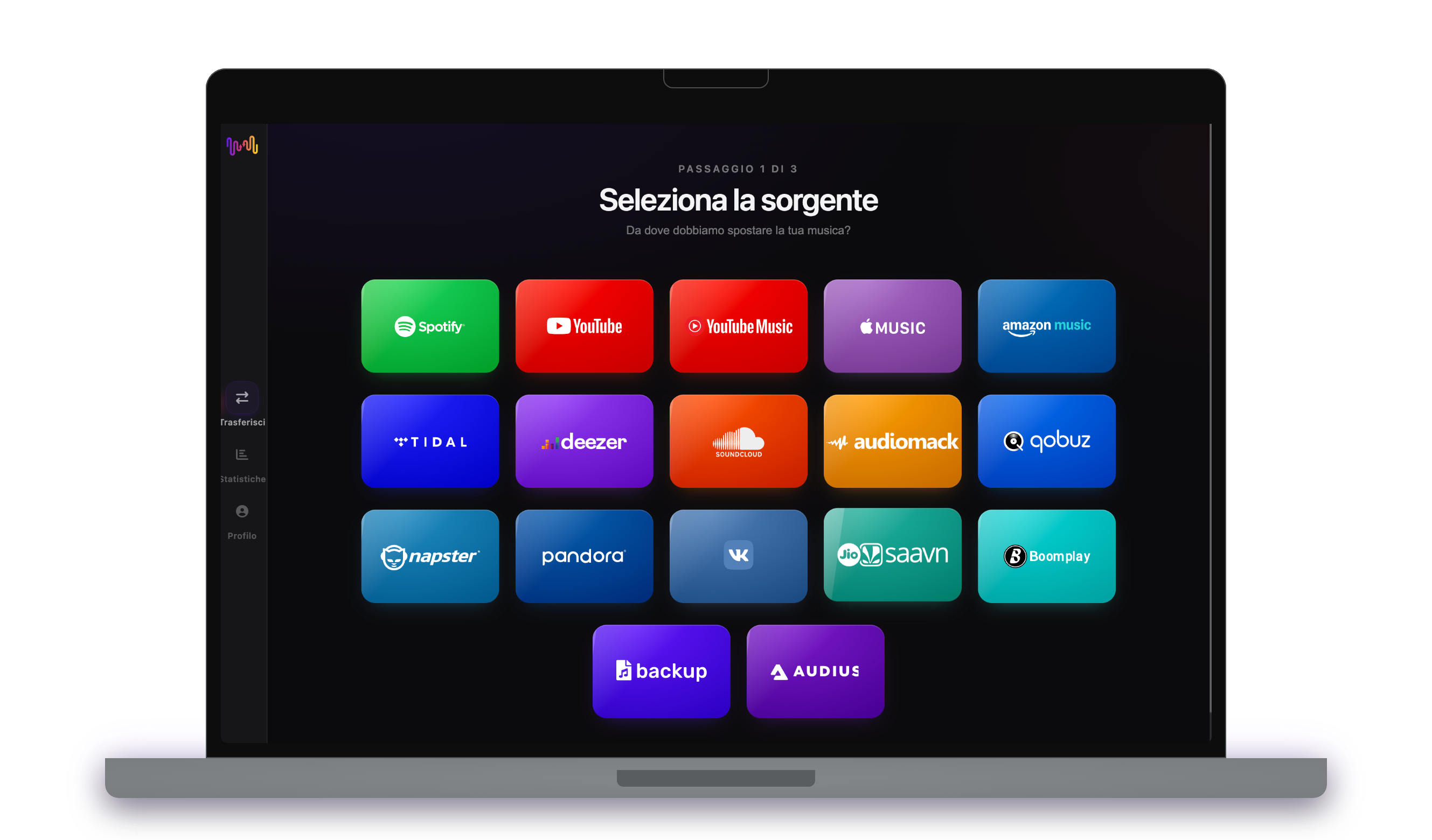
Collega Apple Music come origine
Apri FreeYourMusic, tocca il riquadro Apple Music nella schermata "Seleziona la sorgente" e accedi dalla pagina di login di Apple Music. FreeYourMusic non memorizza la tua password di Apple Music.
- 2
Scegli Amazon Music come destinazione
Nella schermata "Seleziona destinazione", tocca Amazon Music e accedi. FreeYourMusic ha bisogno di accedere alla tua libreria Amazon Music per creare lì le playlist.
- 3
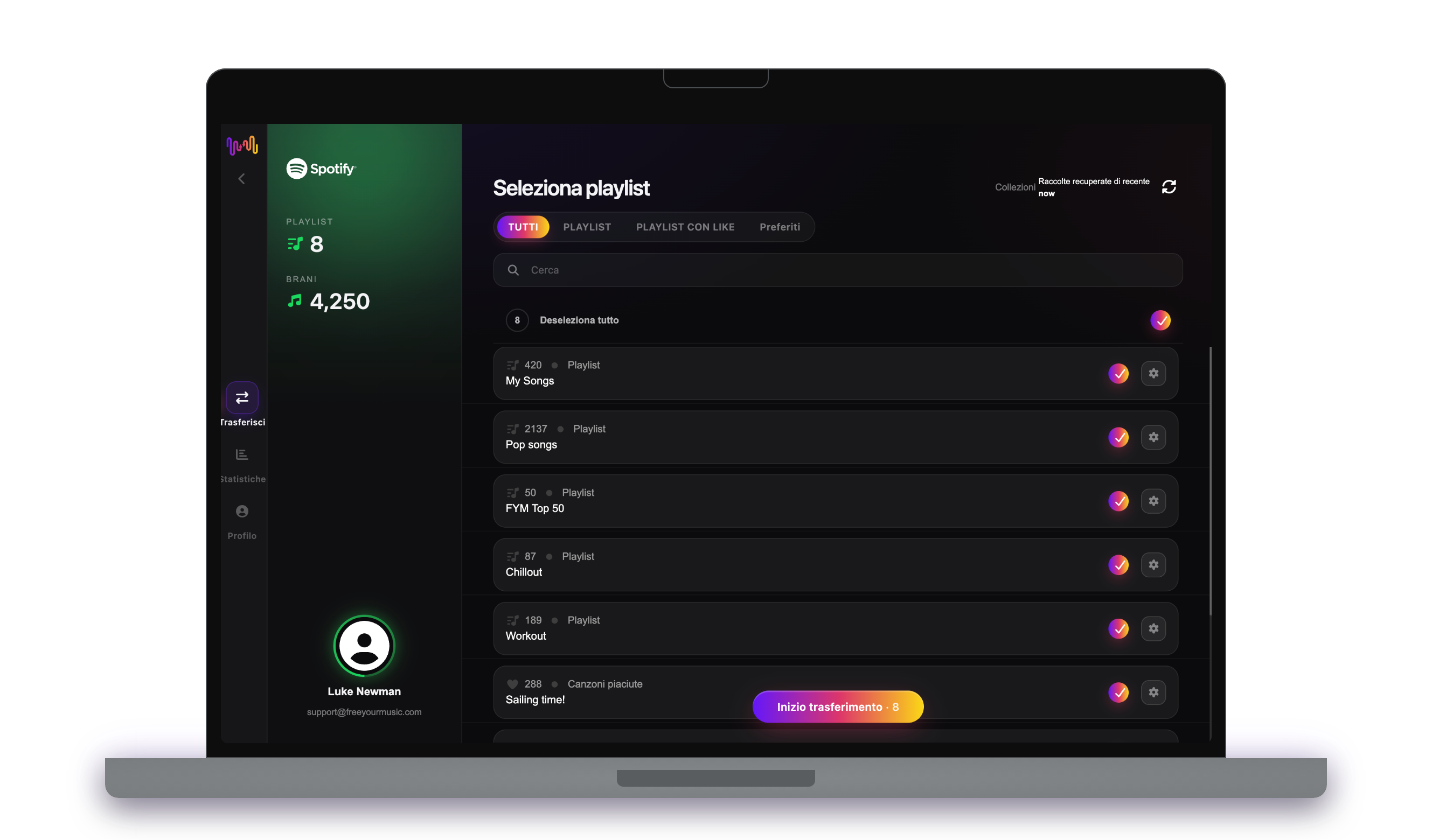
Scegli cosa spostare
Seleziona le playlist che vuoi su Amazon Music. Usa i filtri e il campo di ricerca per trovarle, oppure seleziona tutto per spostare l'intera libreria Apple Music in una volta.
- 4
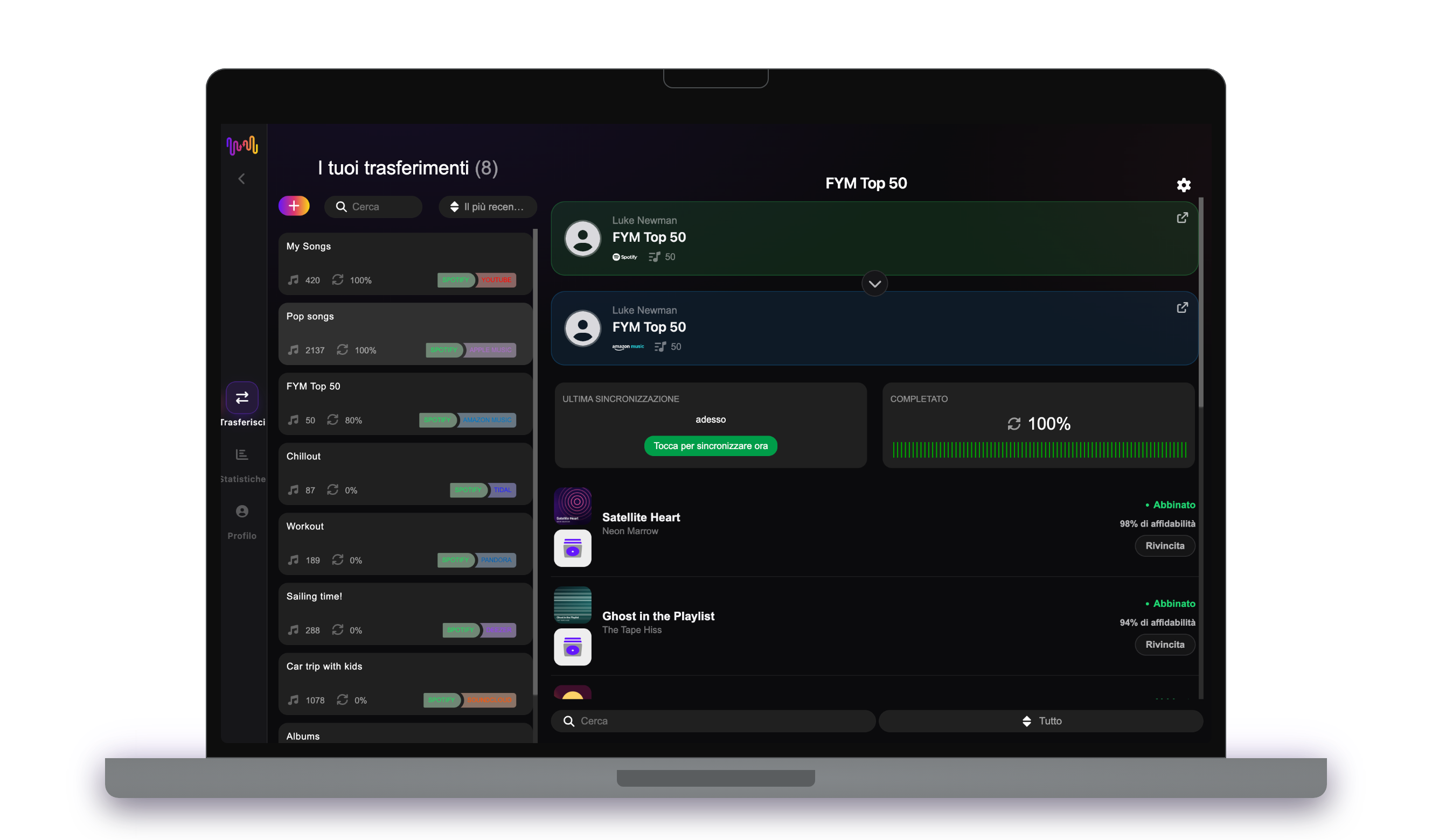
Avvia il trasferimento e controlla i risultati
Tocca "Inizio trasferimento". FreeYourMusic abbina ogni brano su Amazon Music, mantiene i nomi delle playlist e l'ordine dei brani e mostra un punteggio di affidabilità per ogni abbinamento. Usa Rematch per sistemare i brani che non ha trovato.
Da sapere prima di passare da Apple Music a Amazon Music
Apple Music come origine
Alcune funzioni richiedono un abbonamento Apple Music attivo. Prima di trasferirle, trasforma le playlist smart in playlist normali nell'app Musica.
Amazon Music come destinazione
Una playlist di Amazon Music può contenere al massimo 2.500 brani da un trasferimento. FreeYourMusic divide le playlist più lunghe in più parti.
Cosa viene trasferito da Apple Music a Amazon Music
Su ogni dispositivo
Spostare, convertire o importare: un solo trasferimento da Apple Music a Amazon Music
Comunque tu lo chiami, il lavoro è lo stesso. Puoi spostare le tue playlist di Apple Music su Amazon Music, convertire una playlist di Apple Music in una playlist di Amazon Music o importare la tua libreria Apple Music in Amazon Music. FreeYourMusic fa tutte e tre le cose in un solo trasferimento, per una singola playlist o per una libreria di migliaia di brani.
Mantieni Apple Music e Amazon Music sincronizzati
Aggiungi ancora brani su Apple Music? Con Premium, Auto-Sync controlla le playlist trasferite e aggiunge automaticamente i brani nuovi su Amazon Music, così le due librerie restano uguali. Prezzi →
Passa da Apple Music a un altro servizio




Vedi tutti i trasferimenti da Apple Music →
Trasferisci su Amazon Music da un altro servizio
Domande frequenti
Come trasferisco la mia playlist da Apple Music a Amazon Music?
Per trasferire Apple Music su Amazon Music, installa FreeYourMusic, seleziona Apple Music come origine e Amazon Music come destinazione, scegli le playlist che vuoi e avvia il trasferimento. L'app trova ogni brano su Amazon Music ed elenca quelli che non è riuscita ad abbinare.
Cosa viene trasferito esattamente da Apple Music a Amazon Music?
FreeYourMusic sposta playlist e brani preferiti da Apple Music a Amazon Music. Abbina i brani uno per uno ed elenca tutto ciò che non è su Amazon Music, così puoi sistemarlo prima di cambiare servizio.
Apple Music può spostare le mie playlist su Amazon Music?
No. Lo strumento di importazione di Apple Music porta la musica solo su Apple Music. Non può inviare le tue playlist a un altro servizio. Per spostare le tue playlist di Apple Music su Amazon Music, usa FreeYourMusic.
Posso trasferire le playlist da Apple Music a Amazon Music gratuitamente?
Sì — il piano gratuito sposta 300 brani senza bisogno di carta, e ne ottieni altri 300 dopo una registrazione gratuita con email. Passa a Premium per trasferimenti illimitati, Auto-Sync e Cloud Backup.
Cosa succede ai brani che non sono su Amazon Music?
I cataloghi cambiano da un servizio all'altro e da un paese all'altro. FreeYourMusic elenca ogni brano che non è riuscito ad abbinare su Amazon Music, così puoi scegliere un'altra versione con Rematch oppure saltarlo. Niente viene scartato senza che tu lo veda.
Le mie playlist di Apple Music verranno eliminate?
No. FreeYourMusic copia la tua musica su Amazon Music e lascia la tua libreria Apple Music così com'è. Decidi tu in seguito se tenere o disdire il tuo account Apple Music.
Quanto dura un trasferimento da Apple Music a Amazon Music?
La maggior parte delle playlist si trasferisce in pochi minuti. Le librerie grandi richiedono più tempo, perché la durata dipende dal numero di brani e dai limiti di Apple Music e Amazon Music. Puoi continuare a usare il dispositivo mentre il trasferimento è in corso.
Posso trasferire Apple Music su Amazon Music dallo smartphone?
Sì. FreeYourMusic funziona su iPhone, iPad e Android, e sui computer Mac, Windows e Linux. I passaggi sono gli stessi su ogni dispositivo.
Pronto a passare a Amazon Music?
Scarica FreeYourMusic e sposta l'intera libreria in pochi minuti.
Scarica gratis →