Home · Trasferimenti · SpotifyAmazon Music

SpotifyAmazon Music

Trasferisci le playlist da Spotify a Amazon Music

Sposta i brani preferiti, le playlist e gli album preferiti da Spotify a Amazon Music.

Avvia il trasferimento →Gratis per 600 brani · nessuna carta

★★★★★ 4,8 · oltre 9,2 milioni di download · Password mai condivisa

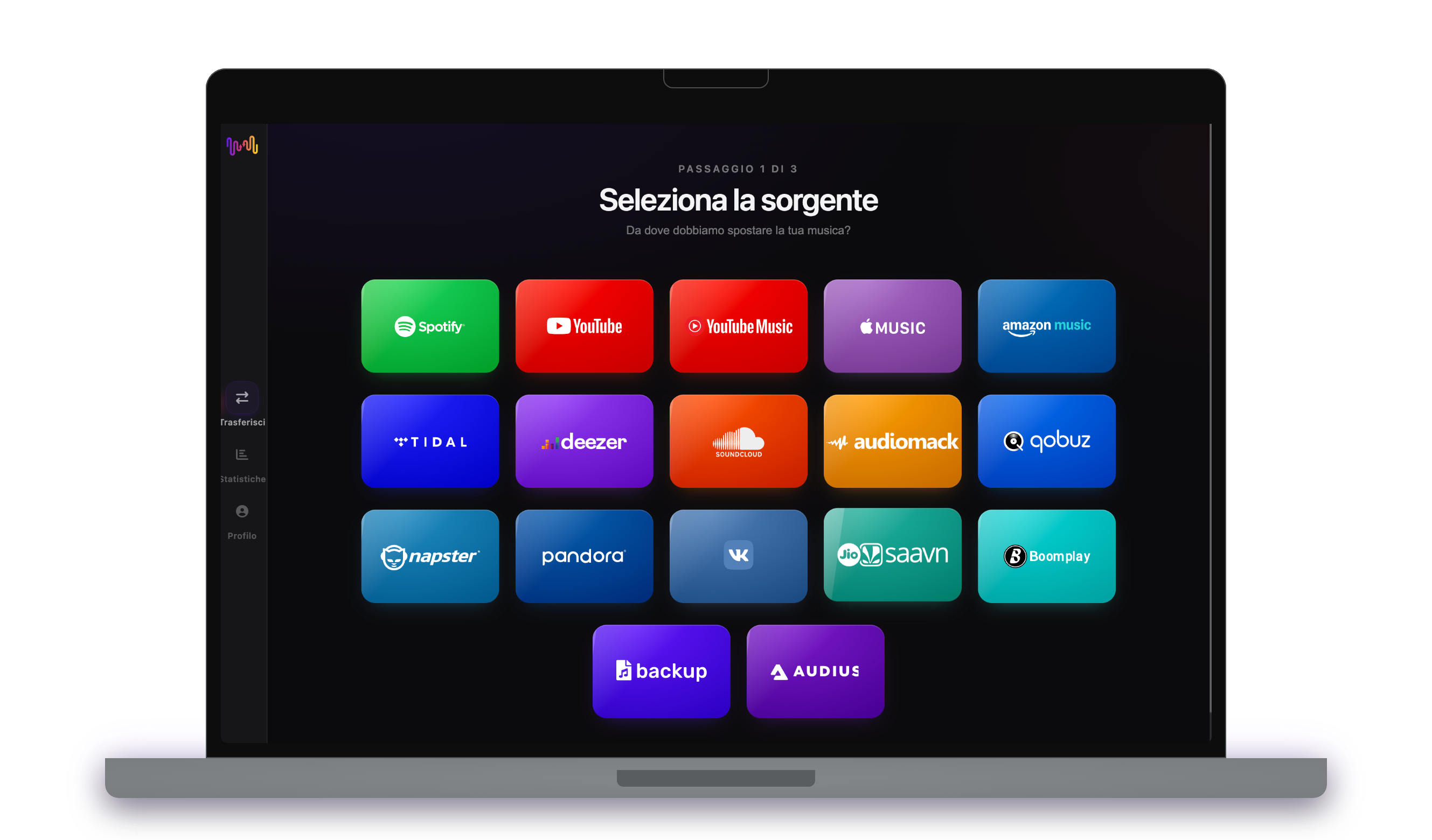
Selezione di Amazon Music come destinazione in FreeYourMusicFreeYourMusic mobile — selezione della destinazione

Perché passare da Spotify a Amazon Music?

Cambia servizio senza lasciarti indietro la libreria. FreeYourMusic trova la corrispondenza di ogni brano e lo sposta per te — playlist, brani preferiti, album e artisti seguiti.

Si trasferisce tutto

Playlist, brani preferiti, album e artisti.

Ordine mantenuto

Le playlist arrivano nello stesso ordine in cui le hai create.

Niente va perso

Le corrispondenze imperfette vengono segnalate per il Rematch con un tocco.

Come trasferire le playlist da Spotify a Amazon Music

1

Seleziona Spotify come fonte

Usa la tua attuale piattaforma Spotify come fonte e inizia a trasferire la musica delle playlist con Free Your Music.

2

Selezionare Amazon Music come destinazione

Selezionare Amazon Music come piattaforma in cui si desidera creare una nuova playlist. Tutto quello che devi fare è cliccare un solo pulsante!

3

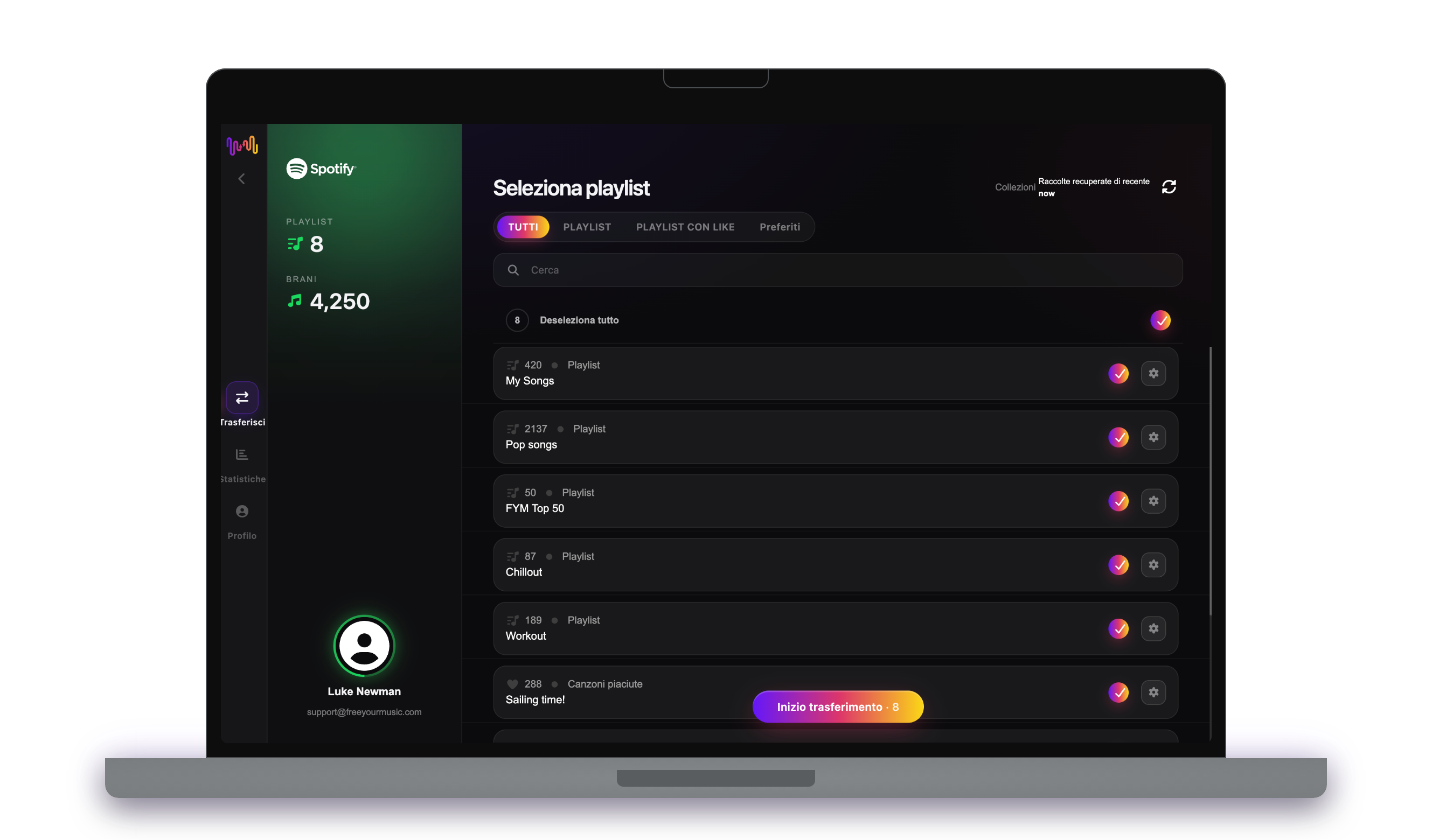
Seleziona le playlist per un trasferimento

Trovare le playlist che si desidera trasferire dal servizio Spotify a Amazon Music e selezionare tutte le playlist che si desidera spostare.

4

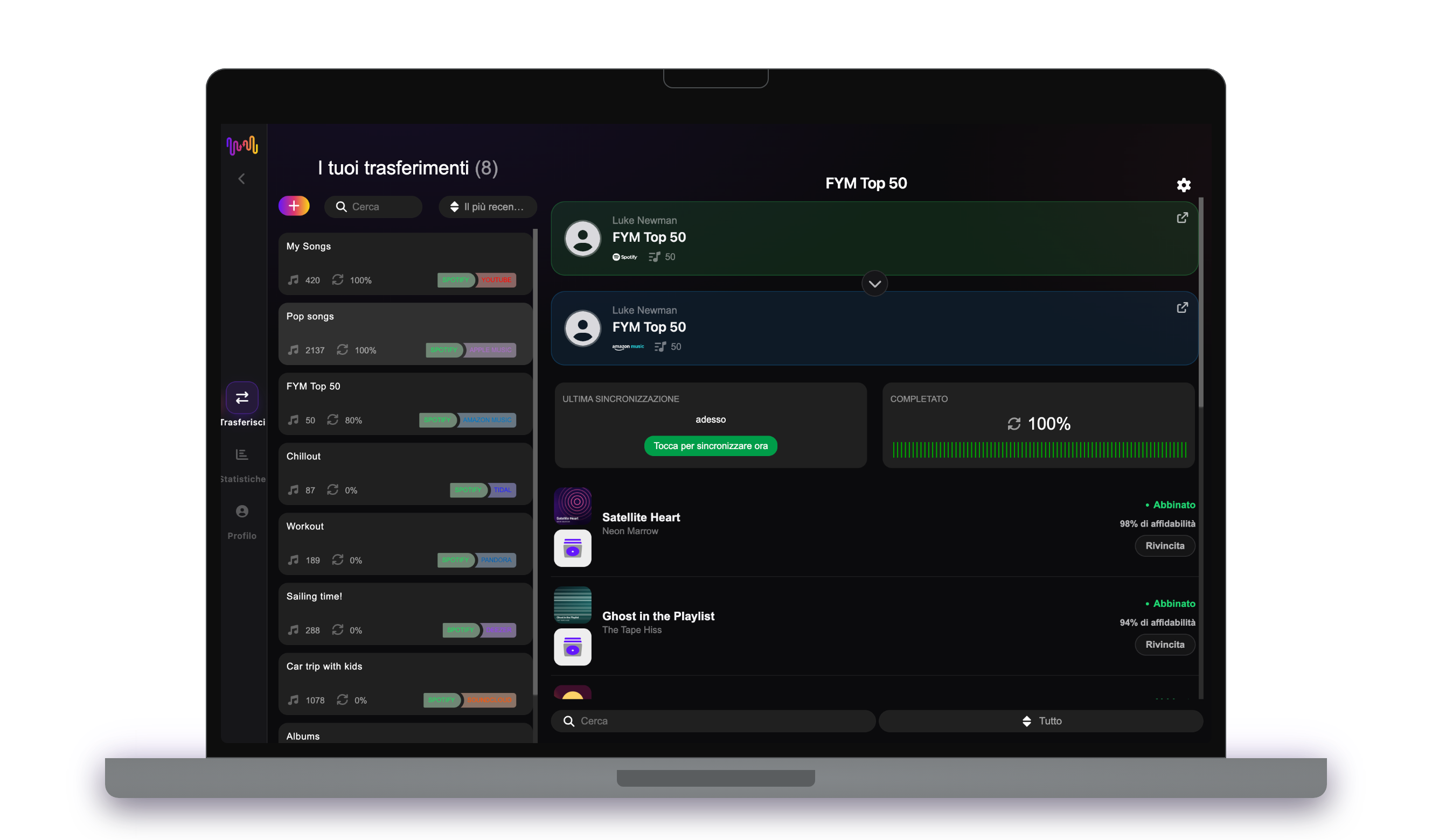
Conferma la tua azione ed è fatto!

Il trasferimento è terminato. Le playlist Spotify sono state spostate su Amazon Music e si può iniziare a usufruire del nuovo servizio di streaming musicale.

Cosa viene trasferito

Playlist

Brani preferiti

Album salvati

Artisti seguiti

Su ogni dispositivo

iPhoneiPadAndroidMacWindowsLinux

Le persone cercano anche

how to transfer Spotify playlist to Amazon Musictransfer Spotify playlist to Amazon Musicmove Spotify playlist to Amazon Musiccan you transfer Spotify playlist to Amazon MusicSpotify to Amazon Music converterimport Spotify playlist to Amazon MusicSpotify to Amazon Music playlist transferfree playlist transferplaylist transfer app

Cosa viene trasferito da Spotify a Amazon Music

Tutto quello che FreeYourMusic sposta per te con un clic — niente ricostruzioni manuali.

Playlist (con nomi e ordine originali)
Supportato
Brani preferiti
Supportato
Album salvati
Non disponibile
Artisti seguiti
Supportato
Abbinamento esatto dei brani basato su ISRC
Supportato

Apprezzato da milioni di utenti per trasferire playlist da Spotify a Amazon Music

4.70 stelle

Media delle valutazioni

32,5000 valutazioni

Su iOS e Android

12M0 download

Su tutte le piattaforme

Moving from Spotify to Amazon Music, explained

If you already live in Amazon’s world — an Echo on the kitchen counter, Prime deliveries, Alexa answering from three rooms — moving your music there finally makes everything talk to one another. FreeYourMusic reads your Spotify library through Spotify’s official sign-in and rebuilds it inside Amazon Music: the playlists you made, the songs you liked, the albums you saved and the artists you follow. You do not retype a thing.

This guide covers what actually crosses over, how the song matching works, how long a Spotify to Amazon Music transfer takes, and the differences worth knowing between the two services. Want to skip ahead? Install FreeYourMusic, connect both accounts, choose what to move and start it — everything below is here for when you want the full picture.

What comes across, and what stays behind

The core of your collection travels intact: playlists keep their names and running order, your liked songs land as saved tracks, saved albums come with them and followed artists follow you across. You can move the whole library at once or hand-pick playlists, with track counts shown before anything happens.

A few Spotify features are simply not portable. Discover Weekly and Release Radar are generated by Spotify for Spotify, so they can only be copied as a snapshot of whatever they hold today. Podcasts stay on Spotify — Amazon handles them elsewhere — and any local files you uploaded from your own computer are not part of the streaming catalogue, so they cannot be matched.

How songs are matched between catalogues

For each Spotify track, FreeYourMusic looks up the same recording in Amazon Music. It leans on the ISRC — the standard fingerprint the industry assigns to a recording — and, where that is missing, compares title, artist, album and length to find the closest match. That is how large libraries arrive with the right versions rather than random re-recordings.

Amazon Music’s catalogue is broad, but no two services line up perfectly. A handful of tracks — a regional-only release, an odd remaster, a live cut with different tagging — may not have an exact twin. FreeYourMusic flags those for Rematch and offers alternatives, so nothing disappears without you seeing it and choosing.

How long a Spotify to Amazon Music transfer takes

Most people are done in minutes. With both accounts connected, a library of roughly 1,000 songs usually wraps up in under ten minutes. Bigger collections spanning tens of thousands of tracks take longer, but the transfer runs by itself — start it and go make a coffee.

FreeYourMusic runs natively on iPhone, iPad, Android, Mac, Windows and Linux, so you are not chained to one device. Kick the move off on your desktop and glance at its progress on your phone; it is the same account and the same job either way.

Spotify vs Amazon Music: the real differences

The biggest practical decision with Amazon Music is which tier you land on. The version bundled with Prime is more limited than the full Amazon Music Unlimited, which unlocks the complete catalogue plus HD and Ultra HD lossless streaming — a clear step up from Spotify’s compressed-by-default audio if you care about fidelity.

Day to day, you swap Spotify’s Discover Weekly culture and collaborative playlists for Amazon’s voice-first convenience. Asking Alexa to play a playlist on an Echo, or across a house full of them, is where Amazon Music shines. If your home already runs on Alexa, that integration often matters more than any single feature Spotify has.

Should you keep Spotify running during the move?

Yes. Keep your Spotify subscription active until the transfer finishes and you have looked over the result. FreeYourMusic needs to read the source library as it copies, and keeping both live means your music is never out of reach mid-migration. Cancel Spotify only once you are satisfied.

On the destination side, make sure you are on the tier you actually want — the Prime-bundled version limits full on-demand playback of your whole library, so Amazon Music Unlimited is the better home for a large transferred collection. Both Spotify and Amazon are connected through their own official login screens; your password is never handed to FreeYourMusic.

Tips for a clean migration

Prune first. Clear out the stale playlists you will never open again so you are not carrying dead weight across. Move a couple of your most-loved playlists first and check them inside Amazon Music before committing the rest — it is the fastest way to trust the match quality.

When the transfer completes, open the Rematch list and resolve anything flagged while you still remember the albums. If you plan to listen through Alexa, re-create any voice shortcuts you relied on, and download your key playlists for offline listening so your commute is covered from day one.

Keeping both libraries in sync afterwards

A single transfer is not your only option. If you are hedging between services, or your household straddles both, FreeYourMusic’s Auto-Sync keeps the two libraries mirrored, pushing new saves across on a regular schedule so a song you like on Spotify quietly appears in Amazon Music too.

And if you change your mind, the transfer runs just as smoothly the other way, from Amazon Music back to Spotify. Your collection stays portable. Download FreeYourMusic, connect Spotify and Amazon Music, and watch how much of your library carries over — the free tier lets you try before you commit.

Pronto a passare a Amazon Music?

Scarica FreeYourMusic e sposta l'intera libreria in pochi minuti.

Scarica gratis →

Domande frequenti

Come trasferisco la mia playlist da Spotify a Amazon Music?

Installa FreeYourMusic, accedi a Spotify e poi a Amazon Music usando i rispettivi login ufficiali, scegli le playlist che vuoi e avvia il trasferimento. La corrispondenza intelligente dei brani sposta le canzoni mantenendo l'ordine intatto — una playlist di 1.000 brani si completa in genere in meno di 10 minuti.

Posso trasferire le playlist da Spotify a Amazon Music gratuitamente?

Sì — il piano gratuito sposta fino a 600 brani e una playlist senza bisogno di carta. Passa a Premium per trasferimenti illimitati, Auto-Sync e Cloud Backup.

Esiste un'app per trasferire le playlist da Spotify a Amazon Music?

FreeYourMusic è un'app per il trasferimento di playlist per iPhone, iPad, Android, Mac, Windows e Linux che sposta playlist, brani preferiti, album salvati e artisti seguiti da Spotify a Amazon Music.

Posso trasferire le mie playlist da Spotify a Amazon Music gratis?

Sì — FreeYourMusic trasferisce gratuitamente i tuoi primi 600 brani da Spotify a Amazon Music, playlist incluse. Le librerie più grandi richiedono Premium, e ogni trasferimento avviene direttamente tra i tuoi account Spotify e Amazon Music.

Cosa viene trasferito esattamente da Spotify a Amazon Music?

Playlist (con il loro ordine), brani che ti piacciono, album e artisti seguiti. I brani vengono abbinati traccia per traccia usando i codici ISRC dove Spotify e Amazon Music li forniscono, con l'abbinamento per titolo e artista come alternativa: consulta la tabella di compatibilità qui sopra per l'elenco esatto delle funzioni di questa coppia.

Che cos'è il trasferimento di una playlist?

Il trasferimento di una playlist è il processo di spostamento delle playlist musicali da un servizio di streaming a un altro. Invece di ricostruire manualmente le playlist, strumenti come FreeYourMusic consentono di trasferirle automaticamente, risparmiando tempo e fatica.

Posso trasferire le playlist tra i vari servizi di streaming musicale?

Sì! Con FreeYourMusic è possibile trasferire le playlist tra i principali servizi come Spotify, Apple Music, YouTube Music, Amazon Music, TIDAL, Deezer e altri ancora.

Devo creare un nuovo account per trasferire le playlist?

No, non è necessario un nuovo account. È sufficiente collegare gli account di streaming esistenti nell'app FreeYourMusic per iniziare subito il trasferimento delle playlist.

Tutte le canzoni saranno trasferite perfettamente?

Nella maggior parte dei casi, sì. FreeYourMusic utilizza un sistema di corrispondenza intelligente per trovare brani uguali o simili tra le varie piattaforme. È raro che alcuni brani non siano disponibili sul nuovo servizio e non vengano trasferiti.

FreeYourMusic conserva i nomi e l'ordine delle mie playlist?

Assolutamente sì. Quando trasferite le playlist, FreeYourMusic conserva i titoli delle playlist, l'ordine dei brani e persino più playlist contemporaneamente.

Quanto tempo richiede il trasferimento di una playlist?

Dipende dalle dimensioni delle playlist e dalla velocità della connessione a Internet, ma la maggior parte dei trasferimenti di playlist richiede solo pochi minuti.

Posso trasferire le playlist da un account gratuito?

Sì! È possibile trasferire le playlist sia dagli account gratuiti che da quelli premium, anche se alcuni servizi di streaming possono avere limitazioni di accesso.