Zo synchroniseer je muziekbibliotheken tussen streamingdiensten

Een uitgebreide afspeellijst overzetten tussen streamingdiensten kan zelfs voor technisch onderlegde muziekverzamelaars en dj's al snel een logistieke hoofdpijn worden. Nu jaarlijks meer dan 80 miljoen Amerikaanse gebruikers van muziekplatform wisselen, is het risico om zorgvuldig opgebouwde afspeellijsten kwijt te raken reëel. Om je groeiende, internationale muziekcollectie intact te houden, heb je meer nodig dan giswerk. Deze praktische gids helpt je afspeellijsten efficiënt over te zetten, zodat je zowel zeldzame nummers als je gemoedsrust behoudt, waar je collectie ook staat.
Inhoudsopgave
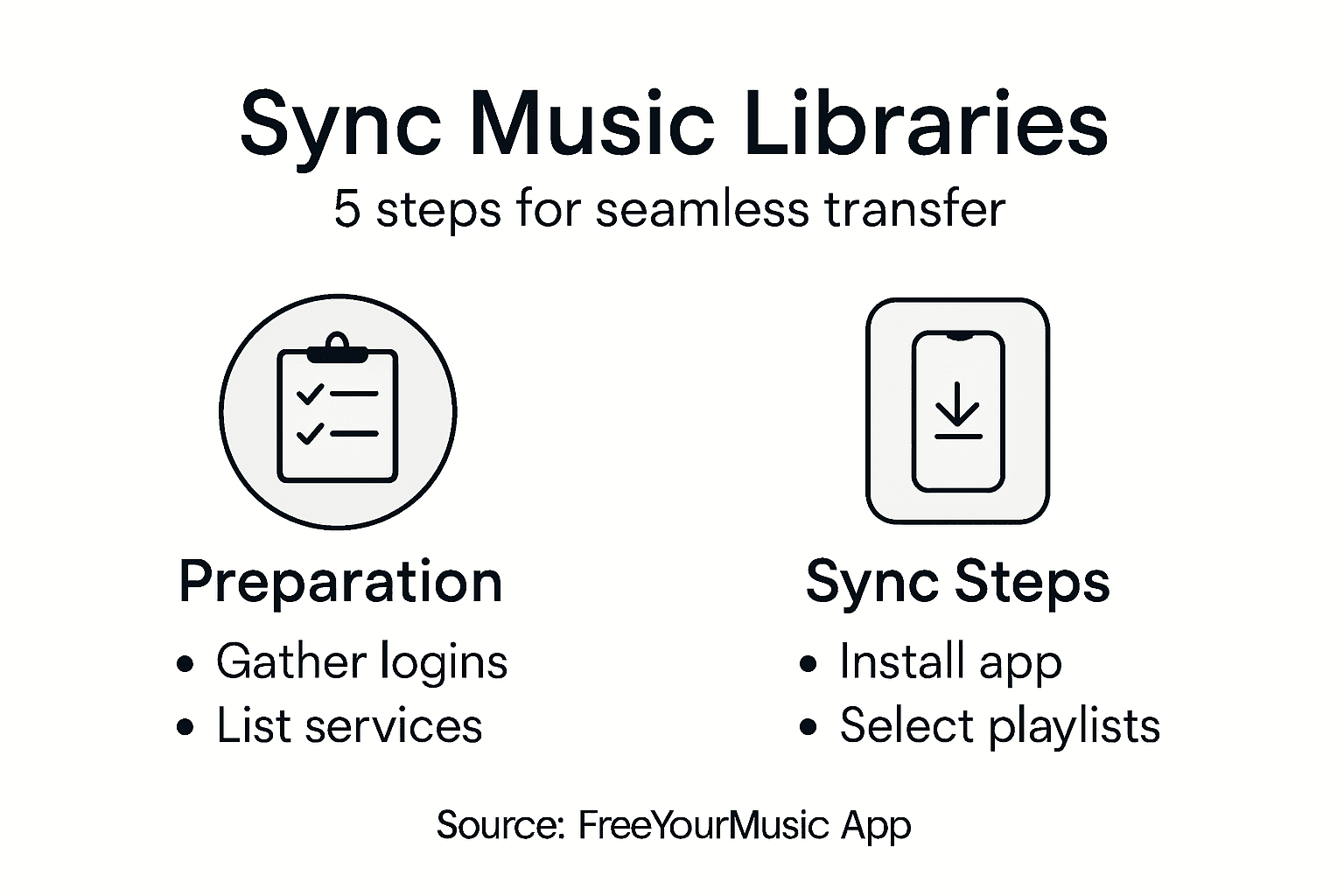
- Stap 1: Bereid je accounts en apparaten voor
- Stap 2: Installeer en open de Free Your Music-app
- Stap 3: Koppel de muziekservices van herkomst en bestemming
- Stap 4: Selecteer afspeellijsten om te synchroniseren
- Stap 5: Controleer of je bibliotheek goed is gesynchroniseerd
Kort overzicht
| Belangrijkste punt | Uitleg |
|---|---|
| 1. Controleer de toegang tot je accounts | Zorg dat je inloggegevens voor alle streamingdiensten kloppen en werken om problemen tijdens het overzetten te voorkomen. |
| 2. Gebruik de Free Your Music-app | Download de Free Your Music-app om afspeellijsten eenvoudig tussen platforms over te zetten. |
| 3. Koppel je streamingaccounts | Koppel in de app het muziekaccount waarvan je wilt overzetten en het account waar je muziek naartoe moet, en geef de benodigde toestemming voor de gegevensoverdracht. |
| 4. Selecteer de gewenste afspeellijsten | Kies zorgvuldig welke afspeellijsten je wilt overzetten, zodat je alleen de muziek meeneemt die je wilt behouden. |
| 5. Controleer of alles goed is overgezet | Controleer na het overzetten op beide platforms of je afspeellijsten kloppen en compleet zijn, zodat je muziekcollectie intact blijft. |
Stap 1: Bereid je accounts en apparaten voor
Je accounts bij muziekstreamingdiensten voorbereiden is de eerste belangrijke stap om je muziekbibliotheek succesvol over te zetten. Controleer of je volledige toegang hebt tot alle accounts waarvan je afspeellijsten wilt overzetten en of ze goed werken.
Verzamel eerst je inloggegevens voor elke streamingdienst. Open elk platform en controleer of je toegang hebt tot je volledige muziekbibliotheek. Kijk daarbij of alle afspeellijsten zichtbaar zijn en of je ze kunt afspelen. Controleer de toegang tot je accounts voordat je begint met overzetten om mogelijk verlies van inhoud te voorkomen. Let vooral op accounts die je al een tijd niet hebt gebruikt: misschien ben je de inloggegevens vergeten of zijn ze verlopen.
Heb je meerdere accounts op één platform of gebruik je verschillende e-mailadressen voor muziekdiensten? Neem dan extra tijd om deze inloggegevens te verzamelen en te ordenen. Als alles klaarstaat, verloopt het overzetten van je afspeellijsten soepeler en verklein je de kans op problemen onderweg.
Praktische tip: Gebruik een veilige digitale wachtwoordmanager of een beveiligde spreadsheet om de inloggegevens van je muziekstreamingaccounts bij te houden. Zo kun je ze tijdens het overzetten gemakkelijk terugvinden.
Hieronder vind je een overzicht van veelvoorkomende problemen en oplossingen bij het voorbereiden van je muziekstreamingaccounts:
| Probleem | Oorzaak | Oplossing |
|---|---|---|
| Inloggegevens vergeten | Het account wordt weinig gebruikt | Bewaar de gegevens in een wachtwoordmanager |
| Wachtwoord verlopen | Lange tijd niet ingelogd of het wachtwoord niet gewijzigd | Stel vóór het overzetten een nieuw wachtwoord in |
| Verwarring door meerdere accounts | Verschillende e-mailadressen voor verschillende platforms | Houd zorgvuldig bij welk e-mailadres bij welke dienst hoort |
| Geen toegang tot het account | Verbindingsproblemen of verouderde gegevens | Test elk account voordat je begint met overzetten |
Stap 2: Installeer en open de Free Your Music-app
Nu je accounts klaar zijn, kun je de Free Your Music-app downloaden en installeren. Met deze stap maak je het jezelf gemakkelijk om je muziekbibliotheken tussen verschillende streamingplatforms over te zetten.
Download de app via de officiële website en kies de versie die geschikt is voor je besturingssysteem: Windows, macOS, Android of iOS. De installatie is eenvoudig en duurt voor de meeste gebruikers maar een paar minuten. Open na het downloaden het installatieprogramma en volg de instructies op het scherm om de installatie af te ronden.
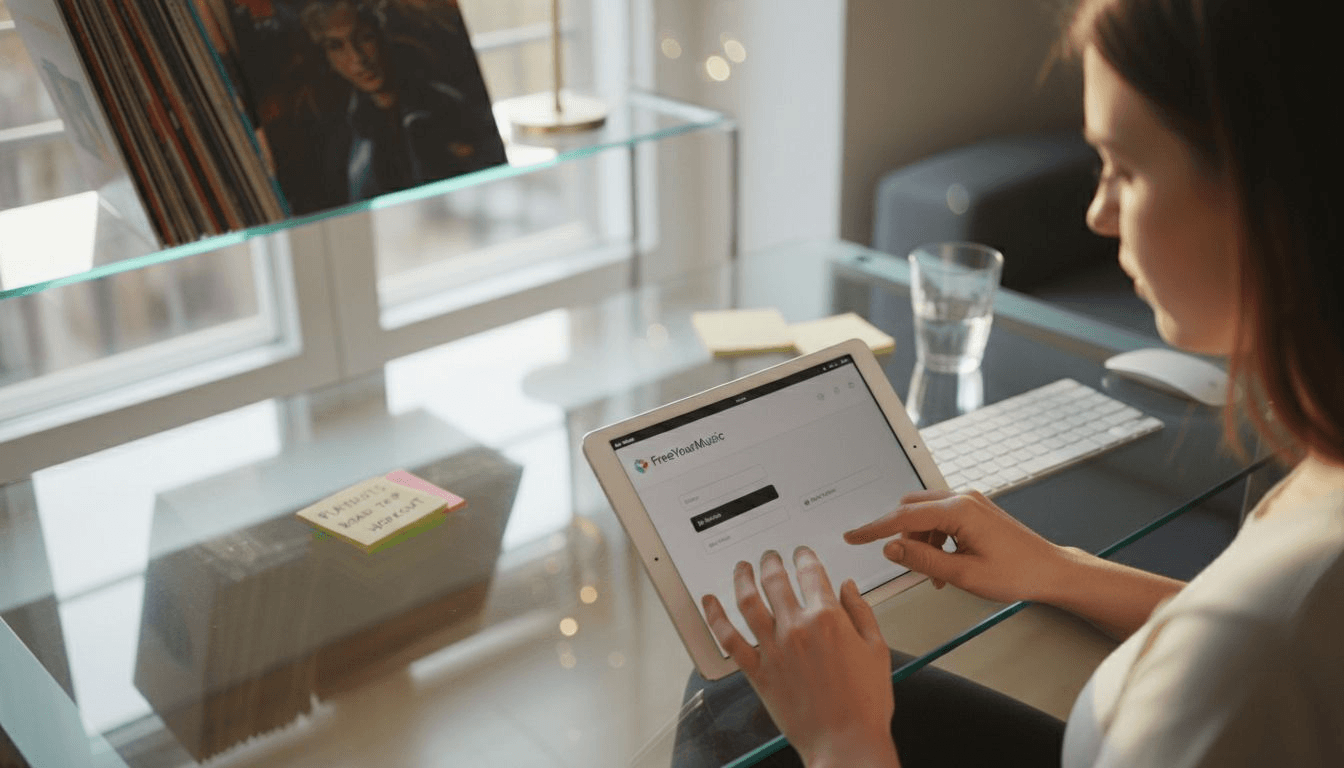
Open na de installatie de Free Your Music-app en log in met de gegevens van de streamingdiensten waartussen je afspeellijsten wilt overzetten. Neem even de tijd om de interface te verkennen en zoek het onderdeel voor het overzetten van afspeellijsten. De app is intuïtief opgezet, zodat je met een paar klikken kunt kiezen van welk streamingplatform je muziek wilt overzetten en waar die naartoe moet.
Praktische tip: Maak een back-up van je bestaande afspeellijsten voordat je grote hoeveelheden muziek overzet. Zo heb je iets om op terug te vallen bij onverwachte synchronisatieproblemen.
Stap 3: Koppel de muziekservices van herkomst en bestemming
Het koppelen van de streamingdienst waar je muziek nu staat en de dienst waar die naartoe moet, is een cruciale stap bij het overzetten van je muziekbibliotheek. Hierdoor kan de Free Your Music-app je afspeellijsten soepel tussen verschillende platforms overzetten.
Zoek in de Free Your Music-app het onderdeel waar je muziekstreamingaccounts kunt koppelen. Je moet bij elke streamingdienst afzonderlijk inloggen en de benodigde toestemming geven. Meestal klik je hiervoor bij elk platform op een knop zoals 'Account koppelen' of 'Toestemming geven'. Selecteer het platform waarop je huidige afspeellijsten staan en kies vervolgens het platform waarnaar je je muziek wilt overzetten.
Let goed op tijdens het verlenen van toestemming. Bij sommige streamingdiensten moet je via de officiële website inloggen of tweestapsverificatie gebruiken. Houd je inloggegevens bij de hand en gebruik het e-mailadres of de gebruikersnaam die bij het betreffende streamingaccount hoort.
Praktische tip: Controleer je internetverbinding en meld je af bij actieve sessies op andere apparaten om mogelijke synchronisatieonderbrekingen tijdens het koppelen van accounts te voorkomen.
Stap 4: Selecteer afspeellijsten om te synchroniseren
Het kiezen van de juiste afspeellijsten is een belangrijk moment bij het overzetten van je muziekbibliotheek. Met deze stap bepaal je precies welke nummers en collecties meegaan naar je nieuwe streamingplatform.
Ga in de Free Your Music-app naar het scherm waar je afspeellijsten selecteert. Daar kun je zorgvuldig kiezen welke muziekcollecties je wilt overzetten. De meeste overdrachtstools bieden verschillende mogelijkheden, zoals het overzetten van volledige bibliotheken, specifieke afspeellijsten of zelfs afzonderlijke albums. Neem de tijd om elke afspeellijst te bekijken en controleer of je precies overzet wat je wilt. Zoek naar selectievakjes of schakelaars waarmee je specifieke afspeellijsten kunt opnemen of uitsluiten.
Houd hierbij rekening met de omvang en complexiteit van je muziekbibliotheek. Heb je honderden afspeellijsten, dan kun je voorrang geven aan de collecties die je het vaakst beluistert of die het meest voor je betekenen. Sommige gebruikers zetten het liefst alles in één keer over, terwijl anderen bewust alleen hun favoriete afspeellijsten meenemen.
Praktische tip: Maak voordat je begint een kort overzicht of een schermafbeelding van je bestaande afspeellijsten. Daarmee kun je achteraf controleren of alle gewenste muziek is overgezet.
Stap 5: Controleer of je bibliotheek goed is gesynchroniseerd
Controleren of je muziekbibliotheek succesvol is overgezet, is de laatste belangrijke stap om zeker te weten dat je afspeellijsten volledig en correct zijn meegenomen naar het andere streamingplatform.
Open zowel het oorspronkelijke streamingplatform als het nieuwe platform om de synchronisatie te controleren. Vergelijk elke overgezette afspeellijst zorgvuldig, nummer voor nummer. Controleer of de volgorde hetzelfde is gebleven, of er geen nummers ontbreken en of alle metadata, zoals albumhoezen en nummerinformatie, behouden zijn. Let vooral op ongebruikelijke tekens en speciale versies van nummers, die mogelijk niet helemaal goed worden overgezet.
Zie je tijdens het controleren verschillen? Geen paniek. De meeste tools voor muziekoverdracht bieden een optie om opnieuw te synchroniseren of fouten te herstellen. Daarmee kun je ontbrekende nummers aanvullen of synchronisatieproblemen oplossen. Het muziekaanbod kan per platform iets verschillen, waardoor niet overal precies dezelfde nummers beschikbaar zijn. In zulke gevallen moet je mogelijk zelf bepaalde nummers toevoegen of vervangen om je oorspronkelijke afspeellijst zo goed mogelijk te behouden.
Praktische tip: Sla vóór het overzetten de inhoud van je oorspronkelijke afspeellijsten op in een spreadsheet. Zo heb je een nauwkeurig overzicht waarmee je kunt controleren of je muziekbibliotheek correct is overgezet.
Deze tabel laat zien wat je moet controleren om vast te stellen of je muziekbibliotheek goed is gesynchroniseerd:
| Controlepunt | Waar let je op? | Waarom is dit belangrijk? |
|---|---|---|
| Volledigheid van afspeellijsten | Alle nummers zijn aanwezig | Voorkomen dat nummers ontbreken |
| Juiste volgorde van nummers | De nummers staan nog in dezelfde volgorde | De luisterervaring behouden |
| Consistente metadata | Albumhoezen en nummerinformatie zijn intact | Je afspeellijsten intact houden |
| Dubbele nummers of andere versies | Geen extra nummers of speciale versies | Je afspeellijsten overzichtelijk houden |
Synchroniseer je muziekbibliotheken moeiteloos met Free Your Music
Je afspeellijsten overzetten tussen streamingdiensten kan overweldigend lijken als je te maken krijgt met vergeten wachtwoorden, meerdere accounts en de wens om alles perfect te synchroniseren. Dit artikel bespreekt de uitdagingen bij het voorbereiden van accounts, het koppelen van platforms, het selecteren van afspeellijsten en het controleren van de overdracht. Bij al deze belangrijke stappen kunnen fouten leiden tot verloren of onvolledige muziekcollecties. Of je nu de volgorde van je afspeellijsten wilt behouden of wilt voorkomen dat je ze handmatig opnieuw moet opbouwen, deze knelpunten vragen om een soepelere oplossing.
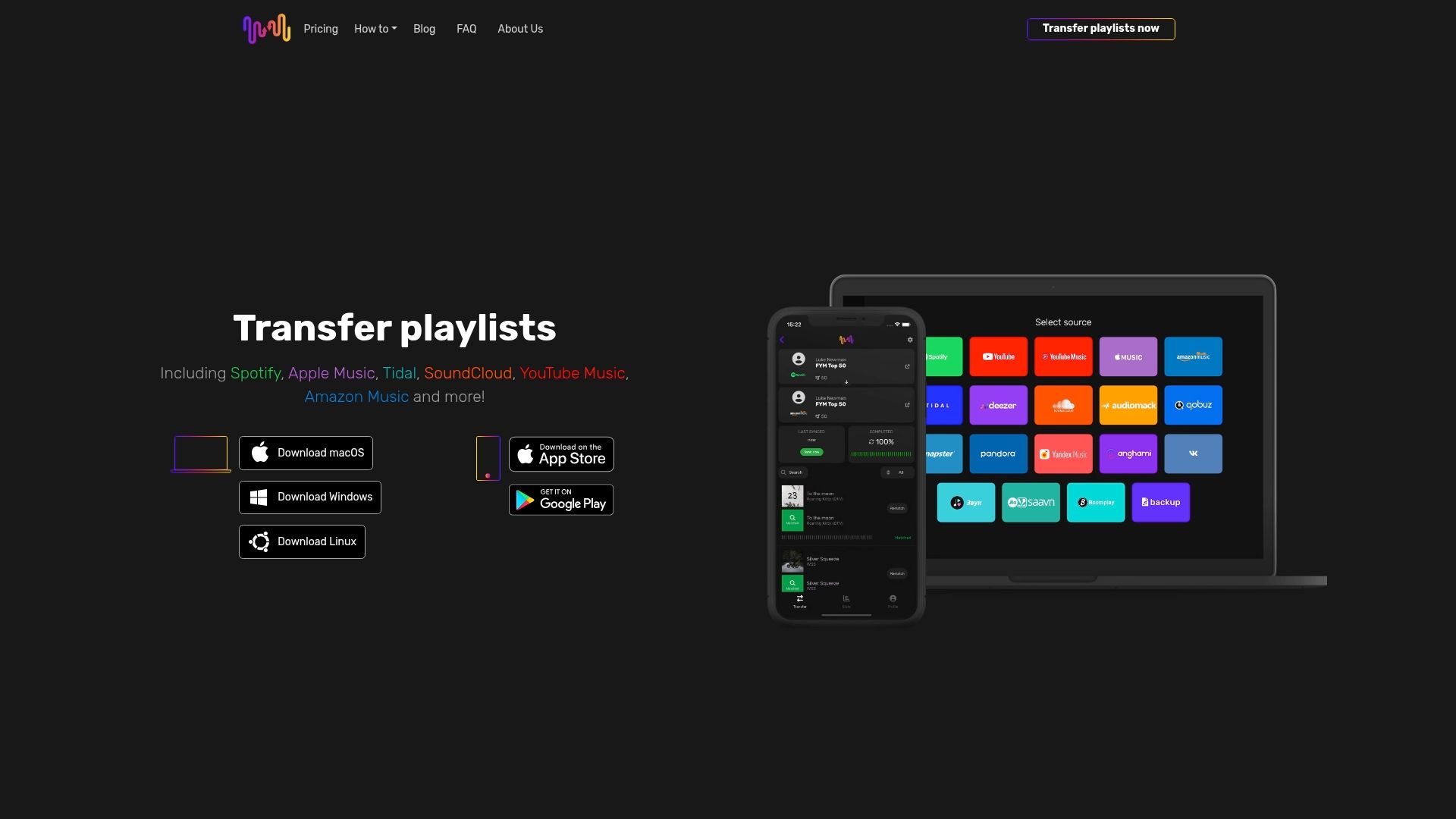
Ontdek hoe eenvoudig muziek overzetten kan zijn met Free Your Music. Onze gebruiksvriendelijke app ondersteunt alle grote streamingplatforms, zoals Spotify, Apple Music en Amazon Music, en werkt op Windows, macOS, Android en iOS. Profiteer van nauwkeurige nummerherkenning bij het overzetten van afspeellijsten, behoud van de nummervolgorde en onbeperkte overdrachten zonder gedoe. Je hoeft je afspeellijsten niet meer handmatig opnieuw aan te maken: overstappen gaat efficiënt, veilig en betrouwbaar. Wacht niet tot je afspeellijsten niet meer overeenkomen of je geen toegang meer hebt tot je accounts. Begin vandaag nog met het overzetten van je muziekbibliotheek via Free Your Music en blijf ongestoord luisteren, waar je ook bent.
Wil je meer weten over hoe je afspeellijsten snel kunt synchroniseren en overzetten? Ontdek onze oplossingen voor het synchroniseren van afspeellijsten en onze mogelijkheden om muziek tussen meerdere accounts over te zetten, allemaal bedoeld om het jou gemakkelijker te maken.
Veelgestelde vragen
Hoe bereid ik mijn muziekstreamingaccounts voor op het overzetten?
Verzamel de inloggegevens voor al je muziekdiensten en controleer of je toegang hebt tot je volledige muziekbibliotheek. Zorg dat alle afspeellijsten zichtbaar en afspeelbaar zijn voordat je begint met overzetten.
Welke stappen moet ik volgen om de Free Your Music-app te installeren?
Download de Free Your Music-app via de officiële website en kies de versie die geschikt is voor je besturingssysteem. Open het installatieprogramma en volg de instructies op het scherm om de installatie binnen een paar minuten af te ronden.
Hoe koppel ik mijn streamingaccounts in de Free Your Music-app?
Ga in de Free Your Music-app naar het onderdeel voor het koppelen van accounts, log in bij elke muziekdienst en geef de benodigde toestemming. Klik voor elk platform op de knop 'Account koppelen' of 'Toestemming geven' om het account van herkomst en het bestemmingsaccount te koppelen.
Waar moet ik op letten bij het selecteren van afspeellijsten om te synchroniseren?
Bekijk je muziekbibliotheek en geef voorrang aan de afspeellijsten die je wilt overzetten. Je kunt volledige bibliotheken, specifieke afspeellijsten of afzonderlijke albums meenemen, dus bedenk wat voor jou het belangrijkst is.
Hoe controleer ik of mijn muziekbibliotheek goed is gesynchroniseerd?
Controleer op zowel het oorspronkelijke als het nieuwe platform of alles compleet is en klopt. Vergelijk de overgezette afspeellijsten nummer voor nummer en kijk of er geen nummers ontbreken en of de volgorde en metadata behouden zijn.
Wat moet ik doen als ik na het synchroniseren van mijn muziekbibliotheek verschillen zie?
Zie je na het synchroniseren verschillen? Geen paniek: de meeste tools bieden een optie om opnieuw te synchroniseren en ontbrekende nummers aan te vullen. Als het muziekaanbod tussen platforms verschilt, moet je bepaalde nummers mogelijk handmatig toevoegen.
Aanbevolen
- Free Your Music - Muziekbibliotheken synchroniseren uitgelegd: moeiteloos afspeellijsten overzetten
- Free Your Music - Waarom muziek streamen? De uitgebreide uitleg
- Free Your Music - Waarom muziek streamen? De uitgebreide uitleg
- Free Your Music - 7 voorbeelden van muziekstreamingplatforms die je moet kennen
Jouw afspeellijsten zijn van jou.
Stop met handmatig opnieuw opbouwen. Verplaats alles in minuten en neem je muziek overal mee naartoe.
Gratis downloaden →SongsBrew — onze gratis muzieknieuwsbrief
Een gratis extraatje voor FYM-gebruikers. Tips, afspeellijsten, geen spam.