How to Use Spotify Web Player: Your Full Guide
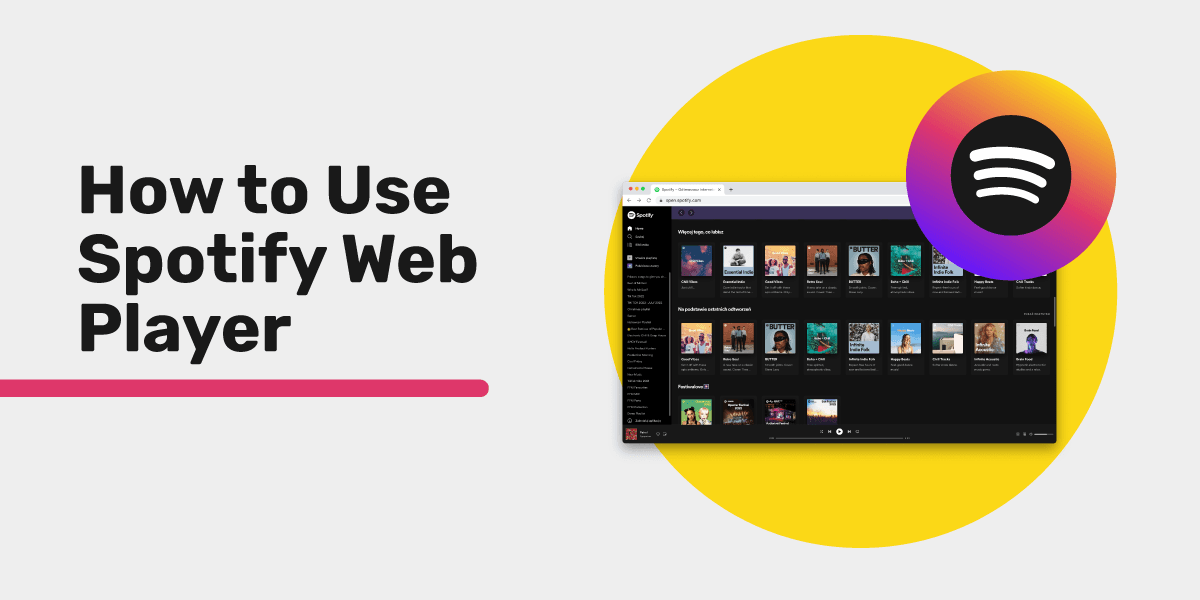
The Spotify Web Player lets you stream music, manage playlists, and explore podcasts right in your browser. No downloads, no installs. Just open open.spotify.com, log in, and start listening from any computer with an internet connection.
Whether you use a shared work computer, a Chromebook, or a lightweight laptop, the web player puts your full Spotify library inside a browser tab. This guide covers everything you need to know about the Spotify Web Player in 2026, from setup and features to troubleshooting and playlist management.
What Is Spotify Web Player?
Spotify Web Player is a browser-based version of Spotify that streams your entire music library online. It works with both free and Premium accounts. You get access to songs, playlists, podcasts, and audiobooks without installing anything on your device.
The Spotify Web Player mirrors the desktop app interface, so it feels familiar if you already use Spotify. It runs on Chrome, Firefox, Edge, Safari, and Opera. Free accounts include ads between songs, while Premium removes ads and increases audio quality up to 256 kbps. One thing to know: Spotify's lossless audio (added for Premium subscribers in late 2025) is not supported in the web player. It only works in the desktop and mobile apps. The web player also works as a Progressive Web App (PWA), so you can install it as a desktop shortcut that opens in its own window.
How to Access Spotify Web Player in 2026
You can start streaming in under a minute. Open any modern browser, visit open.spotify.com, and log in with your Spotify account. Both free and Premium users get instant access to their full library, playlists, and personalized recommendations.
On Desktop (Windows, Mac)
- Open Chrome, Firefox, Edge, Safari, or Opera.
- Go to open.spotify.com.
- Click Log In in the top right corner.
- Enter your Spotify credentials, or sign in with Google, Facebook, or Apple.
- Your Home screen loads with personalized recommendations.
No account yet? Click Sign Up to create one for free and start streaming right away.
Tip: Bookmark open.spotify.com for one-click access. You can also install it as a PWA: in Chrome or Edge, click the three-dot menu, select More Tools, then Create Shortcut. Check "Open as Window" and the web player launches like a standalone app.
On Chromebook
Chromebooks work great with the Spotify Web Player since Chrome OS is built around browser-based apps.
- Open Chrome (your default browser).
- Navigate to open.spotify.com.
- Log in with your Spotify account.
- For a native-app feel, install it as a PWA: click the install icon in the address bar or use the three-dot menu and select Install Spotify.
The PWA appears in your app launcher and shelf, just like any other Chrome OS app.
On Linux
- Open your preferred browser (Chrome or Firefox work best).
- Go to open.spotify.com.
- Log in and start listening.
While Spotify offers a Linux desktop client via Snap or the official repository, the web player is a lighter alternative. It skips installation entirely and always runs the latest version.
Spotify Web Player Features vs Desktop App
The web player handles everyday listening perfectly. The desktop app adds offline downloads, lossless audio, and local file playback. Here is a side-by-side breakdown to help you decide which version fits your needs.
| Feature | Web Player | Desktop App |
|---|---|---|
| Stream music and podcasts | Yes | Yes |
| Create and edit playlists | Yes | Yes |
| Spotify Connect | Yes | Yes |
| Keyboard shortcuts | Yes | Yes |
| Offline listening | No | Yes (Premium) |
| Max audio quality | Up to 256 kbps (AAC) | Lossless, up to 24-bit/44.1 kHz FLAC (Premium) |
| Equalizer | No | Yes |
| Local file playback | No | Yes |
| Requires installation | No | Yes |
| Works on any OS with a browser | Yes | Limited to supported OS |
| PWA support | Yes | N/A |
| Lyrics display | Yes | Yes |
| Collaborative playlists | Yes | Yes |
| AI DJ feature | No | Yes (Premium) |
The web player covers most daily listening needs. Choose the desktop app if you need offline downloads, lossless audio, the equalizer, or AI DJ.
If you are considering Spotify Premium for extra features, check out our breakdown of how much Spotify Premium costs across different plans and regions.
Spotify Web Player Keyboard Shortcuts
Speed up your listening with these built-in keyboard shortcuts. They work whenever the web player tab is active.
| Action | Windows / Linux | Mac |
|---|---|---|
| Play / Pause | Space | Space |
| Next track | Ctrl + Right Arrow | Cmd + Right Arrow |
| Previous track | Ctrl + Left Arrow | Cmd + Left Arrow |
| Volume up | Ctrl + Up Arrow | Cmd + Up Arrow |
| Volume down | Ctrl + Down Arrow | Cmd + Down Arrow |
| Quick search | Ctrl + K | Cmd + K |
| Like current song | Alt + Shift + B | Option + Shift + B |
| Go to Now Playing | Alt + Shift + J | Option + Shift + J |
| Show all shortcuts | Ctrl + ? | Cmd + ? |
| Toggle full-screen mode | F11 | Cmd + Ctrl + F |
One browser-specific caveat: shortcuts that the browser already claims may not reach the web player. Ctrl + S (shuffle in the desktop app) triggers your browser's save dialog, and Ctrl + R reloads the page, so use the on-screen shuffle and repeat buttons instead. Press Ctrl + ? (Cmd + ? on Mac) inside the player to see the full list of shortcuts that work in your setup.
Most modern keyboards with dedicated media keys also work with the web player. Your play/pause and skip buttons send media key events through the browser automatically.
Pro tip: If you install the web player as a PWA, keyboard shortcuts work even more reliably since the PWA runs in its own window without competing browser shortcuts.
Troubleshooting Spotify Web Player Issues
The Spotify Web Player works smoothly most of the time, but browser settings, extensions, or network issues can cause problems. Below you will find fixes for every common issue, organized by symptom so you can jump straight to your problem.
Spotify Web Player Not Working (Blank Screen or Won't Load)
A blank page or loading spinner usually points to cached data, browser extensions, or an outdated browser.
- Hard refresh the page. Press Ctrl + Shift + R (Cmd + Shift + R on Mac) to bypass cached files.
- Clear your browser cache. Go to your browser settings and clear cached images and files from the last 24 hours. This forces the web player to load fresh resources.
- Open in an incognito/private window. If the player works in private browsing, a browser extension is likely causing the issue.
- Disable ad blockers and privacy extensions. Extensions like uBlock Origin, Privacy Badger, or Ghostery can block scripts the web player needs. Whitelist open.spotify.com in your ad blocker settings.
- Try a different browser. If it works in Chrome but not Firefox, the issue is browser-specific. This helps narrow down the cause.
- Update your browser. Make sure you run the latest version. Outdated browsers may lack security patches or features Spotify requires.
- Check Spotify's status page. Visit the official Spotify status page to see if there is an active outage affecting the web player.
Playback Errors, Buffering, and Audio Drops
Choppy audio or frequent pauses usually come from a slow connection or overloaded browser.
- Run a speed test. Spotify recommends at least 0.5 Mbps, but 1-2 Mbps gives a smoother experience.
- Close unused tabs. Each open tab uses memory and can slow down audio streaming. Keep your tab count low during playback.
- Switch Wi-Fi bands. If your router supports both 2.4 GHz and 5 GHz, connect to the 5 GHz band for lower latency and higher speeds.
- Disable hardware acceleration. In Chrome, go to Settings > System and toggle off "Use hardware acceleration when available." Restart the browser. This fixes audio glitches on some systems.
- Lower streaming quality. Click the gear icon in the web player, go to Audio Quality, and select a lower setting to reduce bandwidth usage.
- Disconnect your VPN. VPNs add latency. If you use one, connect to a server closer to your actual location.
DRM "Protected Content" Error
Spotify uses Digital Rights Management (DRM) to stream licensed music. If DRM is disabled in your browser, playback fails with a "protected content" or "playback error" message.
- Chrome: Go to chrome://settings/content, find Protected Content, and toggle it on.
- Firefox: Go to about:preferences, find Digital Rights Management (DRM) Content under General, and check the box.
- Edge: DRM is on by default. If playback still fails, install the Windows Media Feature Pack (needed for Windows N/KN editions).
- Safari: DRM works out of the box on macOS 11 or later.
After enabling DRM, restart your browser completely and try again.
"Can't Play This Right Now" Error
This error appears when a track is unavailable in your region or has been removed from Spotify.
- Skip to the next song. If only one track fails, it is likely a licensing issue, not a bug.
- Check your country settings. Go to your Spotify account page at account.spotify.com, and verify your country matches your actual location.
- Log out and log back in. This refreshes your session token and fixes temporary authentication glitches.
Spotify Web Player Loads but Has No Sound
If the page loads fine but you hear nothing:
- Check your system volume and make sure your output device is correct.
- Check the volume slider in the web player (bottom-right corner). Make sure it is not muted.
- Verify the browser tab is not muted. Right-click the browser tab and look for "Unmute Tab" or "Unmute Site."
- Check Spotify Connect. Click the device icon in the playback bar. If another device is selected (like your phone), switch to "This Web Browser."
Browser Compatibility Quick Reference
| Browser | Min. Version | Audio Quality | DRM Support | PWA Install | Notes |
|---|---|---|---|---|---|
| Google Chrome | 80+ | Up to 256 kbps | Yes (built-in) | Yes | Best overall experience |
| Mozilla Firefox | 74+ | Up to 256 kbps | Yes (enable in settings) | No | Must enable DRM manually |
| Microsoft Edge | 80+ | Up to 256 kbps | Yes (built-in) | Yes | Chromium-based, very reliable |
| Apple Safari | 14+ | Up to 256 kbps | Yes (built-in) | Limited | No full PWA support |
| Opera | 67+ | Up to 256 kbps | Yes (built-in) | Yes | Chromium-based, works well |
For the best experience, always keep your browser updated to the latest version. Chrome and Edge offer the most complete feature set, including PWA installation and reliable media key support.
How to Transfer Your Spotify Playlists Anywhere
You have spent hours building the perfect playlist collection. If you want to switch services or keep a backup on another platform, you can move everything in minutes without rebuilding playlists by hand.
Free Your Music transfers your Spotify playlists, liked songs, and albums to 40+ music platforms automatically. Here is how it works:
- Go to freeyourmusic.com and download the app (or use the web version).
- Select Spotify as your source.
- Pick your destination: Apple Music, YouTube Music, Tidal, Amazon Music, Deezer, and many more.
- Choose the playlists you want to transfer.
- Hit transfer and your music moves over automatically.
Your playlists stay organized exactly as they were. No manual rebuilding, no lost songs. Free Your Music matches tracks by title, artist, and album to keep your curated collections intact.
Curious about which platforms you can move to? Check the full list of available music services.
Tips to Get the Most Out of Spotify Web Player
Make your browser listening experience even better with these practical tips.
Install the PWA for a native feel. The Progressive Web App opens in its own window, supports keyboard shortcuts, and shows up in your taskbar or dock. It feels like a desktop app without the install overhead.
Use Spotify Connect to control other devices. Click the device icon in the playback bar to switch audio output between your phone, smart speaker, or desktop app. All devices need to share the same Wi-Fi network.
Organize with playlist folders. Create playlist folders in the desktop app, and they carry over to the web player. This keeps your library manageable, especially if you have hundreds of playlists.
Try collaborative playlists. Invite friends to add songs to a shared playlist. Changes appear in real time for everyone. Great for road trip planning, party mixes, or gym playlists.
Pin your most-used playlists. Right-click any playlist in Your Library and select Pin. Pinned playlists stay at the top of your sidebar for quick access.
Use the queue for session planning. Click the queue icon next to the playback controls. Add songs, reorder them, and build out your listening session without editing a permanent playlist.
Explore free music sources too. If you want to expand your collection outside of streaming, check out our list of free music download sites for legal options. And if you are looking for alternatives to other music apps, our Musi alternatives guide has you covered.
FAQ
What is the Spotify Web Player?
Spotify Web Player is a browser-based version of Spotify that streams music, playlists, and podcasts directly in your web browser without any app installation.
Is the Spotify Web Player free?
Yes. Both free and Premium Spotify accounts can use the web player. Free users hear ads between songs, while Premium users enjoy ad-free listening and higher audio quality.
How do I log in to the Spotify Web Player?
Go to open.spotify.com and click Log In. Enter your Spotify credentials or sign in through Google, Facebook, or Apple.
Which browsers support the Spotify Web Player?
Chrome (80+), Firefox (74+), Edge (80+), Safari (14+), and Opera (67+) all support the web player. Keep your browser updated for the best performance.
Can I listen to Spotify offline with the web player?
No. The web player requires an active internet connection at all times. Offline listening is only available through the Spotify desktop and mobile apps with a Premium subscription.
Does the Spotify Web Player support lossless audio?
No. Lossless streaming (FLAC, up to 24-bit/44.1 kHz) is only available in the Spotify desktop and mobile apps and on supported Spotify Connect devices. The web player maxes out at 256 kbps AAC.
Why is my Spotify Web Player not working?
Common causes include outdated browsers, disabled DRM settings, ad blocker interference, or a weak internet connection. Try a hard refresh, clear your cache, or open the player in an incognito window. See the full troubleshooting section above for step-by-step fixes.
Can I use keyboard shortcuts in the web player?
Yes. Press Space to play/pause, Ctrl+Right Arrow (Cmd+Right Arrow on Mac) to skip tracks, and Ctrl+K (Cmd+K on Mac) to open quick search. See the full shortcut table above.
How do I install the Spotify Web Player as a desktop app?
In Chrome or Edge, open the web player, click the three-dot menu, choose More Tools, then Create Shortcut. Check "Open as Window" to launch it as a standalone app.
Can I transfer my Spotify playlists to another music service?
Yes. Use Free Your Music to move your playlists, liked songs, and albums between Spotify and 40+ other platforms in minutes.
Does the web player support Spotify Connect?
Yes. Use Spotify Connect to control playback from your phone or switch audio output to another device. Both devices need the same Wi-Fi network.
What audio quality does the Spotify Web Player support?
The web player streams at up to 256 kbps in AAC format for Premium users. Free users get a lower bitrate with ads between songs. The desktop and mobile apps go further with lossless audio up to 24-bit/44.1 kHz FLAC for Premium subscribers.
Ready to take control of your music? Transfer your playlists in minutes with Free Your Music.
Moving away from Spotify?
Stop rebuilding by hand. Move everything in minutes and take your music wherever you go.
Download free →SongsBrew — our free music newsletter
A free perk for FYM users. Tips, playlists, no spam.