YouTube Music to Spotify: How to Transfer Your Playlists in 2026
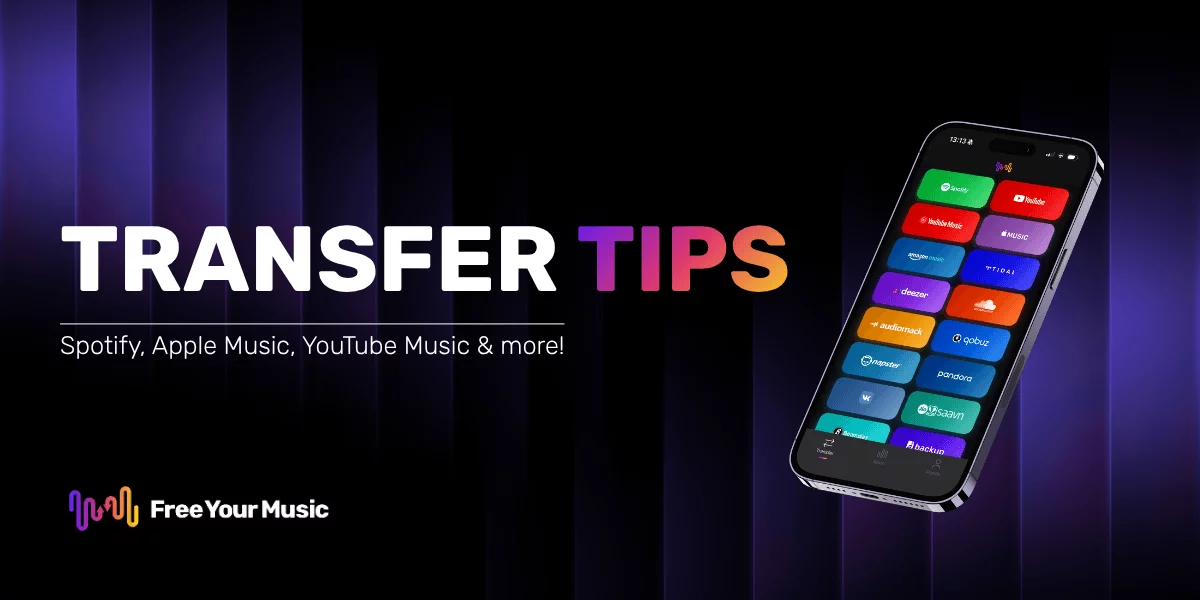
Switching from YouTube Music to Spotify is one of the most popular streaming migrations right now. Spotify's recommendation engine, cross-platform support, and social features attract millions of new users every year. But nobody wants to rebuild hundreds of playlists from scratch.
This guide walks you through the fastest way to move your YouTube Music playlists to Spotify, explains what happens to tracks that don't transfer perfectly, and shares troubleshooting tips so nothing falls through the cracks.
Why Move from YouTube Music to Spotify?
Before jumping into the transfer process, here are the most common reasons listeners make this switch:
- Better music discovery. Spotify's Discover Weekly, Release Radar, and Daily Mixes use one of the most sophisticated recommendation engines in streaming. If you enjoy finding new artists without effort, Spotify consistently outperforms YouTube Music here.
- Smoother cross-platform experience. Spotify runs natively on iOS, Android, Windows, Mac, Linux, web browsers, smart speakers, game consoles, car systems, and smart TVs. Spotify Connect lets you control playback from any device and hand off music between them instantly.
- Stronger social features. Collaborative playlists, Friend Activity, Spotify Blend, and easy sharing to social media make Spotify the most connected streaming platform available.
- Spotify Wrapped. The annual listening recap has become a cultural event. If you want to participate, you need your listening history on Spotify.
- Podcast integration. Spotify is the largest podcast platform in the world. Having music and podcasts in a single app saves time and simplifies your listening routine.
What You Need Before You Start
Gather these before beginning the transfer:
- An active YouTube Music account with the playlists you want to move.
- A Spotify account (free or Premium both work for receiving transfers).
- Free Your Music installed on your device. It runs on iPhone, Android, Windows, Mac, and Linux.
The entire process takes about five minutes, even for large libraries with thousands of songs.
Step-by-Step: Transfer YouTube Music Playlists to Spotify
Follow these steps to move your playlists:
Step 1: Open Free Your Music and Select Your Source
Launch Free Your Music on your phone or computer. On the main screen, select YouTube Music as your source platform. Sign in with the Google account linked to your YouTube Music library.
Step 2: Choose What to Transfer
Free Your Music scans your YouTube Music account and displays all your playlists, liked songs, and albums. You can:
- Select individual playlists if you only want to move specific ones.
- Select all to transfer your entire library at once.
- Pick liked songs and saved albums separately for a complete migration.
Step 3: Set Spotify as Your Destination
Choose Spotify as the destination platform. Log in with your Spotify credentials when prompted. Free Your Music needs permission to create and modify playlists on your Spotify account.
Step 4: Start the Transfer
Hit the Transfer button. Free Your Music matches each track from your YouTube Music library against Spotify's catalog. It handles differences in track naming, artist formatting, and regional availability automatically.
A progress bar shows you exactly how far along the transfer is. Most libraries finish in under five minutes.
Step 5: Review the Results
Once the transfer completes, Free Your Music shows a summary report. This report tells you:
- How many tracks transferred successfully.
- Which tracks could not be matched on Spotify.
- Any playlists that were created or updated.
Open Spotify and check your playlists. Everything should be right where you expect it.
Handling Unavailable Tracks
No transfer tool can guarantee a 100% match rate. Here is why some tracks might not make it, and what you can do about it:
Why Some Tracks Don't Transfer
- YouTube-exclusive content. YouTube Music includes user-uploaded videos, fan remixes, and live recordings that don't exist on Spotify's licensed catalog.
- Regional licensing differences. A track available on YouTube Music in one country might not be licensed for Spotify in the same region.
- Naming mismatches. Occasionally, the same song has slightly different metadata between platforms (different featured artist formatting, alternate spellings, or remix labels).
What to Do About Missing Tracks
- Check the transfer report. Free Your Music lists every unmatched track so you know exactly what's missing.
- Search manually on Spotify. Sometimes a song exists under a slightly different name or on a different album version. A quick search often finds it.
- Look for alternative versions. Live versions, acoustic versions, or remastered editions of the same song might be available on Spotify even if the exact original version is not.
- Accept YouTube-only content. Some content, like fan-made mashups or rare concert recordings, simply does not exist on licensed streaming platforms. You can keep YouTube Music installed alongside Spotify for those tracks.
Keep Your Libraries in Sync
Not ready to fully commit to Spotify? Free Your Music's auto-sync feature lets you maintain playlists across both platforms simultaneously.
Here is how it works: set up a sync connection between YouTube Music and Spotify, and any changes you make on one platform automatically appear on the other. Add a song to your Spotify playlist, and it shows up on YouTube Music. Remove a track from YouTube Music, and it disappears from Spotify too.
This is perfect if you want to test Spotify for a few weeks before deciding to switch permanently.
Troubleshooting Common Issues
"I can't sign in to YouTube Music"
Make sure you are using the correct Google account. If you have multiple Google accounts, YouTube Music might be tied to a different one than you expect. Try logging out and signing in with the right email.
"The transfer is stuck or very slow"
Large libraries with thousands of tracks take longer to process. Give it a few extra minutes. If it genuinely stalls, close and reopen Free Your Music and retry. Your progress is saved, so you will not lose completed transfers.
"Some playlists are empty after transfer"
This usually happens when a playlist contains only YouTube-exclusive content (user uploads, unlicensed videos). Check the transfer report for details on which tracks could not be matched.
"Duplicate tracks appeared on Spotify"
If you ran the transfer more than once, you might see duplicates. Free Your Music has a duplicate detection feature, but if duplicates slip through, remove them manually from the Spotify playlist or re-run the transfer with the "skip existing" option enabled.
Frequently Asked Questions
Does transferring playlists delete them from YouTube Music?
No. Free Your Music copies your playlists. Your YouTube Music library stays completely untouched.
Can I transfer liked songs, not just playlists?
Yes. Free Your Music supports transferring liked songs, saved albums, and followed artists in addition to playlists.
Do I need Spotify Premium for this?
No. A free Spotify account can receive transferred playlists. However, Spotify Free has limitations like shuffle-only playback on mobile and ads between songs.
How accurate is the track matching?
Free Your Music uses advanced matching algorithms that account for variations in metadata, spelling, and formatting. Match rates typically exceed 95% for standard licensed content.
Can I transfer playlists back to YouTube Music later?
Absolutely. Free Your Music works in both directions. If you decide to switch back, you can move everything from Spotify to YouTube Music just as easily.
Make the Switch Today
Moving from YouTube Music to Spotify does not mean starting over. With Free Your Music, your playlists, liked songs, and albums transfer in minutes. No manual rebuilding, no lost music, no frustration.
Download Free Your Music, connect your accounts, and start listening on Spotify with your full library ready to go.
Related guides:

Moving away from YouTube Music?
Stop rebuilding by hand. Move everything in minutes and take your music wherever you go.
Download free →SongsBrew — our free music newsletter
A free perk for FYM users. Tips, playlists, no spam.