 Spotify→
 Audiomack
Przenieś Spotify do Audiomack
Przenieś playlisty, polubione utwory, zapisane albumy i obserwowanych artystów z Spotify do Audiomack bez ręcznego odtwarzania czegokolwiek. Połącz oba konta, wybierz, co chcesz przenieść, a FreeYourMusic odtworzy wszystko w Audiomack z tymi samymi nazwami i kolejnością utworów.
★★★★★ 4,7 · ponad 12 mln pobrań · Hasło nigdy nie jest udostępniane


Dlaczego przenieść się z Spotify do Audiomack?
FreeYourMusic przenosi playlisty, polubione utwory, zapisane albumy i obserwowanych artystów z Spotify do Audiomack. Dopasowuje utwory jeden po drugim i pokazuje wszystko, czego nie ma w Audiomack, więc możesz to poprawić przed zmianą serwisu.
Obsługiwane transfery
Playlisty (z oryginalnymi nazwami + kolejnością), Polubione utwory / ulubione, Zapisane albumy i Obserwowani artyści
Sprawdź brakujące utwory
Katalogi muzyczne różnią się między serwisami. Sprawdź wyniki transferu, aby zobaczyć, których utworów nie udało się dopasować w serwisie docelowym.
Jak przenieść playlisty z Spotify do Audiomack
Cztery kroki. Takie same na iPhonie, Androidzie, Macu, Windowsie i Linuksie.
Krótka odpowiedź
Aby przenieść Spotify do Audiomack, zainstaluj FreeYourMusic, wybierz Spotify jako źródło i Audiomack jako cel, zaznacz wybrane playlisty i rozpocznij transfer. Aplikacja znajdzie każdy utwór w Audiomack i pokaże wszystkie utwory, których nie udało się dopasować.
- 1
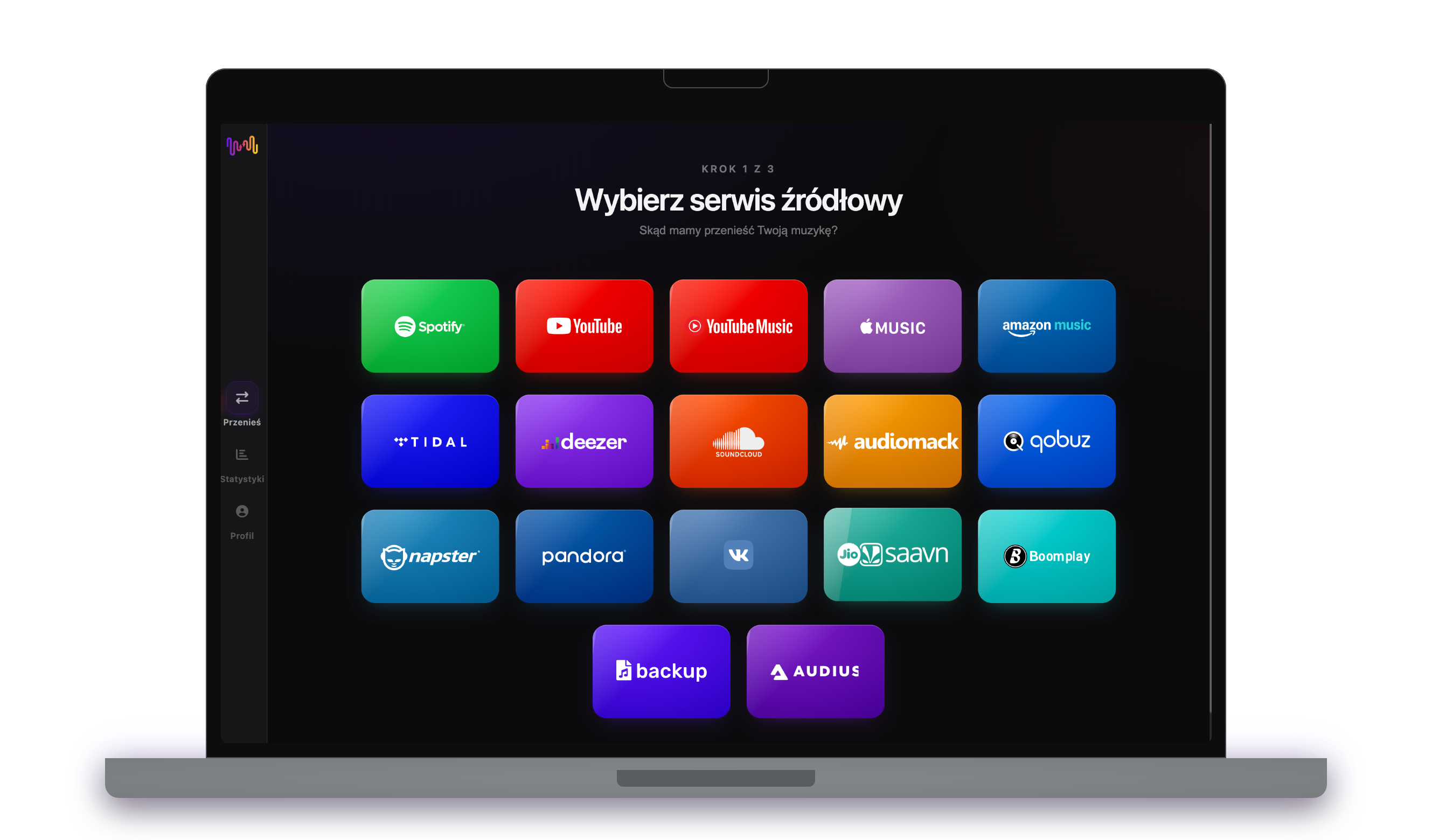
Połącz Spotify jako źródło
Otwórz FreeYourMusic, stuknij kafelek Spotify na ekranie „Wybierz serwis źródłowy” i zaloguj się na stronie logowania Spotify. FreeYourMusic nie przechowuje Twojego hasła do Spotify.
- 2
Wybierz Audiomack jako cel
Na ekranie „Wybierz serwis docelowy” stuknij Audiomack i zaloguj się. FreeYourMusic potrzebuje dostępu do Twojej biblioteki Audiomack, aby utworzyć w niej playlisty.
- 3
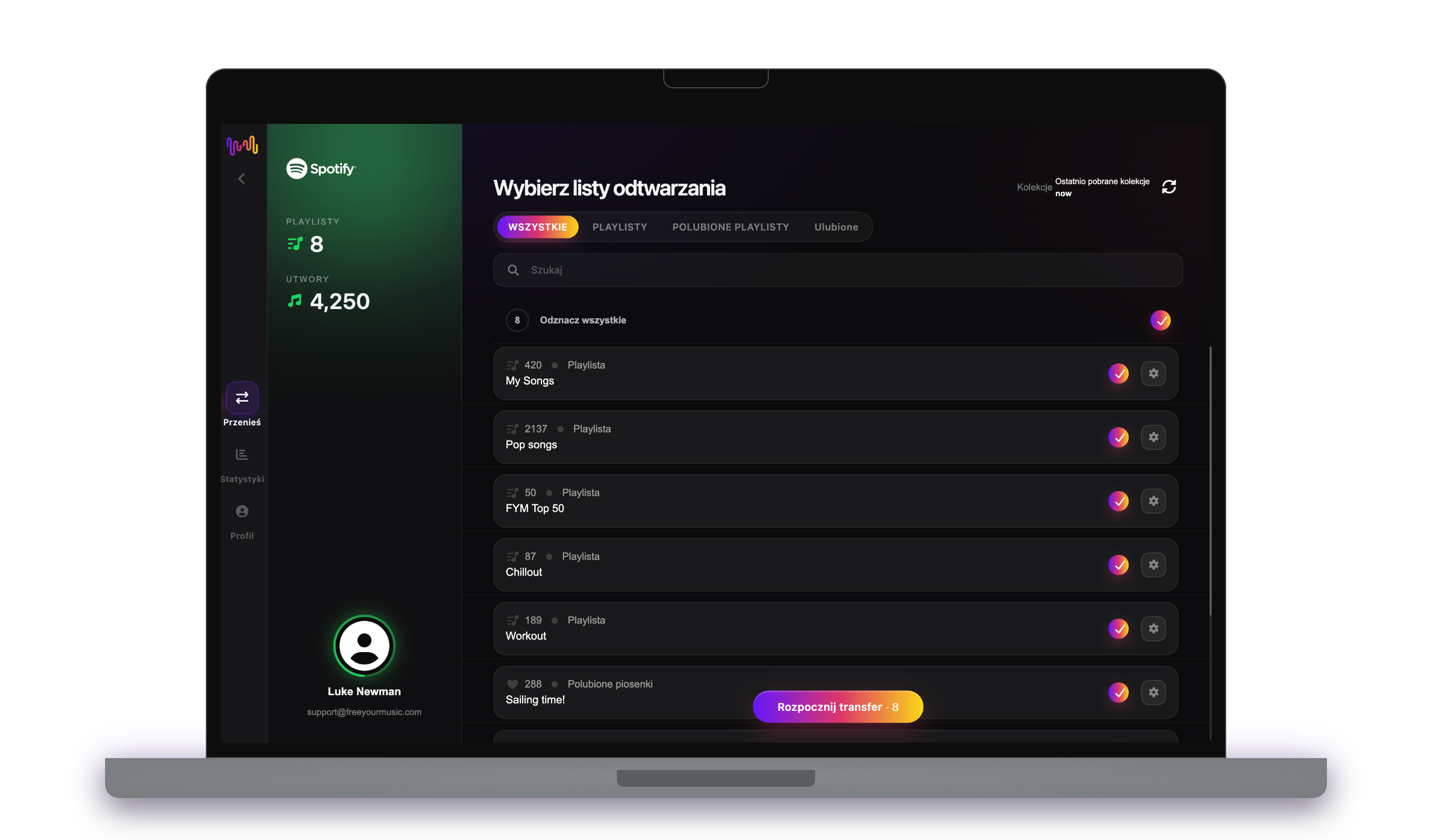
Wybierz, co przenieść
Zaznacz playlisty, które chcesz mieć w Audiomack. Użyj filtrów i wyszukiwarki, aby je znaleźć, albo zaznacz wszystko, aby przenieść całą bibliotekę Spotify za jednym razem.
- 4
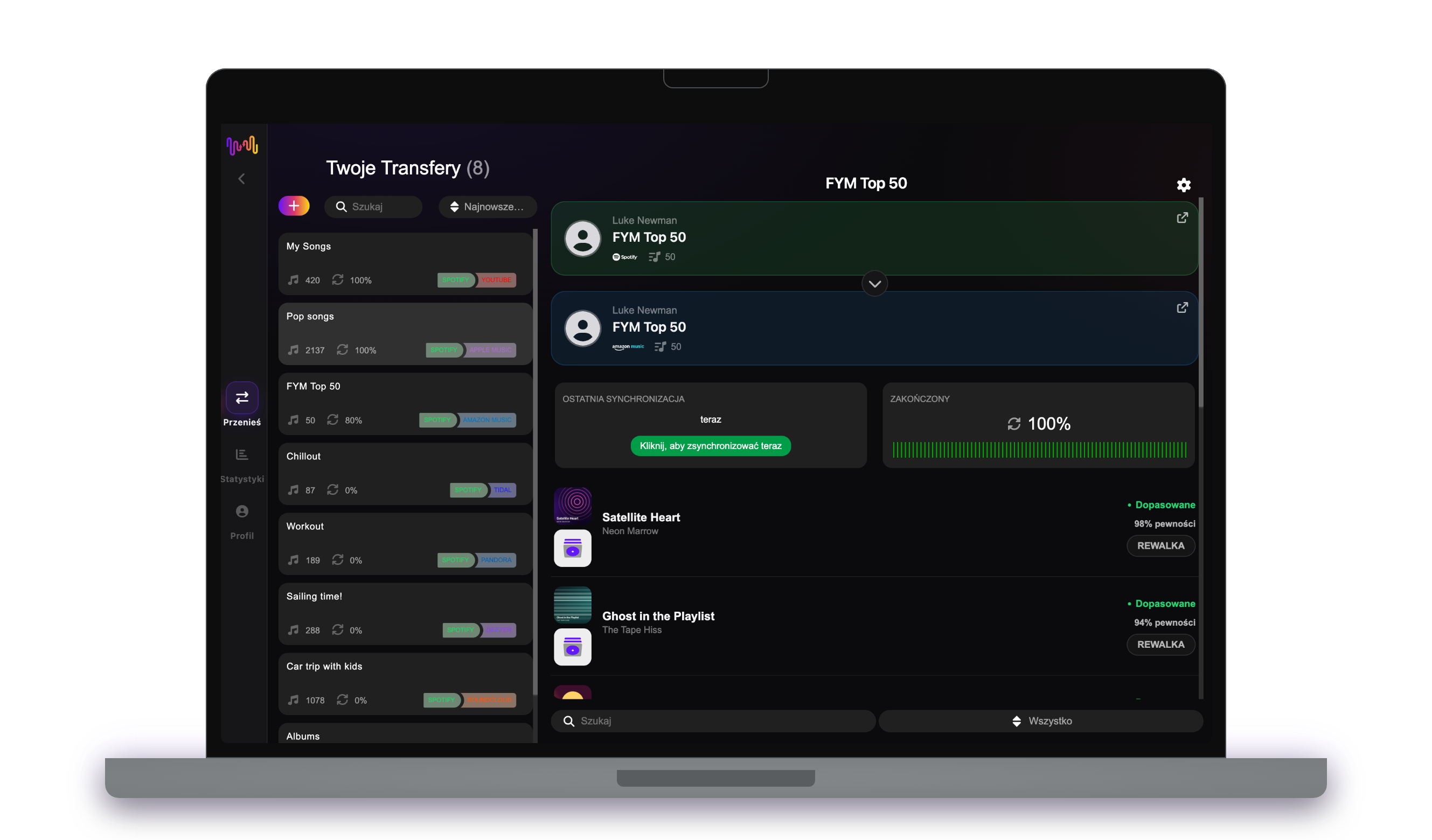
Rozpocznij transfer i sprawdź wyniki
Stuknij „Rozpocznij transfer”. FreeYourMusic dopasowuje każdy utwór w Audiomack, zachowuje nazwy playlist i kolejność utworów oraz pokazuje wskaźnik pewności dla każdego dopasowania. Użyj Rematch, aby poprawić utwory, których nie udało się znaleźć.
Dobrze wiedzieć, zanim przeniesiesz się z Spotify do Audiomack
Spotify jako źródło
Wystarczy darmowe konto Spotify. Spotify nie pozwala aplikacjom odczytywać playlist, które tworzy dla Ciebie, takich jak spersonalizowane miksy: najpierw skopiuj ich utwory do własnej playlisty.
Co przenosimy z Spotify do Audiomack
Na każdym urządzeniu
Przenieś, przekonwertuj lub zaimportuj: jeden transfer z Spotify do Audiomack
Niezależnie od tego, jak to nazwiesz, chodzi o to samo. Możesz przenieść playlisty z Spotify do Audiomack, przekonwertować playlistę Spotify na playlistę Audiomack albo zaimportować bibliotekę Spotify do Audiomack. FreeYourMusic robi wszystkie trzy rzeczy w jednym transferze, dla jednej playlisty lub dla biblioteki z tysiącami utworów.
Synchronizuj Spotify i Audiomack
Nadal dodajesz utwory w Spotify? Z Premium Auto-Sync sprawdza przeniesione playlisty i automatycznie dodaje nowe utwory do Audiomack, więc obie biblioteki pozostają takie same. Cennik →
Przenieś Spotify do innego serwisu



Zobacz wszystkie transfery z Spotify →
Przenieś do Audiomack z innego serwisu
Najczęściej zadawane pytania
Jak przenieść moją playlistę z Spotify do Audiomack?
Aby przenieść Spotify do Audiomack, zainstaluj FreeYourMusic, wybierz Spotify jako źródło i Audiomack jako cel, zaznacz wybrane playlisty i rozpocznij transfer. Aplikacja znajdzie każdy utwór w Audiomack i pokaże wszystkie utwory, których nie udało się dopasować.
Co dokładnie jest przenoszone z Spotify do Audiomack?
FreeYourMusic przenosi playlisty, polubione utwory, zapisane albumy i obserwowanych artystów z Spotify do Audiomack. Dopasowuje utwory jeden po drugim i pokazuje wszystko, czego nie ma w Audiomack, więc możesz to poprawić przed zmianą serwisu.
Czy Spotify może przenieść moje playlisty do Audiomack?
Nie. Narzędzie do importu w Spotify tylko dodaje muzykę do Spotify. Nie może wysłać Twoich playlist do innego serwisu. Aby przenieść playlisty z Spotify do Audiomack, użyj FreeYourMusic.
Czy mogę przenieść playlisty z Spotify do Audiomack za darmo?
Tak — darmowy plan przenosi 300 utworów bez karty, a po darmowej rejestracji e-mailem dostajesz 300 kolejnych. Ulepsz plan, aby uzyskać nieograniczone transfery, Auto-Sync i Cloud Backup.
Co się dzieje z utworami, których nie ma w Audiomack?
Katalogi różnią się w zależności od serwisu i regionu. FreeYourMusic wyświetla każdy utwór, którego nie udało się dopasować w Audiomack, więc możesz wybrać inną wersję za pomocą Rematch albo go pominąć. Nic nie znika bez Twojej wiedzy.
Czy moje playlisty z Spotify zostaną usunięte?
Nie. FreeYourMusic kopiuje Twoją muzykę do Audiomack i zostawia bibliotekę Spotify bez zmian. Później sam zdecydujesz, czy zachować, czy anulować konto Spotify.
Ile trwa transfer z Spotify do Audiomack?
Większość playlist przenosi się w kilka minut. Duże biblioteki wymagają więcej czasu, bo zależy on od liczby utworów i od limitów Spotify i Audiomack. W trakcie transferu możesz normalnie korzystać z urządzenia.
Czy mogę przenieść Spotify do Audiomack na telefonie?
Tak. FreeYourMusic działa na iPhonie, iPadzie i Androidzie oraz na komputerach z systemem macOS, Windows i Linux. Kroki są takie same na każdym urządzeniu.
Gotowy na przeniesienie do Audiomack?
Pobierz FreeYourMusic i przenieś całą bibliotekę w kilka minut.
Pobierz za darmo →