

Przenieś Apple Music do Spotify
Przenieś playlisty, polubione utwory i zapisane albumy z Apple Music do Spotify bez ręcznego odtwarzania czegokolwiek. Połącz oba konta, wybierz, co chcesz przenieść, a FreeYourMusic odtworzy wszystko w Spotify z tymi samymi nazwami i kolejnością utworów.
★★★★★ 4,7 · ponad 12 mln pobrań · Hasło nigdy nie jest udostępniane
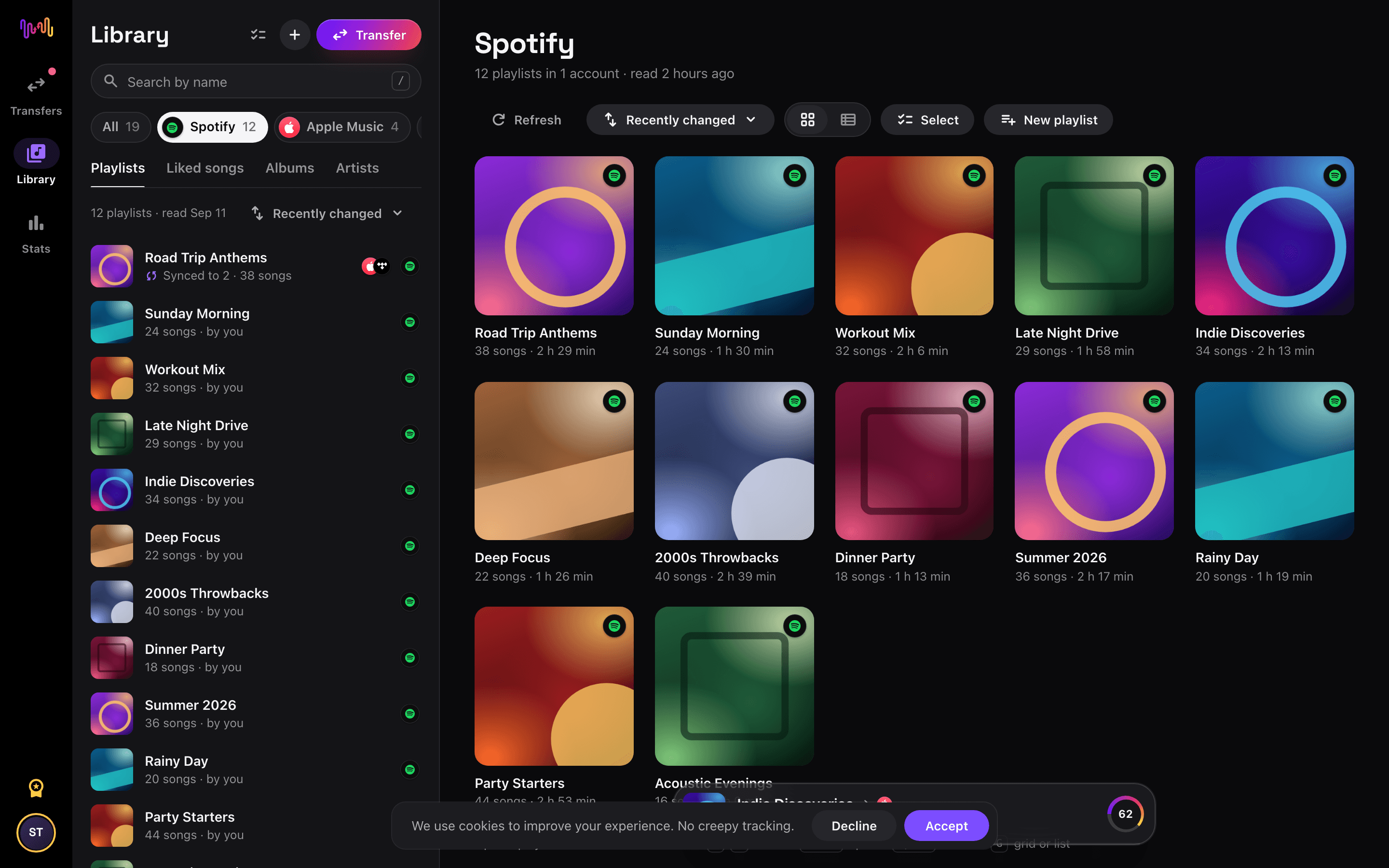
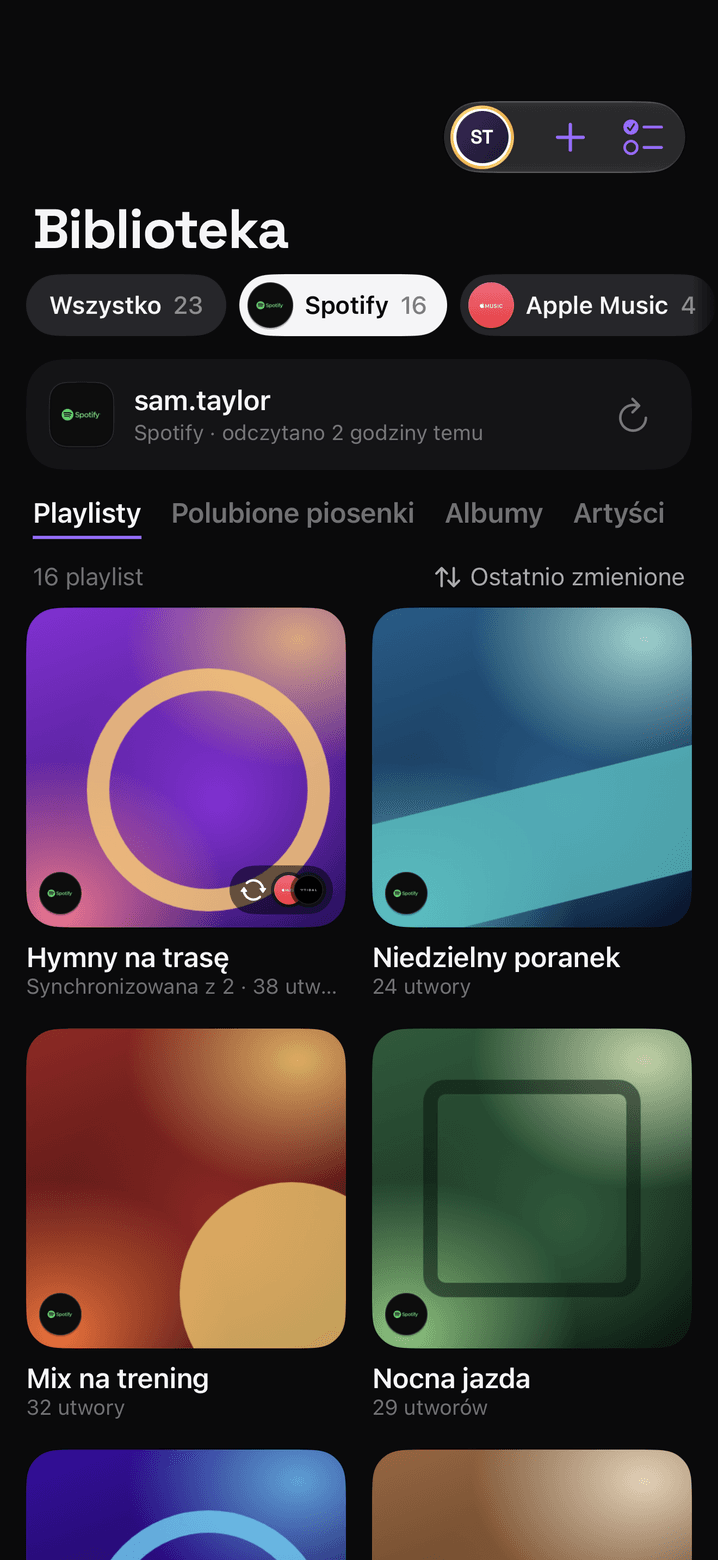
Dlaczego przenieść się z Apple Music do Spotify?
FreeYourMusic przenosi playlisty, polubione utwory i zapisane albumy z Apple Music do Spotify. Dopasowuje utwory jeden po drugim i pokazuje wszystko, czego nie ma w Spotify, więc możesz to poprawić przed zmianą serwisu.
Obsługiwane transfery
Playlisty (z oryginalnymi nazwami + kolejnością), Polubione utwory / ulubione i Zapisane albumy
Sprawdź brakujące utwory
Katalogi muzyczne różnią się między serwisami. Sprawdź wyniki transferu, aby zobaczyć, których utworów nie udało się dopasować w serwisie docelowym.
Jak przenieść playlisty z Apple Music do Spotify
Cztery kroki. Takie same na iPhonie, Androidzie, Macu, Windowsie i Linuksie.
Krótka odpowiedź
Aby przenieść Apple Music do Spotify, zainstaluj FreeYourMusic, wybierz Apple Music jako źródło i Spotify jako cel, zaznacz wybrane playlisty i rozpocznij transfer. Aplikacja znajdzie każdy utwór w Spotify i pokaże wszystkie utwory, których nie udało się dopasować.
- 1
Połącz Apple Music jako źródło
Otwórz FreeYourMusic, stuknij kafelek Apple Music na ekranie „Wybierz serwis źródłowy” i zaloguj się na stronie logowania Apple Music. FreeYourMusic nie przechowuje Twojego hasła do Apple Music.
- 2
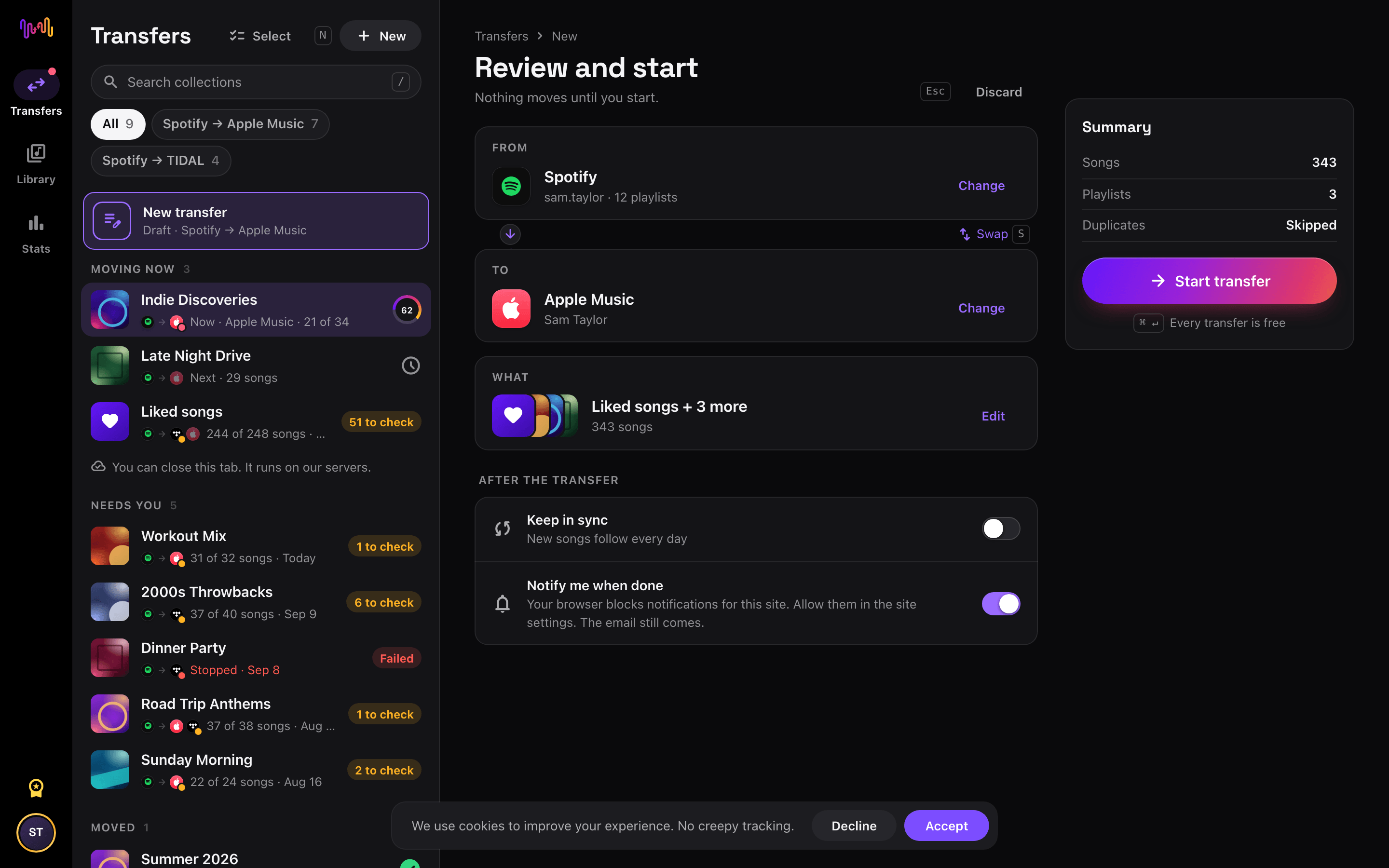
Wybierz Spotify jako cel
Na ekranie „Wybierz serwis docelowy” stuknij Spotify i zaloguj się. FreeYourMusic potrzebuje dostępu do Twojej biblioteki Spotify, aby utworzyć w niej playlisty.
- 3
Wybierz, co przenieść
Zaznacz playlisty, które chcesz mieć w Spotify. Użyj filtrów i wyszukiwarki, aby je znaleźć, albo zaznacz wszystko, aby przenieść całą bibliotekę Apple Music za jednym razem.
- 4
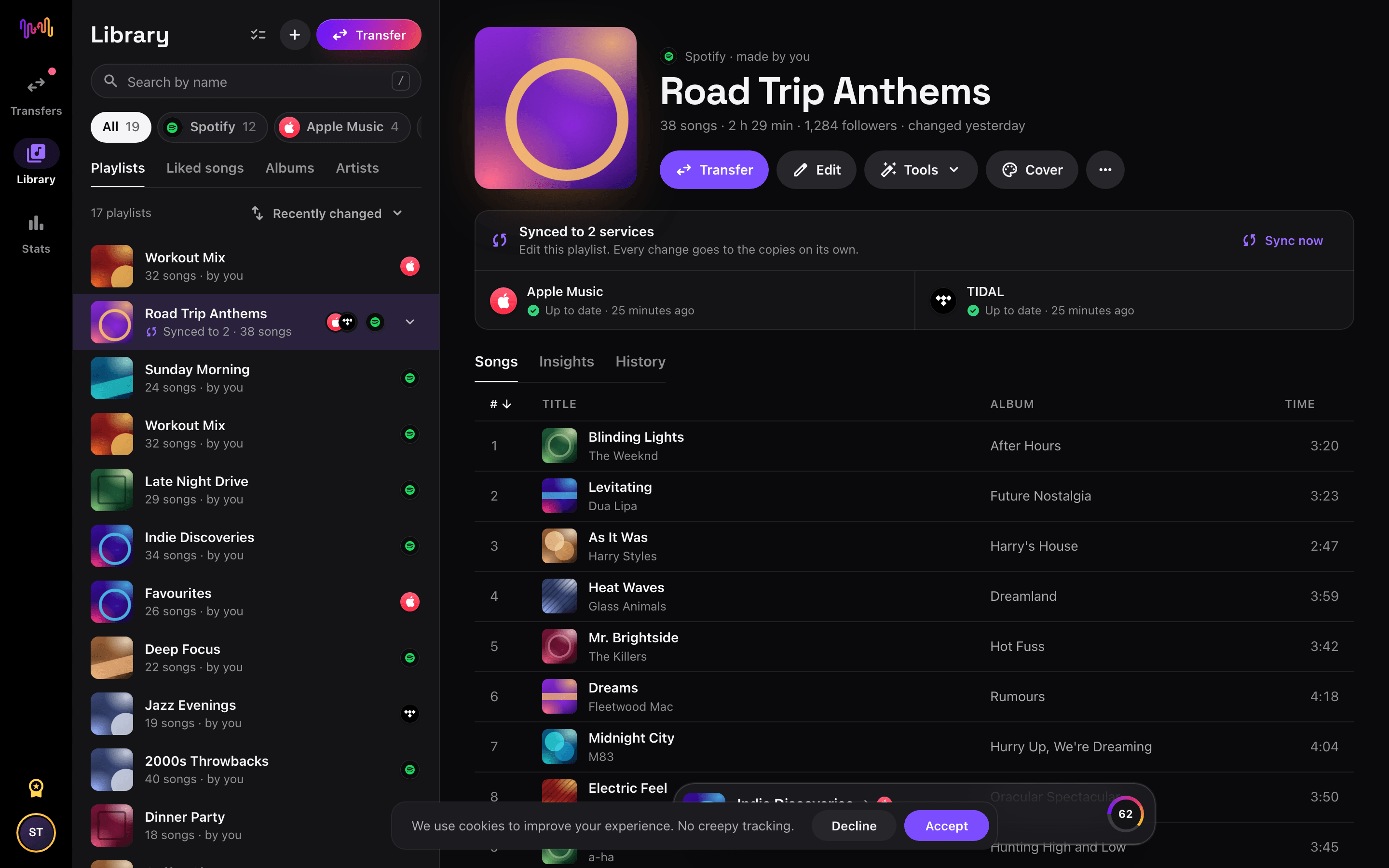
Rozpocznij transfer i sprawdź wyniki
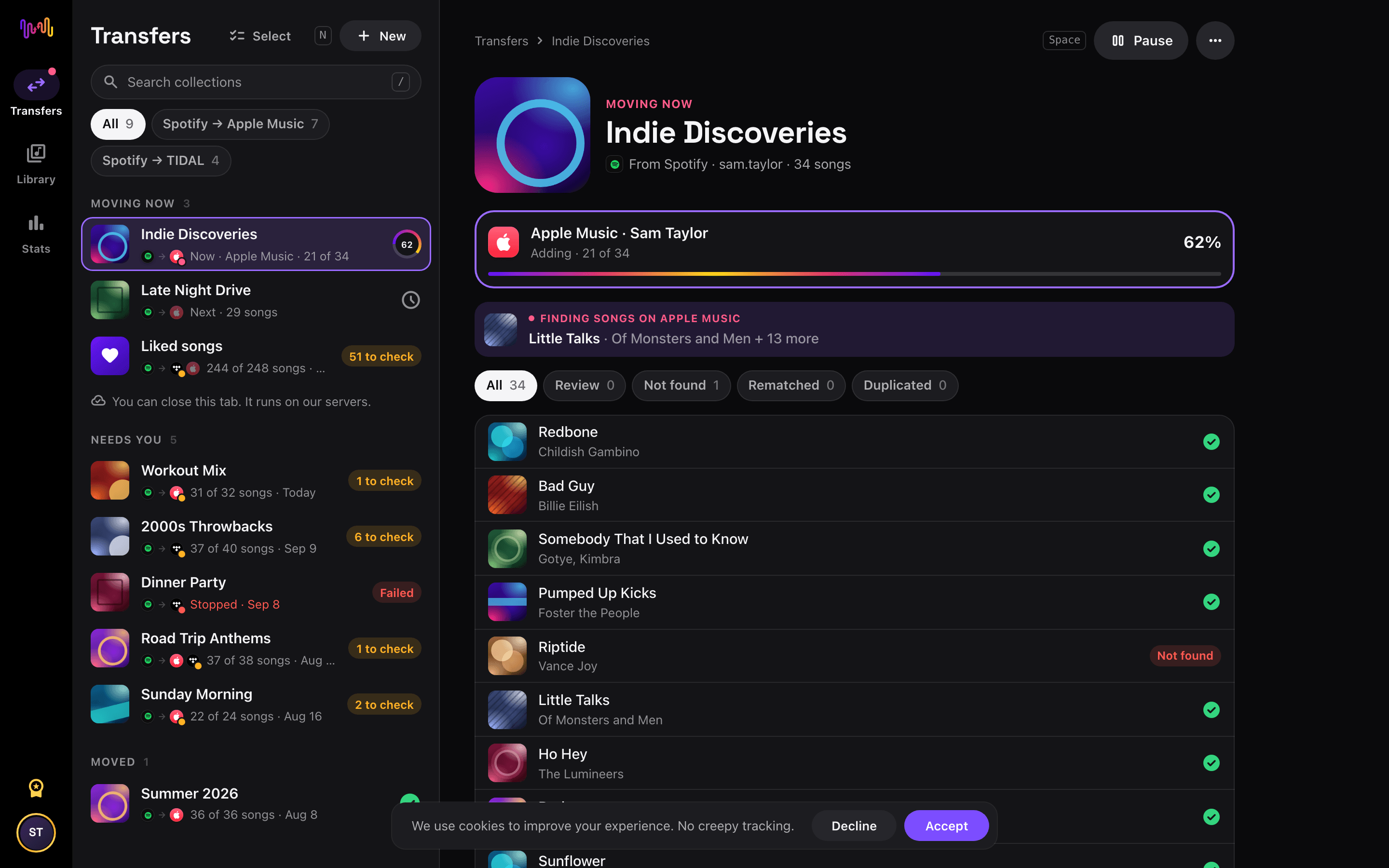
Stuknij „Rozpocznij transfer”. FreeYourMusic dopasowuje każdy utwór w Spotify, zachowuje nazwy playlist i kolejność utworów oraz pokazuje wskaźnik pewności dla każdego dopasowania. Użyj Rematch, aby poprawić utwory, których nie udało się znaleźć.
Z Apple Music do Spotify ze Skrótami Siri
Przenieś playlistę z Apple Music do Spotify z jej linku. Nie budujesz jej od nowa ręcznie.
- W Apple Music stuknij Udostępnij przy playliście, a potem Kopiuj link.
- Uruchom skrót „Przenieś link” FreeYourMusic i wybierz Spotify.
- Cała playlista trafia do Spotify. Damy znać, gdy skończymy.
Śledź przenoszenie z Apple Music do Spotify na ekranie początkowym
Rozpocznij przenoszenie, zamknij aplikację i śledź postęp na ekranie początkowym lub ekranie blokady. Widżety przenoszenia są darmowe.
- „Trwa przenoszenie” pokazuje, ile utworów jest już w Spotify.
- „Ostatnie przenoszenie” jednym dotknięciem prowadzi do utworów do sprawdzenia.
Ten transfer jest darmowy
Każdy transfer z Apple Music do Spotify jest darmowy w przeglądarce i w nowych aplikacjach na iPhone'a i Androida. Bez limitu utworów, bez karty.
Trzymaj je w synchronizacji
Używasz obu? Włącz Auto-Sync. Nowe utwory z Apple Music trafiają do Spotify raz dziennie.
Narzędzia do playlist w Apple Music
Dobrze wiedzieć, zanim przeniesiesz się z Apple Music do Spotify
Apple Music jako źródło
Niektóre funkcje wymagają aktywnej subskrypcji Apple Music. Zanim przeniesiesz inteligentne playlisty, zamień je na zwykłe playlisty w aplikacji Muzyka.
Spotify jako cel
Darmowe konto Spotify może przyjąć Twoją muzykę. Spotify wyszukuje po kodzie ISRC, więc utwory z serwisu, który udostępnia kody ISRC, są dopasowywane bardzo precyzyjnie.
Spotify ma wbudowany import. Oto czym różni się FreeYourMusic.
Mobilna aplikacja Spotify może zaimportować playlisty z Apple Music: otwórz Twoją bibliotekę i użyj funkcji importu. Import wykonuje usługa partnerska i przenosi muzykę tylko do Spotify.
| Wbudowany import Spotify | FreeYourMusic | |
|---|---|---|
| Dokąd może trafić Twoja muzyka | Tylko Spotify | Spotify i 11 innych serwisów |
| Przenoszenie między dwoma kontami Spotify | Nie | Tak |
| Synchronizacja playlist po transferze | Nie, jednorazowy import | Tak, z Auto-Sync (Premium) |
| Kopia zapasowa biblioteki | Nie | Tak, za darmo z File Backup (CSV) |
| Późniejsze odejście z Spotify | Nie | Tak, w dowolnym kierunku |
Do szybkiej, jednorazowej przeprowadzki wbudowany import może wystarczyć. Użyj FreeYourMusic, aby synchronizować serwisy, przenosić muzykę między kontami, robić kopię zapasową biblioteki lub później odejść z Spotify.
Co przenosimy z Apple Music do Spotify
Na każdym urządzeniu
Przenieś, przekonwertuj lub zaimportuj: jeden transfer z Apple Music do Spotify
Niezależnie od tego, jak to nazwiesz, chodzi o to samo. Możesz przenieść playlisty z Apple Music do Spotify, przekonwertować playlistę Apple Music na playlistę Spotify albo zaimportować bibliotekę Apple Music do Spotify. FreeYourMusic robi wszystkie trzy rzeczy w jednym transferze, dla jednej playlisty lub dla biblioteki z tysiącami utworów.
Synchronizuj Apple Music i Spotify
Nadal dodajesz utwory w Apple Music? Z Premium Auto-Sync sprawdza przeniesione playlisty i automatycznie dodaje nowe utwory do Spotify, więc obie biblioteki pozostają takie same. Cennik →
Przenieś Apple Music do innego serwisu





Zobacz wszystkie transfery z Apple Music →
Przenieś do Spotify z innego serwisu
Najczęściej zadawane pytania
Jak przenieść moją playlistę z Apple Music do Spotify?
Aby przenieść Apple Music do Spotify, zainstaluj FreeYourMusic, wybierz Apple Music jako źródło i Spotify jako cel, zaznacz wybrane playlisty i rozpocznij transfer. Aplikacja znajdzie każdy utwór w Spotify i pokaże wszystkie utwory, których nie udało się dopasować.
Co dokładnie jest przenoszone z Apple Music do Spotify?
FreeYourMusic przenosi playlisty, polubione utwory i zapisane albumy z Apple Music do Spotify. Dopasowuje utwory jeden po drugim i pokazuje wszystko, czego nie ma w Spotify, więc możesz to poprawić przed zmianą serwisu.
Spotify ma własne narzędzie do importu. Po co FreeYourMusic?
Wbudowane narzędzie jednorazowo importuje muzykę do Spotify. FreeYourMusic przenosi muzykę między 12 serwisami w dowolnym kierunku, między dwoma kontami tego samego serwisu, synchronizuje playlisty po transferze i robi kopię zapasową biblioteki.
Czy mogę przenieść playlisty z Apple Music do Spotify za darmo?
Tak. Każdy transfer z Apple Music do Spotify jest darmowy: Twoje playlisty, polubione utwory i zapisane albumy, bez limitu utworów i bez karty. Rematch też jest darmowy. Premium codziennie synchronizuje Apple Music i Spotify oraz dodaje narzędzia do playlist, statystyki playlist i wszystkie sekcje Stats.
Co się dzieje z utworami, których nie ma w Spotify?
Katalogi różnią się w zależności od serwisu i regionu. FreeYourMusic wyświetla każdy utwór, którego nie udało się dopasować w Spotify, więc możesz wybrać inną wersję za pomocą Rematch albo go pominąć. Nic nie znika bez Twojej wiedzy.
Czy moje playlisty z Apple Music zostaną usunięte?
Nie. FreeYourMusic kopiuje Twoją muzykę do Spotify i zostawia bibliotekę Apple Music bez zmian. Później sam zdecydujesz, czy zachować, czy anulować konto Apple Music.
Ile trwa transfer z Apple Music do Spotify?
Większość playlist przenosi się w kilka minut. Duże biblioteki wymagają więcej czasu, bo zależy on od liczby utworów i od limitów Apple Music i Spotify. W trakcie transferu możesz normalnie korzystać z urządzenia.
Czy mogę przenieść Apple Music do Spotify na telefonie?
Tak. FreeYourMusic działa na iPhonie, iPadzie i Androidzie oraz w przeglądarce na każdym komputerze z macOS, Windowsem lub Linuksem. Kroki są takie same na każdym urządzeniu.
Czy jest skrót z Apple Music do Spotify?
Tak. Na iPhonie skopiuj link playlisty z Apple Music i uruchom darmowy skrót „Przenieś link” FreeYourMusic. Przeniesie playlistę do Spotify. Możesz też poprosić o to Siri.
Czy mogę śledzić przenoszenie z Apple Music do Spotify na ekranie początkowym?
Tak. Dodaj darmowy widżet FreeYourMusic „Trwa przenoszenie”. Pokazuje, ile utworów jest już w Spotify, a darmowy widżet „Ostatnie przenoszenie” po zakończeniu prowadzi do utworów do sprawdzenia. Widżety działają na iPhonie i Androidzie.
Nowa muzyka do Twojej nowej biblioteki
Muzyczne perełki w każdy czwartek, za darmo. SongsBrew to nasz cotygodniowy list muzyczny: jeden temat w głąb i playlista na końcu. Ponad 25 000 czytelników.
Gotowy na przeniesienie do Spotify?
Otwórz FreeYourMusic w przeglądarce lub na telefonie i przenieś całą bibliotekę w kilka minut.
Zacznij za darmo →