 YouTube→
 Spotify
YouTube zu Spotify übertragen
Übertrage Playlists von YouTube zu Spotify, ohne etwas von Hand neu anzulegen. Verbinde beide Konten, wähle aus, was du übertragen willst, und FreeYourMusic legt alles auf Spotify mit denselben Namen und derselben Songreihenfolge neu an.
★★★★★ 4,7 · über 12 Mio. Downloads · Passwort wird nie geteilt


Warum von YouTube zu Spotify wechseln?
FreeYourMusic überträgt Playlists von YouTube zu Spotify. Die Songs werden einzeln zugeordnet, und alles, was es auf Spotify nicht gibt, wird aufgelistet – so kannst du es vor dem Wechsel korrigieren.
Unterstützte Übertragungen
Playlists (mit Originalnamen + Reihenfolge)
Fehlende Titel prüfen
Die Musikkataloge unterscheiden sich. Prüfe die Übertragungsergebnisse auf Titel, für die beim Zieldienst keine Übereinstimmung gefunden wurde.
So überträgst du Playlists von YouTube zu Spotify
Vier Schritte. Gleich auf iPhone, Android, Mac, Windows und Linux.
Kurze Antwort
Um YouTube zu Spotify zu übertragen, installiere FreeYourMusic, wähle YouTube als Quelle und Spotify als Ziel, wähle die gewünschten Playlists aus und starte die Übertragung. Die App sucht jeden Song auf Spotify und listet alle Titel auf, die sie nicht zuordnen konnte.
- 1
YouTube als Quelle verbinden
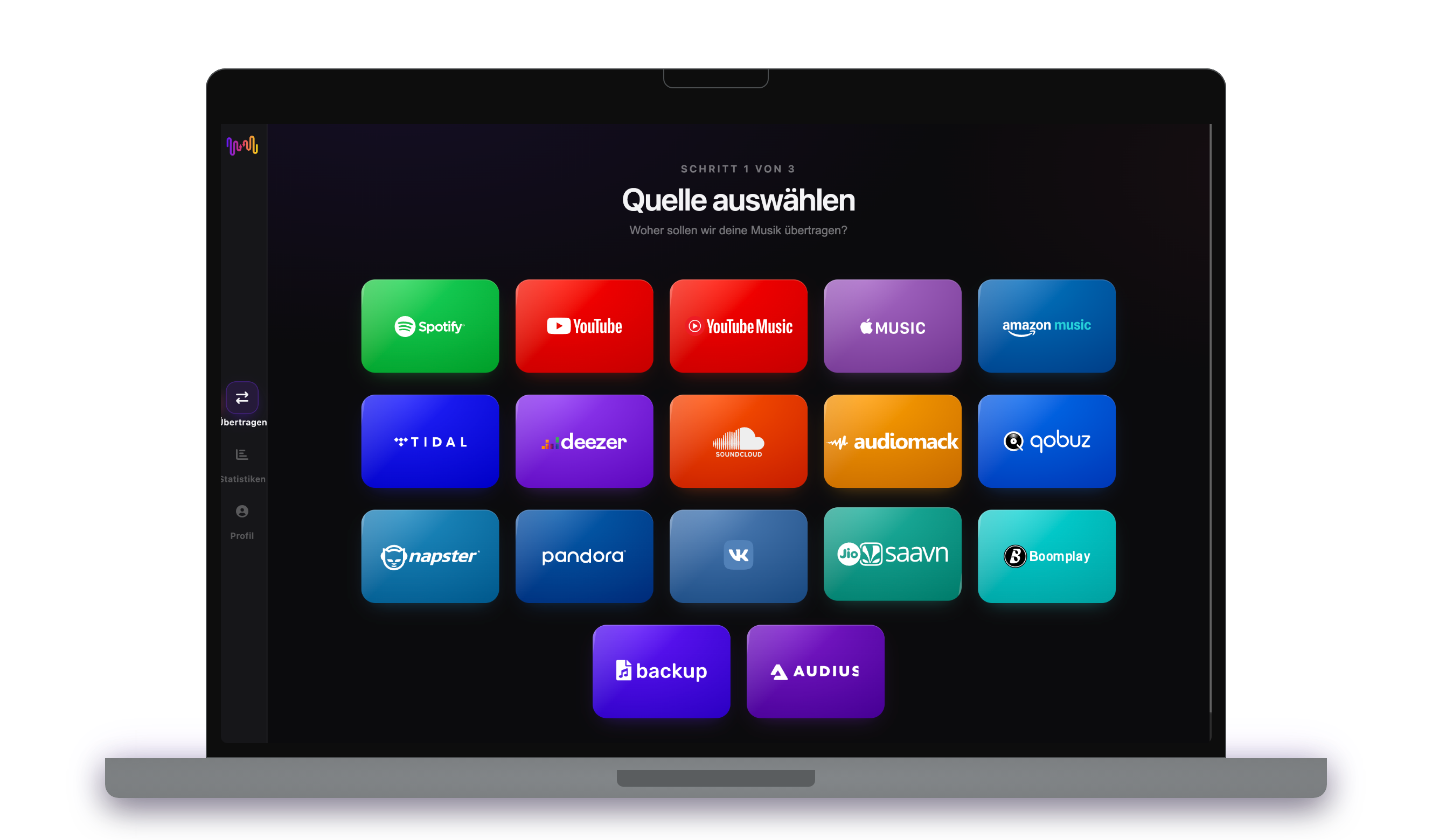
Öffne FreeYourMusic, tippe im Bildschirm „Quelle auswählen“ auf die Kachel YouTube und melde dich auf der Anmeldeseite von YouTube an. FreeYourMusic speichert dein YouTube-Passwort nicht.
- 2
Spotify als Ziel wählen
Tippe im Bildschirm „Ziel auswählen“ auf Spotify und melde dich an. FreeYourMusic braucht Zugriff auf deine Spotify-Bibliothek, um dort die Playlists zu erstellen.
- 3
Auswählen, was übertragen wird
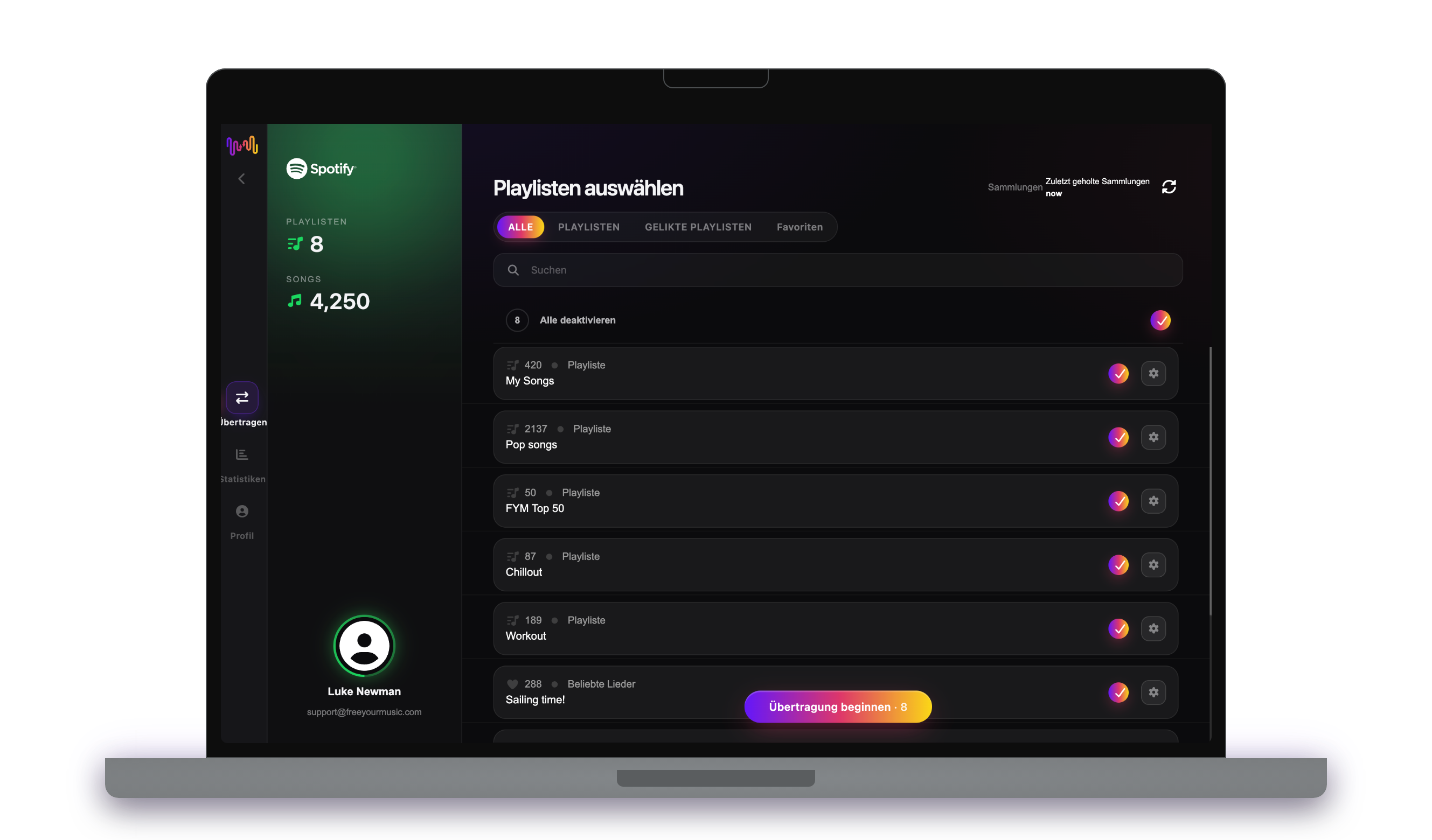
Markiere die Playlists, die du auf Spotify haben möchtest. Nutze die Filter und das Suchfeld, um sie zu finden, oder wähle alles aus, um deine gesamte YouTube-Bibliothek auf einmal zu übertragen.
- 4
Übertragung starten und Ergebnisse prüfen
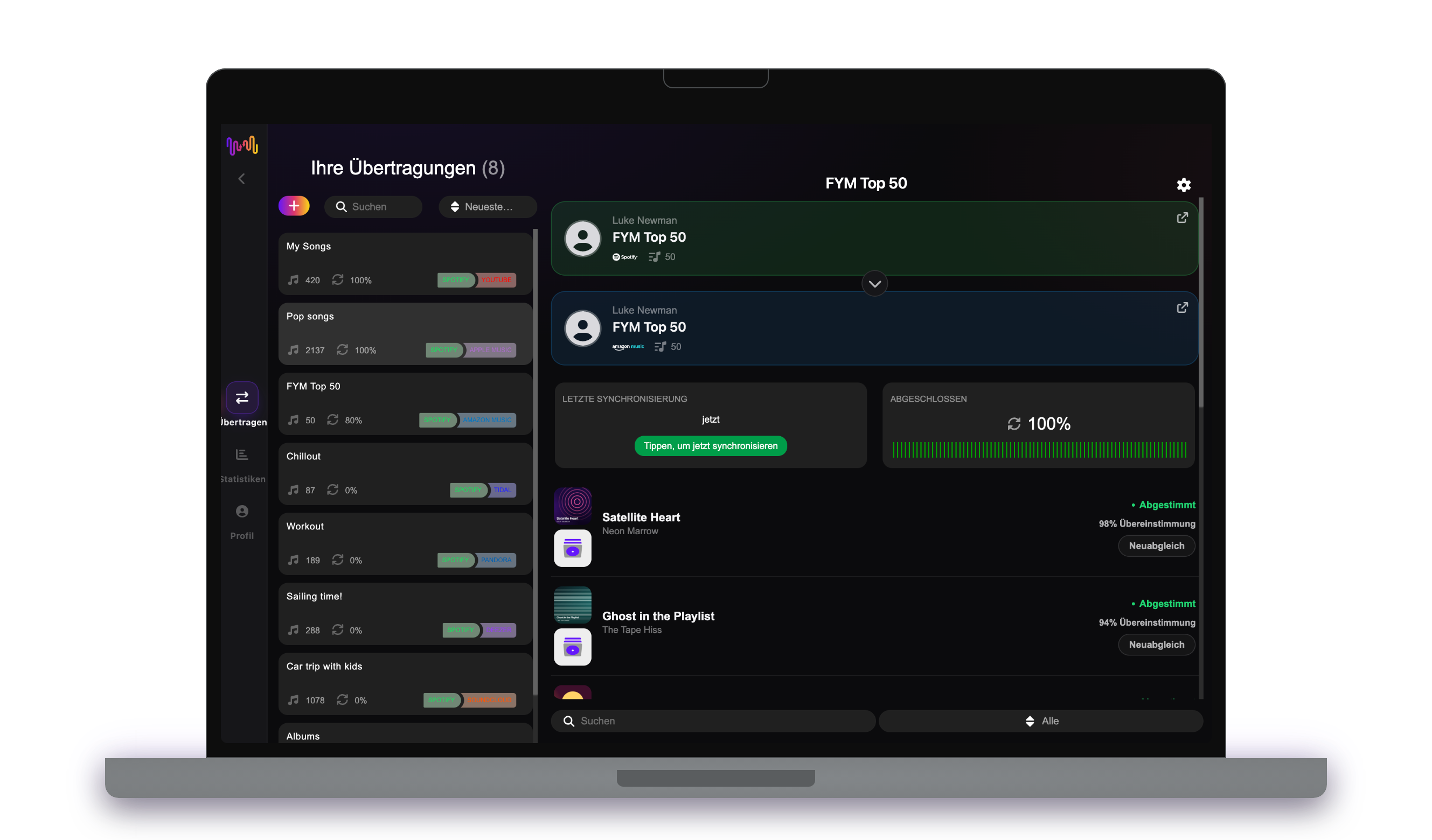
Tippe auf „Übertragung beginnen“. FreeYourMusic ordnet jeden Song auf Spotify zu, behält Playlist-Namen und Songreihenfolge bei und zeigt für jede Zuordnung einen Konfidenzwert an. Mit Rematch korrigierst du Songs, die nicht gefunden wurden.
Gut zu wissen, bevor du von YouTube zu Spotify wechselst
YouTube als Quelle
FreeYourMusic überträgt deine YouTube-Playlists mit Musikvideos und sucht die Songs im neuen Dienst. Gelikte Videos werden nicht übertragen.
Spotify als Ziel
Auch ein kostenloses Spotify-Konto kann deine Musik empfangen. Spotify sucht per ISRC-Code, daher werden Songs von Diensten, die ISRC-Codes liefern, sehr genau zugeordnet.
Was von YouTube zu Spotify übertragen wird
Auf jedem Gerät
Übertragen, umwandeln oder importieren: eine Übertragung von YouTube zu Spotify
Egal, wie du es nennst – es ist dieselbe Aufgabe. Du kannst deine YouTube-Playlists zu Spotify übertragen, eine YouTube-Playlist in eine Spotify-Playlist umwandeln oder deine YouTube-Bibliothek in Spotify importieren. FreeYourMusic erledigt alle drei in einer Übertragung, für eine einzelne Playlist oder eine Bibliothek mit Tausenden Songs.
YouTube und Spotify synchron halten
Fügst du auf YouTube noch Songs hinzu? Mit Premium prüft Auto-Sync deine übertragenen Playlists und fügt neue Songs automatisch zu Spotify hinzu, damit beide Bibliotheken gleich bleiben. Preise →
YouTube zu einem anderen Dienst übertragen




Alle YouTube-Übertragungen ansehen →
Von einem anderen Dienst zu Spotify übertragen
Häufig gestellte Fragen
Wie übertrage ich meine YouTube-Playlist zu Spotify?
Um YouTube zu Spotify zu übertragen, installiere FreeYourMusic, wähle YouTube als Quelle und Spotify als Ziel, wähle die gewünschten Playlists aus und starte die Übertragung. Die App sucht jeden Song auf Spotify und listet alle Titel auf, die sie nicht zuordnen konnte.
Was genau wird von YouTube zu Spotify übertragen?
FreeYourMusic überträgt Playlists von YouTube zu Spotify. Die Songs werden einzeln zugeordnet, und alles, was es auf Spotify nicht gibt, wird aufgelistet – so kannst du es vor dem Wechsel korrigieren.
Kann ich YouTube-Playlists kostenlos zu Spotify übertragen?
Ja — die kostenlose Stufe überträgt 300 Songs ohne Kreditkarte, und nach einer kostenlosen E-Mail-Anmeldung bekommst du 300 weitere. Upgrade für unbegrenzte Übertragungen, Auto-Sync und Cloud-Backup.
Was passiert mit Songs, die es auf Spotify nicht gibt?
Die Kataloge unterscheiden sich je nach Dienst und Region. FreeYourMusic listet jeden Song auf, den es auf Spotify nicht zuordnen konnte. So kannst du mit Rematch eine andere Version wählen oder den Song überspringen. Nichts fällt weg, ohne dass du es siehst.
Werden meine YouTube-Playlists gelöscht?
Nein. FreeYourMusic kopiert deine Musik zu Spotify und lässt deine YouTube-Bibliothek unverändert. Ob du dein YouTube-Konto behältst oder kündigst, entscheidest du später.
Wie lange dauert eine Übertragung von YouTube zu Spotify?
Die meisten Playlists sind in wenigen Minuten übertragen. Große Bibliotheken dauern länger, denn die Zeit hängt von der Anzahl der Songs und von den Limits von YouTube und Spotify ab. Du kannst dein Gerät weiter nutzen, während die Übertragung läuft.
Kann ich YouTube auf dem Smartphone zu Spotify übertragen?
Ja. FreeYourMusic läuft auf iPhone, iPad und Android sowie auf Mac-, Windows- und Linux-Computern. Die Schritte sind auf jedem Gerät gleich.
Bereit für den Wechsel zu Spotify?
Lade FreeYourMusic herunter und verschiebe deine gesamte Bibliothek in Minuten.
Kostenlos herunterladen →