Home · Transferencias · YouTubeSpotify

YouTubeSpotify

Transfiere listas de reproducción de YouTube a Spotify

Transfiere listas de reproducción, canciones favoritas y álbumes de YouTube a Spotify sin esfuerzo. Importa toda tu biblioteca musical a un nuevo servicio de streaming con facilidad. ¡Empieza tu transferencia musical hoy!

Iniciar la transferencia →Gratis para 600 canciones · sin tarjeta

★★★★★ 4,8 · Más de 9,2 M de descargas · Contraseña nunca compartida

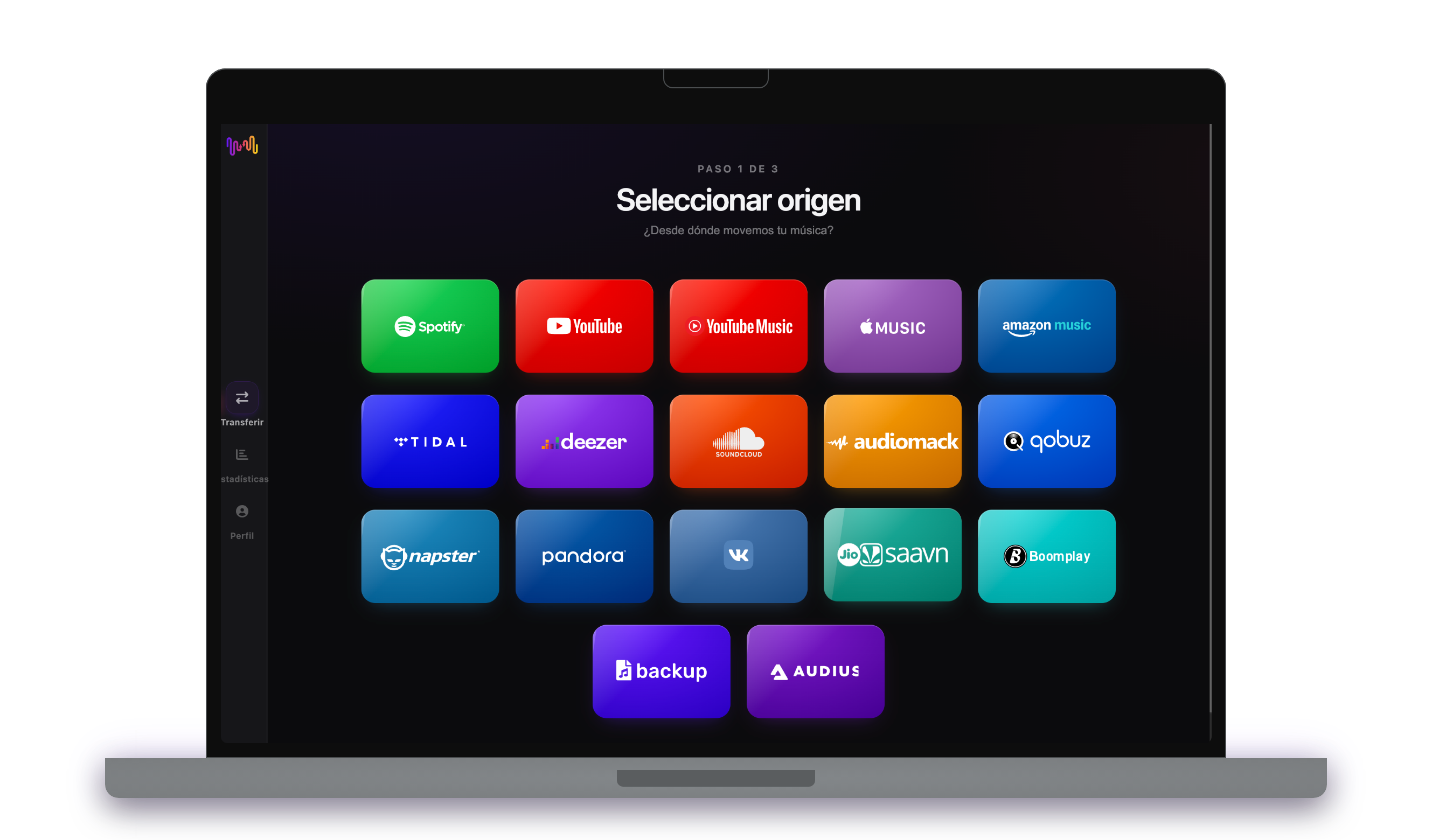
Seleccionando Spotify como destino en FreeYourMusicFreeYourMusic móvil — seleccionar destino

¿Por qué pasarte de YouTube a Spotify?

Cambia de servicio sin dejar atrás tu biblioteca. FreeYourMusic empareja cada canción y la transfiere por ti: listas de reproducción, canciones favoritas, álbumes y artistas seguidos.

Todo se transfiere

Listas de reproducción, canciones favoritas, álbumes y artistas.

Orden conservado

Las listas de reproducción llegan en el mismo orden en que las creaste.

Nada se pierde

Las coincidencias imperfectas se marcan para un Rematch con un toque.

Cómo transferir listas de reproducción de YouTube a Spotify

1

Seleccione YouTube como origen

Utilice su plataforma YouTube actual como fuente y comience a transferir música de las listas de reproducción con Free Your Music.

2

Seleccione Spotify como destino

Seleccione Spotify como una plataforma donde deseas crear una nueva lista de reproducción. ¡Todo lo que necesitas hacer esta a sólo un clic de botón!

3

Seleccione las listas de reproducción para una transferencia

Encuentra las listas de reproducción desde las que desees transferir del servicio YouTube al Spotify y selecciona todas las listas de reproducción que desees mover.

4

¡Confirma tu acción y hazlo!

La transferencia ha finalizado. Tus listas de reproducción YouTube han sido movidas a Spotify y puedes comenzar a disfrutar de tu nuevo servicio de transmisión de música.

Qué se transfiere

Listas de reproducción

Canciones favoritas

Álbumes guardados

Artistas seguidos

En todos los dispositivos

iPhoneiPadAndroidMacWindowsLinux

La gente también busca

how to transfer YouTube playlist to Spotifytransfer YouTube playlist to Spotifymove YouTube playlist to Spotifycan you transfer YouTube playlist to SpotifyYouTube to Spotify converterimport YouTube playlist to SpotifyYouTube to Spotify playlist transferfree playlist transferplaylist transfer app

Qué se transfiere de YouTube a Spotify

Todo lo que FreeYourMusic mueve por ti con un clic — sin reconstruir nada a mano.

Listas de reproducción (con nombres y orden originales)
Compatible
Canciones favoritas
No disponible
Álbumes guardados
No disponible
Artistas seguidos
No disponible
Correspondencia exacta de pistas basada en ISRC
No disponible
Respaldo por coincidencia de título + artista

Millones confían en nosotros para transferir listas de reproducción de YouTube a Spotify

4.70 estrellas

Valoración promedio

32,5000 valoraciones

En iOS y Android

12M0 descargas

En todas las plataformas

Moving from YouTube to Spotify, explained

Plenty of people build their real music collection on YouTube — playlists of music videos, favourites saved over years — and then want it as a proper audio library. Moving to Spotify converts those video playlists into a streaming library you can play anywhere, offline included. FreeYourMusic reads your YouTube playlists through Google’s official sign-in and recreates them inside Spotify as matched tracks.

This guide covers what a transfer moves, what cannot come along, how videos are matched to songs, how long it takes, and an honest YouTube versus Spotify comparison. If you just want to start, install FreeYourMusic, connect both accounts and choose what to move — the detail is below.

What transfers to Spotify, and what does not

Your YouTube playlists of music videos become Spotify playlists of tracks, keeping their names and order, and your liked music videos can come across as saved songs. Move everything or pick playlists individually, with counts shown before you commit.

Because YouTube holds far more than music, some entries will not translate. Non-music videos — vlogs, tutorials, clips — have no song to match, and private, deleted or region-blocked videos cannot be read. Live and rare uploads may not have a Spotify counterpart, so those are flagged rather than forced.

How FreeYourMusic matches your tracks

Converting a video library to audio is a matching problem, and FreeYourMusic handles it by reading each video’s title and artist and finding the same recording in Spotify. Where a recording code such as ISRC is available it is used, but YouTube videos often lack one, so title, artist, album and duration do most of the work.

Music videos with messy titles — remix tags, topic-channel labels, live-at-somewhere suffixes — can be ambiguous. FreeYourMusic never silently drops them; anything uncertain is flagged for one-tap Rematch with suggestions, so you can confirm the clean studio version.

How long does a YouTube to Spotify transfer take?

Most transfers finish in minutes. With both accounts connected, around 1,000 items usually completes in under ten minutes. Larger playlists take longer, but the transfer runs on its own — start it and get on with your day.

FreeYourMusic runs natively on iPhone, iPad, Android, Mac, Windows and Linux, so the move is not tied to one machine. Start it on your laptop and follow progress on your phone; it is the same account and the same transfer.

YouTube vs Spotify: what actually changes

This is a shift from a free video platform to a dedicated audio service. On YouTube your music lived as videos, free with ads, mixed in with everything else you watch. Spotify gives you a purpose-built music library — Discover Weekly, Release Radar, offline audio, gapless playback and a free tier of its own.

What you give up is the video itself — live performances and music videos as visuals. But if you mostly wanted the songs, converting your YouTube playlists into a Spotify library turns a loose collection of clips into a proper, portable music catalogue.

Do you need to keep YouTube access while you transfer?

Yes — keep signed in to YouTube until the transfer is finished and checked. FreeYourMusic reads your YouTube playlists while copying them into Spotify, and keeping both live means you never lose track of the source mid-move.

YouTube is free, so nothing needs cancelling, and Spotify has a free tier on the receiving side, so you can land the transfer without paying right away. Both services connect through their own official sign-in, and your password is never shared with FreeYourMusic.

Tips for a clean migration

Before you move, weed out the non-music videos from your playlists so the transfer focuses on actual songs. Move a couple of playlists first and check the matches in Spotify — because the source is video, confirming you got studio recordings rather than covers or live clips is worth the minute.

When the transfer finishes, work through the Rematch list; music-video titles produce more ambiguous matches than a straight audio-to-audio move, so this step matters more here. Then let Discover Weekly build up and download your key playlists for offline listening.

Keeping YouTube and Spotify in sync afterwards

A one-time move is not your only option. If you keep saving music on YouTube, FreeYourMusic’s Auto-Sync mirrors the libraries on a schedule so a video you like becomes a matched track in Spotify without effort.

And the transfer runs the other way too, from Spotify back to YouTube, if you want video versions of your library. Your collection stays portable. Download FreeYourMusic, connect YouTube and Spotify, and see how much comes across — the free tier lets you try first.

¿Listo para pasarte a Spotify?

Descarga FreeYourMusic y transfiere toda tu biblioteca en minutos.

Descarga gratis →

Preguntas frecuentes

¿Cómo transfiero mi lista de reproducción de YouTube a Spotify?

Instala FreeYourMusic, inicia sesión en YouTube y luego en Spotify usando sus inicios de sesión oficiales, elige las listas de reproducción que quieras y pulsa transferir. El emparejamiento inteligente de canciones las transfiere manteniendo su orden intacto: una lista de 1.000 canciones suele terminar en menos de 10 minutos.

¿Puedo transferir listas de reproducción de YouTube a Spotify gratis?

Sí: el plan gratuito transfiere hasta 600 canciones y una lista de reproducción sin necesidad de tarjeta. Mejora tu plan para obtener transferencias ilimitadas, Auto-Sync y Cloud Backup.

¿Existe una app para transferir listas de reproducción de YouTube a Spotify?

FreeYourMusic es una app de transferencia de listas de reproducción para iPhone, iPad, Android, Mac, Windows y Linux que transfiere listas de reproducción, canciones favoritas, álbumes guardados y artistas seguidos de YouTube a Spotify.

¿Puedo transferir mis listas de reproducción de YouTube a Spotify gratis?

Sí: FreeYourMusic transfiere tus primeras 600 canciones de YouTube a Spotify gratis, listas de reproducción incluidas. Las bibliotecas más grandes requieren Premium, y cada transferencia se realiza directamente entre tus propias cuentas de YouTube y Spotify.

¿Qué se transfiere exactamente de YouTube a Spotify?

Listas de reproducción (con su orden), canciones que te gustan, álbumes y artistas seguidos. Las canciones se emparejan pista por pista usando códigos ISRC donde YouTube y Spotify los proporcionan, con la coincidencia de título y artista como alternativa; consulta la tabla de compatibilidad de arriba para ver la lista exacta de funciones de este par.

¿Qué es una transferencia de listas de reproducción?

Una transferencia de listas de reproducción es el proceso de trasladar tus listas de música de un servicio de streaming a otro. En lugar de reconstruir tus listas de reproducción manualmente, herramientas como FreeYourMusic te permiten transferirlas automáticamente, ahorrándote tiempo y esfuerzo.

¿Puedo transferir listas de reproducción entre cualquier servicio de streaming de música?

Sí. Con FreeYourMusic, puedes transferir listas de reproducción entre los principales servicios como Spotify, Apple Music, YouTube Music, Amazon Music, TIDAL, Deezer, etc.

¿Tengo que crear una cuenta nueva para transferir listas de reproducción?

No, no necesitas una cuenta nueva. Solo tienes que conectar tus cuentas de streaming existentes en la aplicación FreeYourMusic y podrás empezar a transferir tus listas de reproducción de inmediato.

¿Se transferirán perfectamente todas las canciones?

La mayoría de las veces, sí. FreeYourMusic utiliza un sistema de búsqueda inteligente para encontrar canciones iguales o similares en todas las plataformas. Aunque es raro, algunas canciones pueden no estar disponibles en tu nuevo servicio y no se transferirán.

¿Conserva FreeYourMusic los nombres y el orden de mis listas de reproducción?

Por supuesto. Cuando transfieres listas de reproducción, FreeYourMusic conserva los títulos de tus listas, el orden de las canciones e incluso varias listas a la vez.

¿Cuánto tarda en transferirse una lista de reproducción?

Depende del tamaño de tus listas de reproducción y de la velocidad de tu conexión a Internet, pero la mayoría de las transferencias de listas de reproducción tardan sólo unos minutos.

¿Puedo transferir listas de reproducción desde una cuenta gratuita?

Sí, puedes transferir listas de reproducción desde cuentas gratuitas y premium, aunque algunos servicios de streaming pueden tener limitaciones de acceso.