 Spotify→
 Apple Music
Pasar de Spotify a Apple Music
Pasa tus listas de reproducción, canciones favoritas y álbumes guardados de Spotify a Apple Music sin tener que rehacer nada a mano. Conecta ambas cuentas, elige qué quieres transferir y FreeYourMusic lo recrea en Apple Music con los mismos nombres y el mismo orden de canciones.
★★★★★ 4,7 · Más de 12 M de descargas · Contraseña nunca compartida


¿Por qué pasarte de Spotify a Apple Music?
FreeYourMusic pasa tus listas de reproducción, canciones favoritas y álbumes guardados de Spotify a Apple Music. Busca las canciones una a una y te muestra todo lo que no está en Apple Music, para que puedas corregirlo antes de cambiarte.
Transferencias compatibles
Listas de reproducción (con nombres y orden originales), Canciones favoritas y Álbumes guardados
Revisa las canciones que faltan
Los catálogos varían. Revisa los resultados de la transferencia para ver qué canciones no se han podido encontrar en el servicio de destino.
Cómo pasar listas de reproducción de Spotify a Apple Music
Cuatro pasos. Iguales en iPhone, Android, Mac, Windows y Linux.
Respuesta rápida
Para pasar de Spotify a Apple Music, instala FreeYourMusic, elige Spotify como origen y Apple Music como destino, selecciona las listas que quieras e inicia la transferencia. La app busca cada canción en Apple Music y te muestra las pistas que no ha podido encontrar.
- 1
Conecta Spotify como origen
Abre FreeYourMusic, toca el icono de Spotify en la pantalla «Seleccionar origen» e inicia sesión en la página de acceso de Spotify. FreeYourMusic no guarda tu contraseña de Spotify.
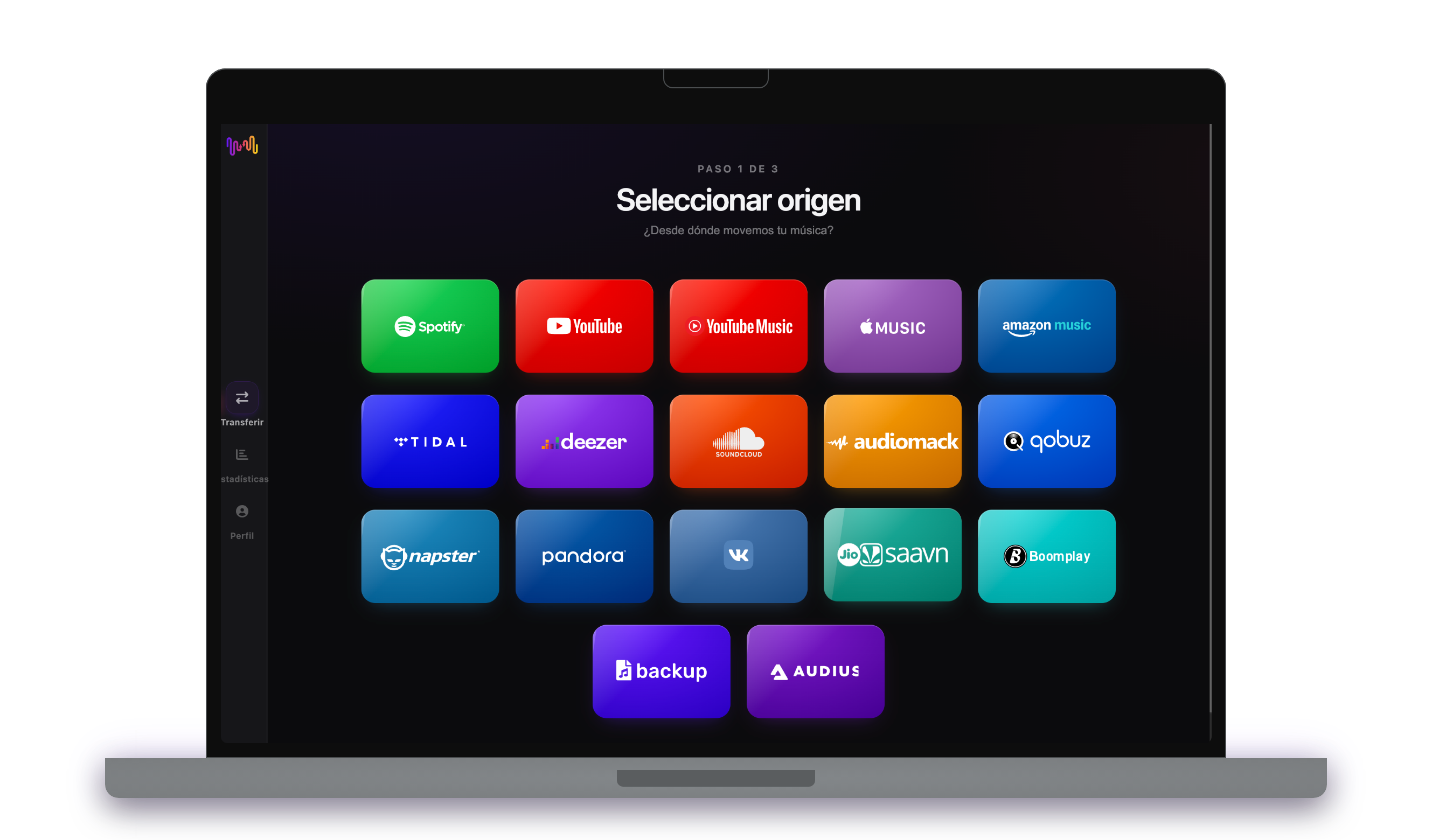
- 2
Elige Apple Music como destino
En la pantalla «Seleccionar destino», toca Apple Music e inicia sesión. FreeYourMusic necesita acceso a tu biblioteca de Apple Music para crear allí las listas.
- 3
Elige qué transferir
Marca las listas que quieres tener en Apple Music. Usa los filtros y el buscador para encontrarlas, o selecciónalo todo para transferir toda tu biblioteca de Spotify de una vez.

- 4
Inicia la transferencia y revisa los resultados
Toca «Iniciar la transferencia». FreeYourMusic busca cada canción en Apple Music, mantiene los nombres de las listas y el orden de las canciones, y muestra un índice de confianza para cada coincidencia. Usa Rematch para corregir las canciones que no haya encontrado.

Lo que debes saber antes de pasar de Spotify a Apple Music
Spotify como origen
Basta con una cuenta gratuita de Spotify. Spotify no permite a las apps leer las listas que crea para ti, como los mixes personalizados: copia antes sus canciones en una lista propia.
Apple Music como destino
Apple Music necesita una suscripción activa para añadir música. Apple no permite a las apps quitar ni reordenar canciones de una lista, así que la sincronización allí solo añade canciones nuevas.
Apple Music tiene una importación integrada. Así se diferencia FreeYourMusic.
Apple Music puede importar playlists de Spotify desde los ajustes de Música en el iPhone o el iPad, o en music.apple.com. Es una importación única a Apple Music, y Apple no la ofrece en todos los países.
| Importación integrada de Apple Music | FreeYourMusic | |
|---|---|---|
| A dónde puede ir tu música | Solo Apple Music | Apple Music y 15 servicios más |
| Mover entre dos cuentas de Apple Music | No | Sí |
| Mantener las playlists sincronizadas tras la transferencia | No, importación única | Sí, con Auto-Sync (Premium) |
| Hacer copia de seguridad de tu biblioteca | No | Sí, con Cloud Backup (Premium) |
| Salir de Apple Music más adelante | No | Sí, en cualquier dirección |
Para una mudanza rápida y única, la importación integrada puede bastar. Usa FreeYourMusic para mantener servicios sincronizados, mover entre cuentas, hacer copia de seguridad de tu biblioteca o salir de Apple Music más adelante.
Qué se transfiere de Spotify a Apple Music
En todos los dispositivos
Pasar, convertir o importar: una sola transferencia de Spotify a Apple Music
Lo llames como lo llames, es lo mismo. Puedes pasar tus playlists de Spotify a Apple Music, convertir una playlist de Spotify en una de Apple Music o importar tu biblioteca de Spotify a Apple Music. FreeYourMusic hace las tres cosas en una sola transferencia, para una lista o para una biblioteca de miles de canciones.
Mantén Spotify y Apple Music sincronizados
¿Sigues añadiendo canciones en Spotify? Con Premium, Auto-Sync revisa tus listas transferidas y añade automáticamente las canciones nuevas a Apple Music, para que ambas bibliotecas sigan iguales. Precios →
Pasa de Spotify a otro servicio




Ver todas las transferencias de Spotify →
Transfiere a Apple Music desde otro servicio
Millones confían en nosotros para transferir listas de reproducción de Spotify a Apple Music
Preguntas frecuentes
¿Cómo transfiero mi lista de reproducción de Spotify a Apple Music?
Para pasar de Spotify a Apple Music, instala FreeYourMusic, elige Spotify como origen y Apple Music como destino, selecciona las listas que quieras e inicia la transferencia. La app busca cada canción en Apple Music y te muestra las pistas que no ha podido encontrar.
¿Qué se transfiere exactamente de Spotify a Apple Music?
FreeYourMusic pasa tus listas de reproducción, canciones favoritas y álbumes guardados de Spotify a Apple Music. Busca las canciones una a una y te muestra todo lo que no está en Apple Music, para que puedas corregirlo antes de cambiarte.
Apple Music tiene su propia herramienta de importación. ¿Por qué usar FreeYourMusic?
La herramienta integrada importa música a Apple Music una sola vez. FreeYourMusic mueve música entre 16 servicios en cualquier dirección, entre dos cuentas del mismo servicio, mantiene las playlists sincronizadas tras la transferencia y hace copia de seguridad de tu biblioteca.
No veo la opción de transferir música en Apple Music. ¿Qué puedo hacer?
Apple no ofrece la herramienta de transferencia en todos los países. FreeYourMusic mueve tus playlists de Spotify a Apple Music en iPhone, iPad, Android, Mac, Windows y Linux.
¿Puedo transferir listas de reproducción de Spotify a Apple Music gratis?
Sí: el plan gratuito transfiere 300 canciones sin tarjeta, y consigues 300 más al registrarte gratis con tu correo. Mejora tu plan para obtener transferencias ilimitadas, Auto-Sync y Cloud Backup.
¿Qué pasa con las canciones que no están en Apple Music?
Los catálogos varían según el servicio y la región. FreeYourMusic muestra cada canción que no ha podido encontrar en Apple Music, para que elijas otra versión con Rematch o la omitas. Nada desaparece sin que lo veas.
¿Se borrarán mis listas de reproducción de Spotify?
No. FreeYourMusic copia tu música a Apple Music y deja tu biblioteca de Spotify tal como está. Después decides si mantienes o cancelas tu cuenta de Spotify.
¿Cuánto tarda una transferencia de Spotify a Apple Music?
La mayoría de las listas se transfieren en pocos minutos. Las bibliotecas grandes tardan más, porque el tiempo depende del número de canciones y de los límites de Spotify y Apple Music. Puedes seguir usando tu dispositivo mientras dura la transferencia.
¿Puedo pasar mi música de Spotify a Apple Music desde el móvil?
Sí. FreeYourMusic funciona en iPhone, iPad y Android, y en ordenadores Mac, Windows y Linux. Los pasos son los mismos en todos los dispositivos.
¿Listo para pasarte a Apple Music?
Descarga FreeYourMusic y transfiere toda tu biblioteca en minutos.
Descarga gratis →