 Spotify→
 Apple Music
Överför Spotify till Apple Music
Flytta dina spellistor, gillade låtar och sparade album från Spotify till Apple Music utan att bygga upp något för hand. Anslut båda kontona, välj vad du vill flytta, så återskapar FreeYourMusic allt på Apple Music med samma namn och samma låtordning.
★★★★★ 4,7 · över 12 mn nedladdningar · Lösenordet delas aldrig


Varför flytta från Spotify till Apple Music?
FreeYourMusic flyttar dina spellistor, gillade låtar och sparade album från Spotify till Apple Music. Låtarna matchas en och en, och allt som saknas på Apple Music listas så att du kan rätta det innan du byter.
Överföringar som stöds
Spellistor (med ursprungliga namn + ordning), Gillade låtar / favoriter och Sparade album
Granska saknade låtar
Musikkatalogerna skiljer sig åt. Granska överföringsresultaten för att se vilka låtar som inte kunde matchas på måltjänsten.
Så överför du spellistor från Spotify till Apple Music
Fyra steg. Samma på iPhone, Android, Mac, Windows och Linux.
Snabbt svar
För att överföra Spotify till Apple Music installerar du FreeYourMusic, väljer Spotify som källa och Apple Music som mål, markerar de spellistor du vill ha och startar överföringen. Appen hittar varje låt på Apple Music och listar alla spår som den inte kunde matcha.
- 1
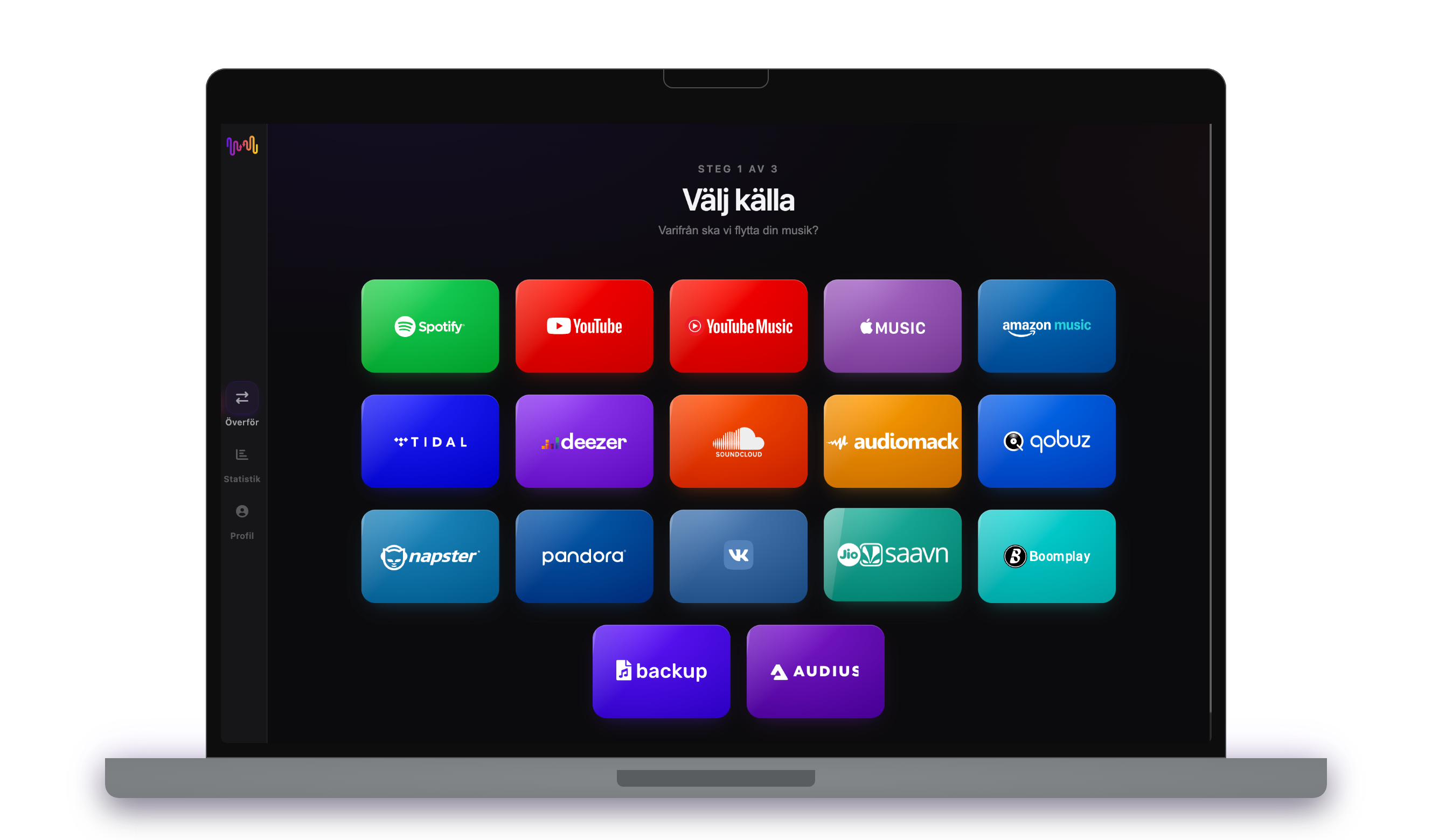
Anslut Spotify som källa
Öppna FreeYourMusic, tryck på rutan för Spotify på skärmen ”Välj källa” och logga in på inloggningssidan för Spotify. FreeYourMusic sparar inte ditt lösenord till Spotify.
- 2
Välj Apple Music som mål
Tryck på Apple Music på skärmen ”Välj mål” och logga in. FreeYourMusic behöver åtkomst till ditt Apple Music-bibliotek för att skapa spellistorna där.
- 3
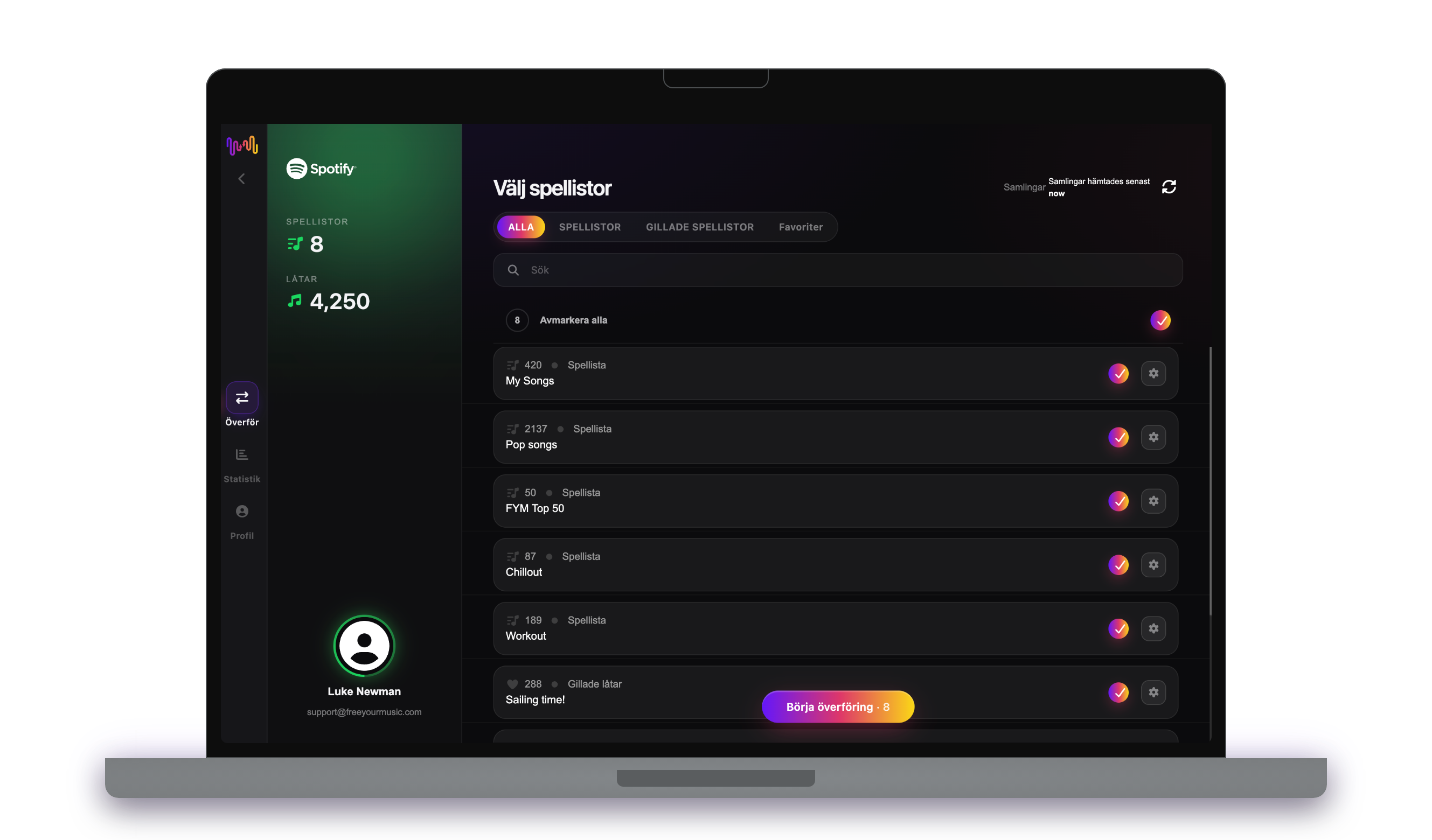
Välj vad som ska flyttas
Markera de spellistor du vill ha på Apple Music. Använd filtren och sökfältet för att hitta dem, eller markera allt för att flytta hela ditt Spotify-bibliotek på en gång.
- 4
Starta överföringen och kontrollera resultatet
Tryck på ”Börja överföring”. FreeYourMusic matchar varje låt på Apple Music, behåller spellistornas namn och låtordningen och visar ett säkerhetsvärde för varje matchning. Använd Rematch för att rätta låtar som inte hittades.

Bra att veta innan du flyttar från Spotify till Apple Music
Spotify som källa
Det räcker med ett gratiskonto på Spotify. Spotify låter inte appar läsa spellistor som Spotify skapar åt dig, till exempel personliga mixar: kopiera först deras låtar till en egen spellista.
Apple Music som mål
Apple Music kräver en aktiv prenumeration för att lägga till musik. Apple låter inte appar ta bort eller ändra ordning på låtar i en spellista, så synkroniseringen lägger bara till nya låtar där.
Apple Music har en inbyggd import. Så skiljer sig FreeYourMusic.
Apple Music kan importera spellistor från Spotify i Musik-inställningarna på iPhone eller iPad, eller på music.apple.com. Det är en engångsimport till Apple Music, och Apple erbjuder den inte i alla länder.
| Inbyggd Apple Music-import | FreeYourMusic | |
|---|---|---|
| Vart din musik kan flyttas | Bara Apple Music | Apple Music och 15 andra tjänster |
| Flytta mellan två Apple Music-konton | Nej | Ja |
| Håll spellistor synkade efter flytten | Nej, engångsimport | Ja, med Auto-Sync (Premium) |
| Säkerhetskopiera ditt bibliotek | Nej | Ja, med Cloud Backup (Premium) |
| Lämna Apple Music senare | Nej | Ja, åt alla håll |
För en snabb engångsflytt kan den inbyggda importen räcka. Använd FreeYourMusic för att hålla tjänster synkade, flytta mellan konton, säkerhetskopiera ditt bibliotek eller lämna Apple Music senare.
Vad som överförs från Spotify till Apple Music
På alla enheter
Flytta, konvertera eller importera: en överföring från Spotify till Apple Music
Vad du än kallar det är det samma jobb. Du kan flytta dina Spotify-spellistor till Apple Music, konvertera en Spotify-spellista till en Apple Music-spellista eller importera ditt Spotify-bibliotek till Apple Music. FreeYourMusic gör alla tre i en enda överföring, för en spellista eller för ett bibliotek med tusentals låtar.
Håll Spotify och Apple Music synkade
Lägger du fortfarande till låtar på Spotify? Med Premium kontrollerar Auto-Sync dina överförda spellistor och lägger automatiskt till nya låtar på Apple Music, så att båda biblioteken förblir likadana. Priser →
Flytta Spotify till en annan tjänst




Se alla överföringar från Spotify →
Överför till Apple Music från en annan tjänst
Vanliga frågor
Hur överför jag min Spotify-spellista till Apple Music?
För att överföra Spotify till Apple Music installerar du FreeYourMusic, väljer Spotify som källa och Apple Music som mål, markerar de spellistor du vill ha och startar överföringen. Appen hittar varje låt på Apple Music och listar alla spår som den inte kunde matcha.
Vad överförs egentligen från Spotify till Apple Music?
FreeYourMusic flyttar dina spellistor, gillade låtar och sparade album från Spotify till Apple Music. Låtarna matchas en och en, och allt som saknas på Apple Music listas så att du kan rätta det innan du byter.
Apple Music har ett eget importverktyg. Varför använda FreeYourMusic?
Det inbyggda verktyget importerar musik till Apple Music en gång. FreeYourMusic flyttar musik mellan 16 tjänster åt alla håll, mellan två konton på samma tjänst, håller spellistor synkade efter flytten och säkerhetskopierar ditt bibliotek.
Jag ser inte överföringsfunktionen i Apple Music. Vad kan jag göra?
Apple erbjuder inte överföringsverktyget i alla länder. FreeYourMusic flyttar dina Spotify-spellistor till Apple Music på iPhone, iPad, Android, Mac, Windows och Linux.
Kan jag överföra Spotify-spellistor till Apple Music gratis?
Ja — gratisnivån flyttar 300 låtar utan att du behöver kort, och du får 300 till efter en gratis registrering med e-post. Uppgradera för obegränsade överföringar, Auto-Sync och Cloud Backup.
Vad händer med låtar som inte finns på Apple Music?
Katalogerna skiljer sig mellan tjänster och regioner. FreeYourMusic listar varje låt som inte kunde matchas på Apple Music, så att du kan välja en annan version med Rematch eller hoppa över den. Inget försvinner utan att du ser det.
Raderas mina Spotify-spellistor?
Nej. FreeYourMusic kopierar din musik till Apple Music och låter ditt Spotify-bibliotek vara som det är. Du bestämmer senare om du vill behålla eller säga upp ditt Spotify-konto.
Hur lång tid tar en överföring från Spotify till Apple Music?
De flesta spellistor flyttas på några minuter. Stora bibliotek tar längre tid, eftersom tiden beror på antalet låtar och på begränsningarna hos Spotify och Apple Music. Du kan fortsätta använda enheten medan överföringen pågår.
Kan jag överföra Spotify till Apple Music i mobilen?
Ja. FreeYourMusic fungerar på iPhone, iPad och Android, och på Mac-, Windows- och Linux-datorer. Stegen är desamma på alla enheter.
Redo att flytta till Apple Music?
Ladda ner FreeYourMusic och flytta hela ditt bibliotek på några minuter.
Ladda ner gratis →