 Spotify→
 Apple Music
Transferir de Spotify para Apple Music
Mova listas de reprodução, músicas curtidas e álbuns guardados de Spotify para Apple Music sem reconstruir nada à mão. Ligue as duas contas, escolha o que quer mover e o FreeYourMusic recria tudo em Apple Music com os mesmos nomes e a mesma ordem das músicas.
★★★★★ 4,7 · mais de 12 mi de downloads · Palavra-passe nunca partilhada


Porque mudar de Spotify para Apple Music?
O FreeYourMusic move listas de reprodução, músicas curtidas e álbuns guardados de Spotify para Apple Music. Associa as músicas uma a uma e lista tudo o que não está em Apple Music, para que possa corrigir antes de mudar.
Transferências compatíveis
Playlists (com os nomes e ordem originais), Músicas curtidas / favoritos e Álbuns guardados
Confira as músicas ausentes
Os catálogos são diferentes. Confira os resultados da transferência para ver quais músicas não foram encontradas no serviço de destino.
Como transferir playlists de Spotify para Apple Music
Quatro passos. Iguais em iPhone, Android, Mac, Windows e Linux.
Resposta rápida
Para transferir de Spotify para Apple Music, instale o FreeYourMusic, selecione Spotify como origem e Apple Music como destino, escolha as playlists que pretende e inicie a transferência. A aplicação encontra cada música em Apple Music e lista todas as faixas que não conseguiu associar.
- 1
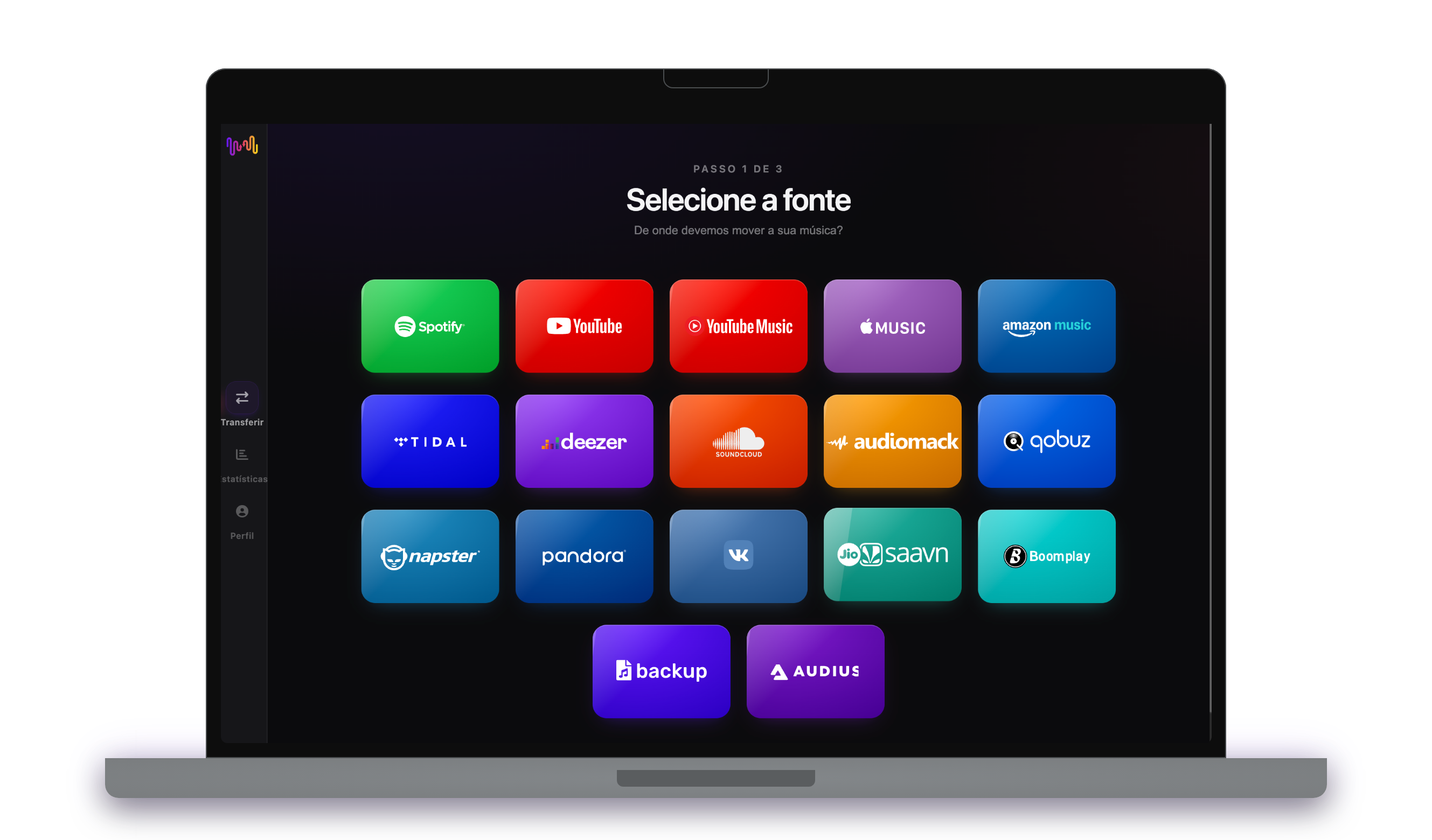
Ligue Spotify como origem
Abra o FreeYourMusic, toque no mosaico Spotify no ecrã "Selecione a fonte" e inicie sessão na página de início de sessão de Spotify. O FreeYourMusic não guarda a sua palavra-passe de Spotify.
- 2
Escolha Apple Music como destino
No ecrã "Selecione o destino", toque em Apple Music e inicie sessão. O FreeYourMusic precisa de acesso à sua biblioteca de Apple Music para criar lá as playlists.
- 3
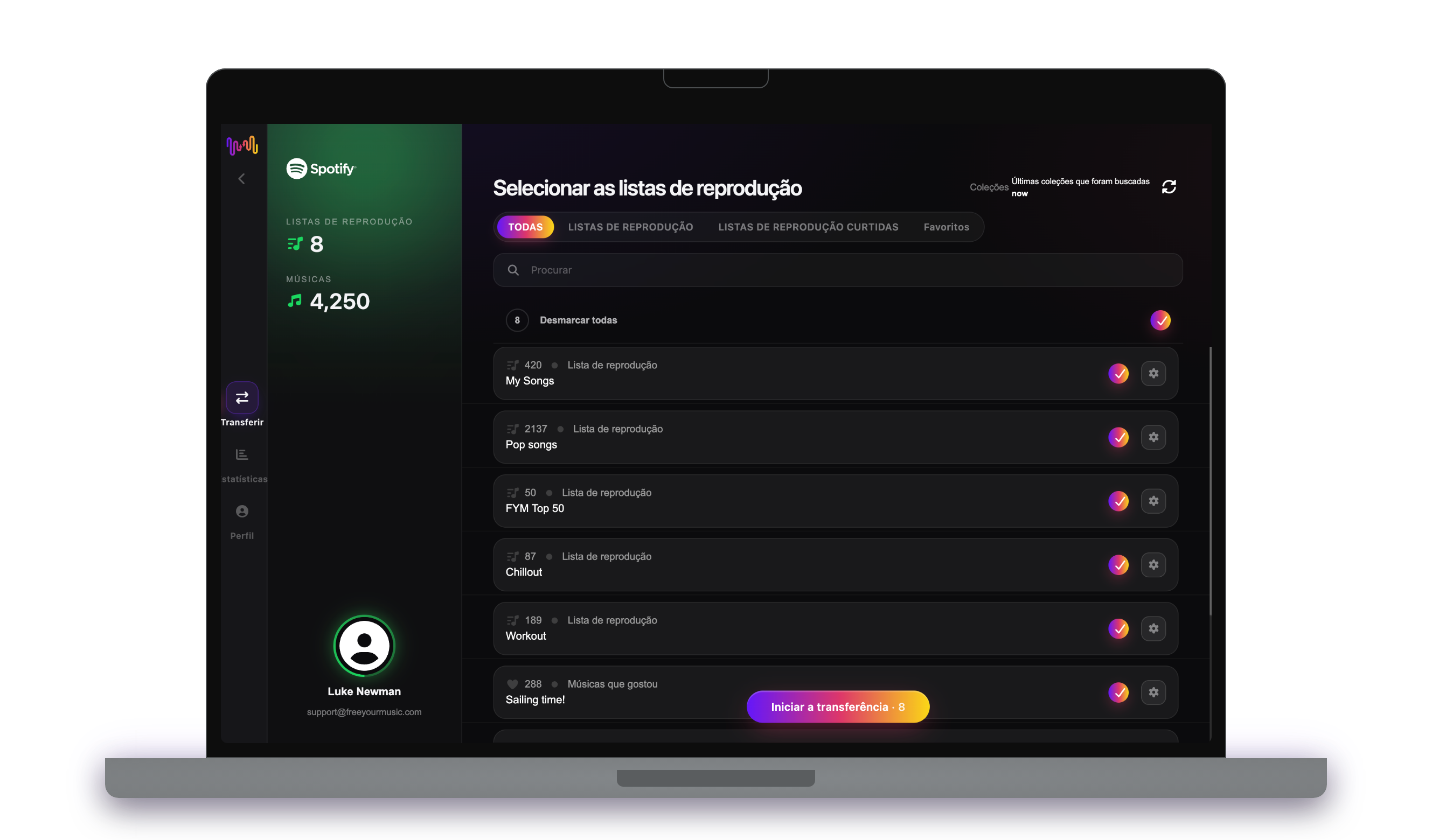
Escolha o que mover
Assinale as playlists que quer ter em Apple Music. Use os filtros e o campo de pesquisa para as encontrar, ou selecione tudo para mover toda a sua biblioteca de Spotify de uma só vez.
- 4
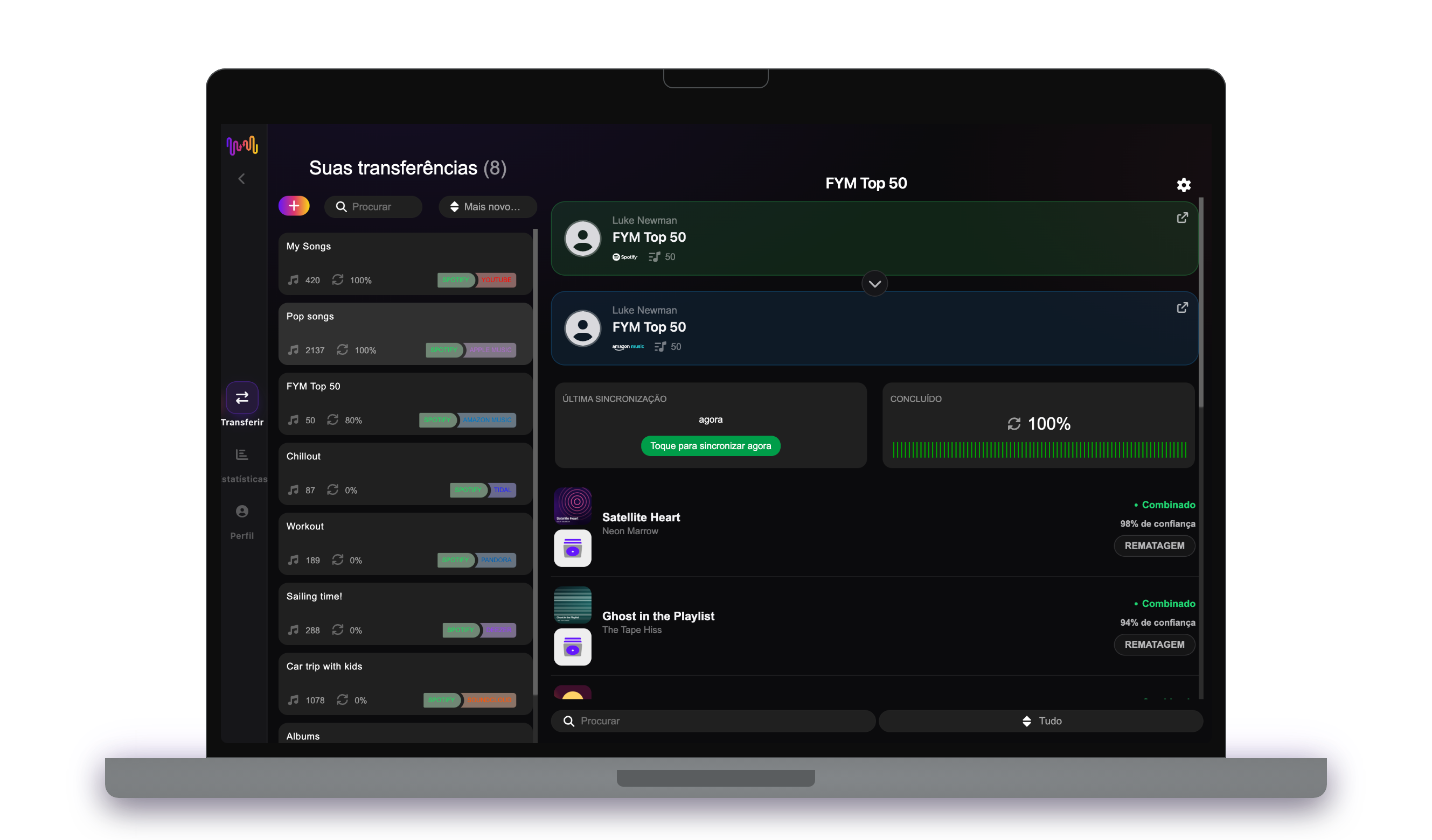
Inicie a transferência e verifique os resultados
Toque em "Iniciar a transferência". O FreeYourMusic associa cada música em Apple Music, mantém os nomes das playlists e a ordem das músicas e mostra um índice de confiança para cada correspondência. Use o Rematch para corrigir as músicas que não encontrou.
O que deve saber antes de mudar de Spotify para Apple Music
Spotify como origem
Basta uma conta gratuita do Spotify. O Spotify não deixa as aplicações ler as playlists que cria para si, como os mixes personalizados: copie primeiro as músicas para uma playlist sua.
Apple Music como destino
O Apple Music exige uma subscrição ativa para adicionar música. A Apple não deixa as aplicações remover nem reordenar músicas numa playlist, por isso a sincronização só adiciona músicas novas.
O Apple Music tem uma importação integrada. Veja como o FreeYourMusic é diferente.
O Apple Music pode importar playlists do Spotify nas definições da Música no iPhone ou iPad, ou em music.apple.com. É uma importação única para o Apple Music, e a Apple não a oferece em todos os países.
| Importação integrada do Apple Music | FreeYourMusic | |
|---|---|---|
| Para onde a sua música pode ir | Só Apple Music | Apple Music e mais 15 serviços |
| Mover entre duas contas Apple Music | Não | Sim |
| Manter as playlists sincronizadas após a transferência | Não, importação única | Sim, com Auto-Sync (Premium) |
| Fazer cópia de segurança da biblioteca | Não | Sim, com Cloud Backup (Premium) |
| Sair do Apple Music mais tarde | Não | Sim, em qualquer direção |
Para uma mudança rápida e única, a importação integrada pode bastar. Use o FreeYourMusic para manter serviços sincronizados, mover entre contas, fazer cópia de segurança da biblioteca ou sair do Apple Music mais tarde.
O que se transfere de Spotify para Apple Music
Em todos os dispositivos
Mover, converter ou importar: uma só transferência de Spotify para Apple Music
Chame-lhe o que quiser, é a mesma tarefa. Pode mover as suas playlists de Spotify para Apple Music, converter uma playlist de Spotify numa playlist de Apple Music ou importar a sua biblioteca de Spotify para Apple Music. O FreeYourMusic faz as três coisas numa só transferência, para uma playlist ou para uma biblioteca com milhares de músicas.
Mantenha Spotify e Apple Music sincronizados
Ainda adiciona músicas em Spotify? Com o Premium, o Auto-Sync verifica as suas playlists transferidas e adiciona automaticamente as músicas novas a Apple Music, para que as duas bibliotecas fiquem iguais. Preços →
Mudar de Spotify para outro serviço




Ver todas as transferências de Spotify →
Transferir para Apple Music a partir de outro serviço
Perguntas frequentes
Como transfiro a minha playlist de Spotify para Apple Music?
Para transferir de Spotify para Apple Music, instale o FreeYourMusic, selecione Spotify como origem e Apple Music como destino, escolha as playlists que pretende e inicie a transferência. A aplicação encontra cada música em Apple Music e lista todas as faixas que não conseguiu associar.
O que é transferido exatamente de Spotify para Apple Music?
O FreeYourMusic move listas de reprodução, músicas curtidas e álbuns guardados de Spotify para Apple Music. Associa as músicas uma a uma e lista tudo o que não está em Apple Music, para que possa corrigir antes de mudar.
O Apple Music tem a sua própria ferramenta de importação. Porquê usar o FreeYourMusic?
A ferramenta integrada importa música para o Apple Music uma única vez. O FreeYourMusic move música entre 16 serviços em qualquer direção, entre duas contas do mesmo serviço, mantém as playlists sincronizadas após a transferência e faz cópia de segurança da sua biblioteca.
Não vejo a opção de transferir música no Apple Music. O que posso fazer?
A Apple não oferece a ferramenta de transferência em todos os países. O FreeYourMusic move as suas playlists do Spotify para o Apple Music no iPhone, iPad, Android, Mac, Windows e Linux.
Posso transferir playlists de Spotify para Apple Music gratuitamente?
Sim — o plano gratuito move 300 músicas sem necessidade de cartão, e recebe mais 300 após um registo gratuito com email. Faça upgrade para transferências ilimitadas, Auto-Sync e Cloud Backup.
O que acontece às músicas que não estão em Apple Music?
Os catálogos variam entre serviços e regiões. O FreeYourMusic lista todas as músicas que não conseguiu associar em Apple Music, para que escolha outra versão com o Rematch ou a ignore. Nada é descartado sem que veja.
As minhas playlists de Spotify vão ser apagadas?
Não. O FreeYourMusic copia a sua música para Apple Music e deixa a sua biblioteca de Spotify como está. Depois, decide se mantém ou cancela a sua conta Spotify.
Quanto tempo demora uma transferência de Spotify para Apple Music?
A maioria das playlists é transferida em poucos minutos. Bibliotecas grandes demoram mais, porque o tempo depende do número de músicas e dos limites de Spotify e de Apple Music. Pode continuar a usar o dispositivo enquanto a transferência decorre.
Posso transferir de Spotify para Apple Music no telemóvel?
Sim. O FreeYourMusic funciona em iPhone, iPad e Android, e em computadores Mac, Windows e Linux. Os passos são os mesmos em todos os dispositivos.
Pronto para mudar para Apple Music?
Descarregue o FreeYourMusic e mova toda a sua biblioteca em minutos.
Descarregar grátis →