6 Essentials for Your Music App Compatibility Checklist
Switching your favorite playlists between music streaming services is rarely a simple drag-and-drop. Compatibility issues, lost tracks, and confusing setup steps can quickly turn an exciting upgrade into a frustrating mess. If you want to protect your carefully curated playlists and avoid mid-transfer headaches, the right preparation is crucial.
This guide zeroes in on the most critical features to check before you trust any music transfer app. You’ll learn how to identify supported streaming platforms, confirm operating system compatibility, and ensure your music library stays secure throughout the process. Get ready to discover practical insights that will save you time, prevent disappointment, and help your playlists make a smooth and complete journey to their new home.
Table of Contents
- Understand Supported Streaming Platforms
- Check Operating System Compatibility
- Assess Playlist Transfer Features
- Verify Cloud Backup Options
- Review Multi-Account Support
- Ensure Reliable Customer Assistance
Quick Summary
| Key Insight | Detailed Explanation |
|---|---|
| 1. Verify Supported Platforms | Ensure your music app supports both your source and destination services. Unsupported platforms can result in lost playlists during transfer. |
| 2. Confirm OS Compatibility | Check that your chosen app works with your operating system version. Incompatible software won't function, leading to wasted time. |
| 3. Evaluate Transfer Features | Understand what features the app offers for transferring playlists. Prioritize apps that maintain your playlist's integrity and metadata. |
| 4. Check Cloud Backup Options | Look for cloud backup functionality to safeguard your playlists during transfer. This prevents data loss and allows for easy recovery. |
| 5. Assess Customer Support | Research the app's customer support options to ensure assistance is available when issues arise during or after the transfer. |
1. Understand Supported Streaming Platforms
Not all music apps work with every streaming service. Before you start migrating your playlists, you need to know which platforms your app actually supports.
This matters because compatibility directly affects your ability to transfer music seamlessly. If your app doesn't support Apple Music but that's where your favorite playlists live, you'll hit a dead end.
What "Supported" Actually Means
Supported platforms are the streaming services your app can connect to and pull music from. Think of it like checking if your new phone works with your current cell phone network.
Modern music apps typically connect to multiple platforms. The major ones include:
- Spotify
- Apple Music
- Tidal
- YouTube Music
- Amazon Music
- Deezer
But not every app supports all six. Some are selective, offering only a handful of connections.
Why This Matters for Your Music
The music streaming industry has transformed significantly across different markets. Major platforms like Spotify now dominate globally, yet local preferences still matter in your region. Your app needs to bridge these different services.
Your app's supported platforms determine exactly which of your music collections you can actually transfer.
If you're switching from Spotify to Apple Music, your transfer app must support both platforms. Missing even one creates gaps in your migration.
How to Check Compatibility
Finding supported platforms takes two minutes:
- Visit the app's official website or documentation
- Look for "Supported Services" or "Compatible Platforms" section
- Compare against the streaming services YOU currently use
- Verify your source and destination platforms are both listed
Don't assume. Check the specific list before downloading anything.
Real-World Application
Let's say you have playlists on Spotify and YouTube Music. You want everything on Apple Music. Your app must support all three platforms—not just two.
If it only supports Spotify and Apple Music, your YouTube Music playlists get left behind. That's a deal-breaker for many users managing multiple services.
The good news: most comprehensive transfer apps support 6 to 8 major platforms. You'll likely find what you need, but always verify first.
Pro tip: Create a simple list of every streaming service you currently use before evaluating any transfer app, then cross-reference it against the app's supported platforms to avoid surprises.
2. Check Operating System Compatibility
Your music transfer app must run on the device you actually own. Downloading software built only for Windows when you use a Mac means it simply won't launch.
Operating system compatibility is the foundation of whether your app works at all. Without it, nothing else matters.
Why Your Device's OS Matters
Each operating system is different under the hood. Windows, macOS, Linux, Android, and iOS all have unique architectures and requirements.
Music apps are written specifically for these systems. They use different drivers, libraries, and frameworks depending on the OS. An app optimized for one system may crash or fail to install on another.
Mismatched OS compatibility can cause crashes and performance issues. Your transfers could fail midway or produce corrupted playlists. That's why checking compatibility upfront saves hours of troubleshooting.
Which Systems Are You Working With?
First, identify exactly what you're using:
- Desktop/Laptop: Windows, macOS, or Linux
- Mobile: Android or iOS
- Web browsers: Works on any device with internet access
Some apps run on all platforms. Others work only on mobile. A few are desktop-only.
You might need to use your app on multiple devices. Maybe you want to transfer from your Mac but manage playlists on your iPhone. Your app needs to support both.
Check Your Current OS Version
Compatibility isn't just about the operating system itself. Your specific version matters too.
Major OS updates like macOS Sequoia require confirming app compatibility before upgrading. Installing a new OS version could break your music app if it hasn't been updated.
Always check:
- What OS your app supports (Windows 10+, macOS 10.15+, etc.)
- Whether your current version is within that range
- If your app receives updates when new OS versions release
Choose an app that supports your device's operating system right now and continues receiving updates when new OS versions arrive.
Real-World Example
Imagine you use Windows 11 on your laptop but want to manage transfers on your iPad. The app must run on both Windows and iOS. If it only supports Windows, you're stuck using just your laptop.
Companies building comprehensive apps typically support all major platforms. Check their system requirements page before committing.
Pro tip: Before downloading, verify your exact OS version by checking settings on your device, then compare it directly against the app's minimum requirements to guarantee compatibility before installation.
3. Assess Playlist Transfer Features
Not all transfer apps do the same thing. Some move songs perfectly while others scramble your playlists or lose metadata like artwork and descriptions.
Before you commit, you need to understand exactly what your chosen app can and cannot do. The transfer features available determine whether your migration succeeds or falls short.
What Features Actually Matter
Playlist transfer sounds simple on the surface. You pick a source streaming service, select a destination, and hit go. Behind the scenes, much more happens.
Your app must handle several tasks simultaneously:
- Matching songs across different streaming catalogs
- Preserving playlist order and sequence
- Maintaining playlist names and descriptions
- Protecting custom metadata like cover art
- Handling duplicate tracks intelligently
- Managing collaborative playlists if applicable
Not every app excels at all six. Some are strong with basic transfers but weak with advanced features.
Why Song Matching Matters Most
Here's where many transfers fail. Spotify catalogs differ from Apple Music catalogs. The same song might exist on both services but under slightly different artist names or with alternate versions.
Your app's song matching accuracy determines how many tracks actually transfer. Poor matching means missing songs, dead links, or wrong versions appearing in your new playlists.
A quality transfer app matches songs with precision across different streaming services, ensuring your playlists arrive complete and accurate.
Look for apps that offer high match rates, ideally above 95 percent. Some provide transparency by showing you unmatched songs before completing the transfer.
Additional Features Worth Considering
Beyond the basics, certain features make transfers smoother:
- Cloud backup for safety and recovery
- Automatic syncing to keep playlists updated
- Batch transfers to move multiple playlists at once
- Manual editing to fix mismatches before finalizing
- Unlimited playlist transfers with no monthly limits
Think about your workflow. Do you manage hundreds of playlists? Then batch transfers and unlimited capacity matter. Do you switch between services occasionally? Basic features suffice.
Understanding Playlist transfer best practices helps you choose features that align with your needs. Different users value different capabilities depending on their music library size and complexity.
Real-World Scenario
You have 47 playlists with 2,300 total songs across Spotify. You're moving to Tidal. Your ideal app would transfer all 47 playlists at once, match 2,200+ songs, preserve all metadata, and let you verify results before finalizing.
Some apps require you to transfer playlists individually. Others won't preserve descriptions or artwork. These limitations compound when managing large libraries.
Pro tip: Before selecting an app, list your specific requirements (number of playlists, metadata needs, backup preferences), then match those against each app's feature list to ensure they align with your actual transfer goals.
4. Verify Cloud Backup Options
When you transfer thousands of songs between platforms, losing that data to a crash or service outage would be catastrophic. Cloud backup protects your playlists from disaster.
Before selecting your transfer app, confirm it offers cloud backup functionality and understand exactly how it works. This safety net matters more than you might think.
Why Cloud Backup Matters for Music
Transfers don't always complete perfectly on the first attempt. Connection drops, app crashes, or service outages can interrupt the process midway.
Without backup, you'd need to restart from scratch. With backup, your app stores a snapshot of your playlists in the cloud. If something fails, you recover from that saved state instantly.
Think of it like saving your progress in a video game. You don't lose hours of work if the system crashes.
How Cloud Backup Works
Most transfer apps store your playlist data on secure servers. When you initiate a transfer, the app captures your source playlists and saves them to the cloud.
This backup remains available even if you uninstall the app or switch devices. You can resume transfers, verify results, or restore playlists from anywhere with internet access.
Cloud backup ensures your transferred playlists survive technical failures and remain accessible whenever you need them.
What to Look For
Not all backup options are created equal. Evaluate these factors:
- Encryption status for data privacy and security
- Backup frequency (automatic or manual)
- Retention period (how long backups are stored)
- Access from multiple devices via web or app
- Recovery speed when restoring from backup
- Storage capacity limits if applicable
Some apps offer unlimited cloud storage for backups. Others impose monthly or annual limits.
Security Considerations
Cloud storage providers like Dropbox and Proton Drive offer encryption features that protect your music data from unauthorized access. When your transfer app uses these services, your playlists stay private.
Always verify whether your app encrypts backup data. This prevents your personal playlist information from being exposed if servers are compromised.
Practical Application
Imagine transferring 100 playlists to a new service. Midway through, your internet cuts out. Without cloud backup, you'd restart the entire process. With backup enabled, you'd simply resume from where it stopped.
Or suppose you switch computers next month. Cloud backup lets you access all your previous transfers immediately on the new device.
Pro tip: Before initiating any major playlist transfer, manually trigger a cloud backup within your app and verify the backup appears in your account, confirming the feature actually works before you need it.
5. Review Multi-Account Support
Many music enthusiasts manage multiple streaming accounts. You might have a personal Spotify subscription plus a family Apple Music plan, or separate work and personal accounts across platforms.
Your transfer app needs to handle this complexity. Multi-account support lets you work with different accounts without logging out and back in repeatedly.
Why Multiple Accounts Matter
You're not alone if you juggle several music subscriptions. Family plans split across services, work streaming accounts, regional accounts in different countries, or backup subscriptions from free trial periods all create account sprawl.
Without multi-account support, you'd need to disconnect and reconnect every time you switch between accounts. This is tedious and error-prone.
Apps with solid multi-account support let you manage everything simultaneously. You authenticate once for each account and switch between them freely within the app.
Understanding Multi-Account Features
Multi-account support allows users to manage multiple streaming service accounts within a single app, eliminating the need to switch logins repeatedly. This convenience matters when you maintain separate personal and professional music libraries or family versus individual subscriptions.
Some apps support two accounts. Others handle five or more. The more flexible your app is, the more freedom you have.
Common Multi-Account Scenarios
Consider these real-world situations:
- Family plans where each member has separate Spotify and Apple Music logins
- Regional accounts if you travel or have accounts in multiple countries
- Work versus personal music libraries that must stay separate
- Trial accounts you want to experiment with before committing
- Legacy accounts from old subscriptions you occasionally access
Apps with robust multi-account support transform how you manage diverse music libraries without constant authentication hassles.
How to Verify Multi-Account Support
Before downloading, check whether the app allows:
- Multiple simultaneous logins to different services
- Switching between accounts without logging out completely
- Different transfer settings for each account
- Account-specific backup and sync preferences
- Storing credentials securely for quick access
Not every app supports all five. Look for at least the first two features.
Practical Benefit
Imagine transferring playlists from your personal Spotify to your Apple Music account, then later moving your work account's Tidal playlist to YouTube Music. With multi-account support, you authenticate everything upfront and switch between transfers instantly.
Without it, you'd disconnect, log in to the next account, and repeat the process multiple times.
Pro tip: List every streaming account you currently use or plan to use, then specifically search the app's documentation or support pages for how many accounts it supports before committing to avoid discovering limitations after downloading.
6. Ensure Reliable Customer Assistance
Things go wrong. Transfers fail, playlists vanish, or songs don't match correctly. When disaster strikes, you need support that actually helps.
Reliable customer assistance separates apps you can trust from ones that leave you stranded. Before committing, verify the support options available.
Why Support Quality Matters
Playlist transfers involve your personal music collection. If something fails and you can't reach anyone for help, you're stuck with incomplete transfers or lost data.
Quality support means someone responds when you have problems. They troubleshoot issues, recover failed transfers, and guide you through complicated scenarios.
Without it, you're on your own. And that's incredibly frustrating when you've spent hours curating playlists.
Types of Support to Expect
Different apps offer different support channels. Check what's actually available:
- Email support for detailed issues requiring investigation
- Live chat for quick answers and real-time assistance
- Knowledge base with FAQs and troubleshooting guides
- Community forums where users help each other
- Phone support for urgent problems requiring direct conversation
- Social media responses for public inquiries
Not every app offers all six. Most offer at least email and documentation.
Response Time Matters
Customer support quality significantly impacts user satisfaction and service adoption in streaming platforms. Apps with dedicated support teams respond faster and resolve issues more thoroughly than those with minimal resources.
Ask potential apps about their typical response time. Is it hours, days, or weeks? If they can't tell you, that's a red flag.
When your playlist transfer fails, responsive customer assistance becomes the difference between a minor inconvenience and losing your entire music library.
What to Look For
Before downloading, research the support reputation:
- Visit app review sites and check support ratings
- Read recent user reviews specifically mentioning support experiences
- Check the company's website for support contact options
- Try sending a test message to gauge response speed
- Look for dedicated support documentation
If reviews consistently mention poor support, move to the next app.
Real-World Support Scenario
You transfer 85 playlists, but 12 songs fail to match. You contact support with specifics about which songs disappeared. A responsive team investigates, finds the issue, and helps you resolve it manually.
Without support, those 12 songs simply vanish and you're left guessing what happened.
AI and Support Innovation
AI-driven customer assistance now provides personalized support and automated responses that improve user satisfaction. Modern apps leverage this technology to resolve common issues instantly while escalating complex problems to human agents.
Look for apps combining both automated and human support for optimal coverage.
Pro tip: Contact customer support with a test question before committing to the app, paying attention to response time and helpfulness to evaluate whether their assistance will actually support you when transfers inevitably encounter problems.
Below is a comprehensive table summarizing the key strategies and considerations discussed in the article to ensure successful music playlist transfers between platforms.
| Key Subject | Description | Actions/Considerations |
|---|---|---|
| Understand Supported Platforms | Ensure that the playlist transfer app supports the platforms you use. | Verify app compatibility with both source and target music streaming services. |
| Assess Operating System Compatibility | Confirm the app works with your device's operating system and its version. | Check the system requirements of the app and ensure it supports updates for your OS. |
| Examine Playlist Transfer Features | Different apps support various degrees of functionality for transferring playlists. | Look for features like song matching accuracy, metadata preservation, batch transfers, and playlist backup. |
| Verify Cloud Backup Options | Data backup is essential to prevent losses during transfer disruptions. | Choose an app with encrypted cloud backup and reliable data recovery options. |
| Evaluate Multi-Account Support | Determine if the app can handle multiple streaming accounts conveniently. | Ensure the app allows simultaneous logged-in accounts, easy switching, and account-specific settings. |
| Check Customer Assistance | Reliable support is critical in resolving transfer-related issues. | Research the app's support channels, response times, and user satisfaction with their customer service. |
I hope this summary effectively encapsulates the key insights from the article.
Simplify Your Music App Compatibility Check with Free Your Music
Transitioning your playlists between streaming services can feel overwhelming when facing challenges like platform compatibility, operating system restrictions, and maintaining playlist integrity. The struggle of managing multi-account setups and needing dependable cloud backup adds even more complexity. Free Your Music understands these pain points and offers a powerful solution designed to handle all the essentials outlined in the "6 Essentials for Your Music App Compatibility Checklist". This means you no longer have to worry about unsupported platforms or losing your carefully curated playlists during the transfer process.
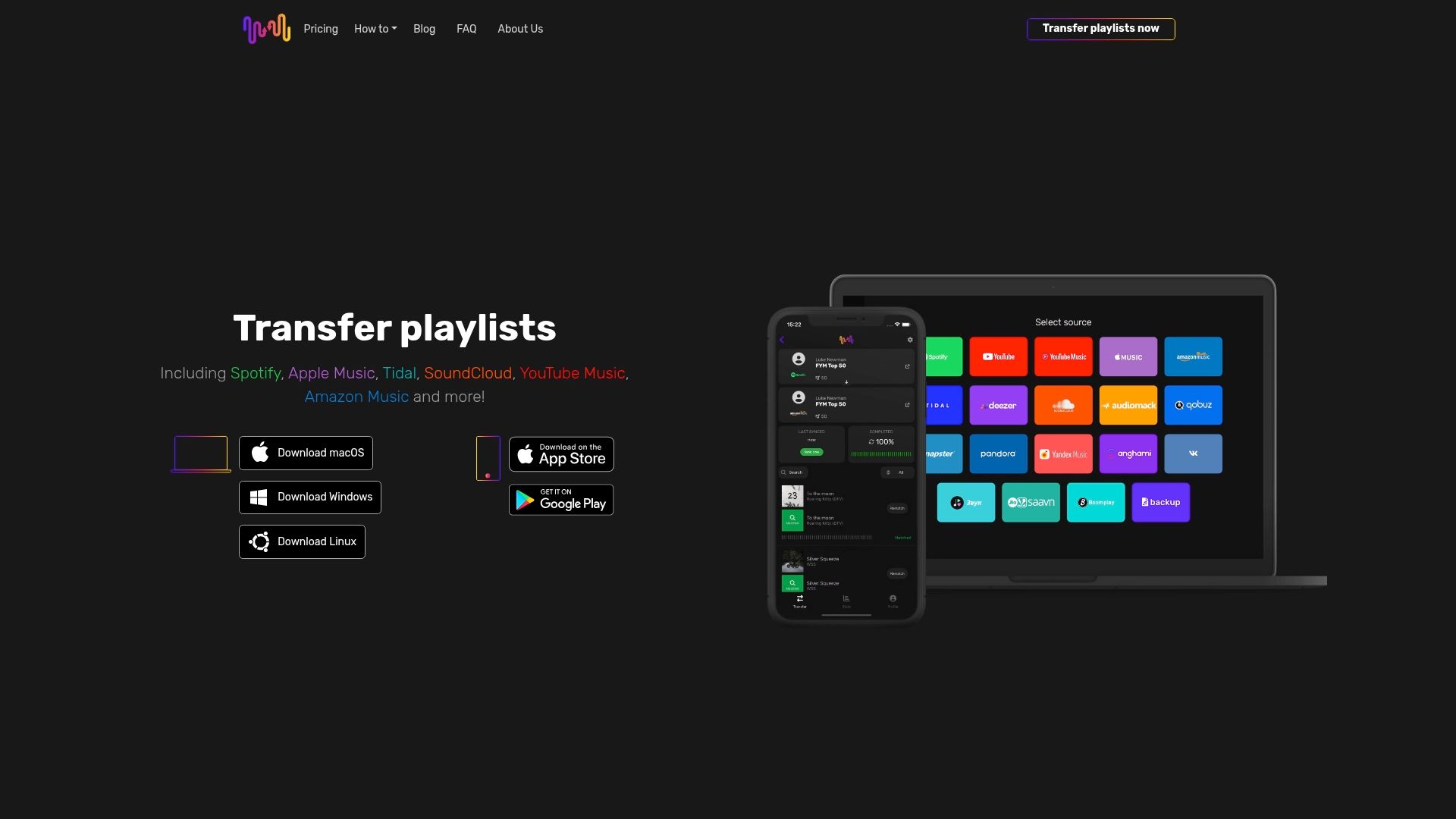
Ready to experience seamless playlist migration that supports multiple streaming platforms like Spotify, Apple Music, and Tidal while preserving every detail such as artwork and playlist order? Visit Free Your Music today. Discover how easy it is to transfer unlimited playlists across operating systems including macOS, Windows, Linux, Android, and iOS. Don’t let your music library face disruptions because of compatibility issues. Take control now by exploring Free Your Music’s user-friendly tools and enjoy stress-free music migration backed by reliable cloud backup and dedicated customer support.
Frequently Asked Questions
How can I check if my music app supports multiple streaming platforms?
To verify if your music app supports multiple streaming platforms, visit the app’s official website and look for the ‘Supported Services’ or ‘Compatible Platforms’ section. Make a list of the streaming services you currently use and compare them against the app's compatibility list to ensure a seamless transfer.
What should I do if I encounter compatibility issues with my operating system?
If you experience compatibility issues, first confirm that your music transfer app is designed for your specific operating system version. Identify your current OS and check the app's documentation for compatibility requirements, then consider choosing an app that supports your OS to avoid any installation problems.
What features should I look for in a music transfer app to ensure a successful playlist migration?
When evaluating a music transfer app, prioritize features such as song matching accuracy, ability to preserve playlist order, and support for metadata like cover art. Assess your needs based on the number of playlists and songs to select an app that meets all your playlist transfer requirements effectively.
Why is cloud backup essential when using a music transfer app?
Cloud backup is crucial because it protects your playlists from unexpected issues such as app crashes or lost connections during transfers. Ensure that the music transfer app you choose offers cloud backup functionality, so you can safely restore your playlists if a transfer fails.
How can I assess the customer support quality offered by a music transfer app?
To assess customer support quality, review the app's support channels such as email, live chat, and user documentation. Test their responsiveness by sending a question and evaluating how quickly and effectively they respond to determine if you'll receive the help you need when issues arise.
Recommended
- Free Your Music - 7 Essential Music Streaming Features You Need
- Free Your Music - 10 Essential Music Streaming Best Practices for Users
- Free Your Music - 7 Key Features of Music Streaming Services You Should Know
- Free Your Music - Understanding the Role of Third-Party Music Apps
- Why Incompatible DLL Errors Disrupt Windows Systems – FixDlls Blog

Your playlists belong to you.
Stop rebuilding by hand. Move everything in minutes and take your music wherever you go.
Download free →SongsBrew — our free music newsletter
A free perk for FYM users. Tips, playlists, no spam.