What Is Cross-Platform Music Transfer? Complete Overview
May 18, 2026
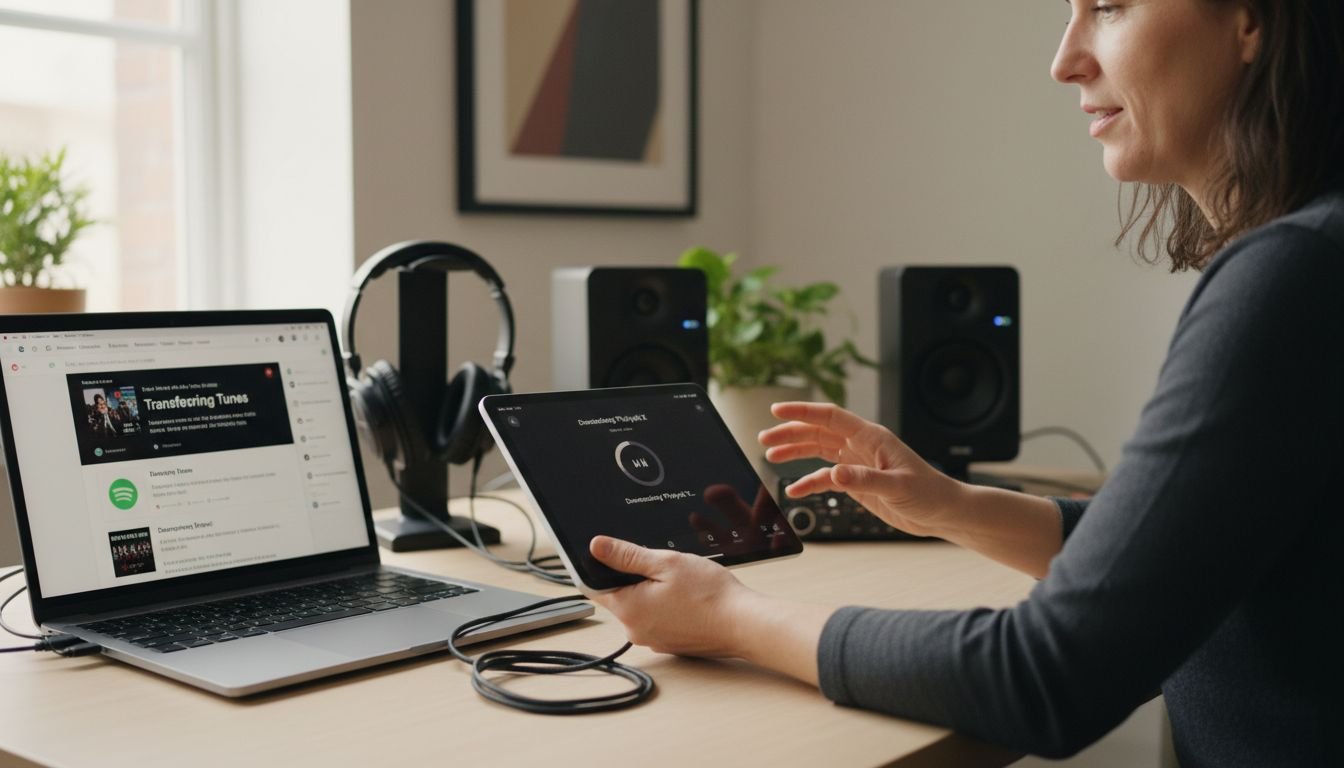
Nearly one in three american music fans now use more than one streaming service, which often leaves their favorite playlists scattered across different platforms. As the popularity of digital music grows, finding a way to keep songs and playlists together has become more important than ever. Cross-platform music transfer makes it possible to preserve those carefully curated collections so users can enjoy seamless access to their music library no matter which service or device they use.
Table of Contents
- Defining Cross-Platform Music Transfer
- How Playlist Transfer Technology Works
- Supported Streaming Services and Devices
- Common Challenges and Limitations
- Key Benefits and Potential Risks
Key Takeaways
| Point | Details |
|---|---|
| Cross-Platform Music Transfer Functionality | Enables users to migrate music libraries between different streaming services without manual re-creation of playlists. |
| Technological Mechanism | Involves account authentication, playlist scanning, song matching, and transfer execution to ensure seamless transfers. |
| Supported Services and Devices | Compatible with major platforms like Spotify, Apple Music, and various devices, allowing for flexible music management. |
| Challenges and Risks | Users should be aware of copyright issues, metadata inconsistencies, and potential privacy concerns during transfers. |
Defining Cross-Platform Music Transfer
Cross-platform music transfer represents a sophisticated digital solution enabling users to seamlessly move their music collections and playlists between different streaming services. Wikipedia defines cross-platform software as applications designed to operate across multiple computing platforms, which perfectly encapsulates the core functionality of music transfer technologies.
At its fundamental level, cross-platform music transfer allows music enthusiasts to migrate their entire playlist libraries without manually recreating each compilation. This process transcends traditional boundaries by leveraging standardized communication protocols that facilitate media file exchanges between diverse digital ecosystems. As Wikipedia notes, technologies like the Media Transfer Protocol enable seamless data movement across different platforms, ensuring music lovers maintain their curated collections.
The primary goals of cross-platform music transfer include:
- Preserving playlist integrity and song ordering
- Matching tracks accurately across different streaming services
- Minimizing user effort during music library migration
- Providing a universal solution for music collection management
Understanding these transfer mechanisms becomes crucial as music streaming services continue to diversify and users seek more flexible listening experiences. Understanding the Music Collection Transfer Guide provides additional insights into navigating these complex digital music landscapes.
How Playlist Transfer Technology Works
Playlist transfer technology operates through a sophisticated multi-step process that enables seamless music library migration across different streaming platforms. As observed in iOS App Store, modern transfer applications utilize advanced matching algorithms to connect user accounts and facilitate precise song transfers.
The core technological mechanism involves several critical steps: account authentication, playlist scanning, song matching, and transfer execution. When a user initiates a transfer, the system first securely authenticates their accounts across different streaming services, creating a temporary bridge between platforms. This authentication allows the technology to read and analyze existing playlist structures, identifying each track's unique metadata such as title, artist, album, and duration.
Key technical components of playlist transfer technology include:

- Smart matching algorithms that compare track metadata
- Fuzzy search capabilities to handle slight variations in song information
- Cloud-based infrastructure supporting rapid data transfer
- Secure authentication protocols protecting user account information
- Preservation of original playlist order and structure
Understanding Playlist Transfer Best Practices for Users reveals that the most advanced transfer technologies can handle complex scenarios like identifying alternative versions of tracks, managing international music libraries, and minimizing manual intervention during the migration process.
Supported Streaming Services and Devices
Cross-platform music transfer technologies support a wide range of streaming services and devices, enabling users to seamlessly migrate their music libraries across multiple digital ecosystems. iOS App Store highlights that modern transfer applications are compatible with major streaming platforms like Spotify, Apple Music, and YouTube, providing flexibility for music enthusiasts.
Streaming service compatibility has become increasingly sophisticated, allowing users to transfer playlists across an expanding network of digital music platforms. The most comprehensive transfer technologies now support a diverse range of services, including:
- Spotify
- Apple Music
- YouTube Music
- Amazon Music
- Tidal
- Pandora
- Deezer
- SoundCloud
Device compatibility is equally robust, with transfer technologies supporting multiple operating systems and device types. Users can typically transfer music across:
- Desktop computers (Windows, macOS, Linux)
- Mobile devices (iOS, Android)
- Web browsers
- Smart speakers and streaming devices
7 Examples of Music Streaming Platforms You Should Know provides additional insights into the evolving landscape of digital music platforms, helping users understand the breadth of options available for their music transfer needs.
Common Challenges and Limitations
Cross-platform music transfer technologies face several complex challenges that can impact the seamless migration of music libraries. Frontiersin highlights the intricate landscape of digital music rights management, which directly influences the effectiveness of music transfer technologies.
Copyright and licensing restrictions represent a significant barrier to comprehensive music transfers. Different streaming platforms negotiate unique licensing agreements, which means not all tracks are available across every service. This creates potential gaps during playlist migration, where certain songs might be unavailable or replaced with alternative versions. Key challenges include:
- Inconsistent music licensing agreements
- Regional content restrictions
- Variations in track metadata and encoding
- Different digital rights management protocols
Technical limitations further complicate the transfer process. The metadata matching complexity requires sophisticated algorithms to accurately identify and transfer tracks across platforms. Open Music Initiative emphasizes the need for standardized systems to ensure proper music rights management, which remains an ongoing challenge in the digital music ecosystem.
Additional transfer complications arise from:
- Platform-specific playlist formatting
- Variations in audio quality and encoding
- Incomplete song library matches
- Potential loss of playlist ordering or additional metadata
While transfer technologies continue to evolve, users should anticipate potential imperfections during the migration process and maintain realistic expectations about complete, seamless transfers.

Key Benefits and Potential Risks
Cross-platform music transfer technologies offer substantial advantages while simultaneously presenting nuanced challenges for users. Frontiersin highlights that digital music management technologies bring enhanced transparency and security, but also introduce complex performance and data management considerations.
Key benefits of cross-platform music transfer include:
- Seamless music library migration
- Preservation of carefully curated playlists
- Elimination of manual music re-organization
- Freedom to switch between streaming platforms
- Comprehensive music collection management
- Time and effort savings
Potential risks require careful user consideration. Open Music Initiative underscores that while technological innovations aim to create standardized systems, diverse stakeholder interests can complicate implementation. Specific risks users might encounter include:
- Partial playlist transfers
- Metadata inconsistencies
- Potential temporary loss of playlist organization
- Privacy and account security concerns
- Potential subscription or licensing complications
Users should approach cross-platform music transfer with balanced expectations, understanding that while the technology offers significant advantages, no transfer process is absolutely perfect. Careful research and using reputable transfer services can help mitigate potential risks and maximize the benefits of music library migration.
Experience Effortless Cross-Platform Music Transfer Today
Managing your playlists while switching between streaming services can feel overwhelming. The article highlights common challenges like song matching, preserving playlist order, and dealing with platform restrictions. If you want to avoid the frustration of rebuilding your music library manually, you need a reliable solution designed specifically to address these pain points with accuracy and ease.

Discover how FreeYourMusic.com transforms your music migration journey. Our user-friendly platform supports seamless transfer across Spotify, Apple Music, Tidal, YouTube Music, Amazon Music, and more. We preserve your playlist structure while matching songs perfectly to save you hours of work. Start migrating your music with confidence and enjoy uninterrupted listening. Take the next step now by visiting FreeYourMusic.com and unlock hassle-free playlist transfers.
Frequently Asked Questions
What is cross-platform music transfer?
Cross-platform music transfer is a technology that enables users to seamlessly move their music collections and playlists between different streaming services without the need to manually recreate each compilation.
How does playlist transfer technology work?
Playlist transfer technology works through a multi-step process that involves account authentication, playlist scanning, song matching, and transfer execution, allowing users to efficiently migrate their playlists across various platforms.
What are the common challenges of cross-platform music transfer?
Common challenges include copyright and licensing restrictions, variations in track metadata, platform-specific playlist formatting, and potential loss of playlist ordering during the transfer process.
What are the benefits of using cross-platform music transfer services?
Key benefits include seamless migration of music libraries, preservation of curated playlists, elimination of manual reorganization, and overall time savings when switching between streaming platforms.
Recommended


Migrate from and to any music services


Most popular Apple Music transfers: