

Transfer Apple Music to YouTube Music
Move your playlists from Apple Music to YouTube Music without rebuilding anything by hand. Connect both accounts, pick what to move, and Free Your Music recreates it on YouTube Music with the same names and song order.
★★★★★ 4.7 · 12M+ downloads · Password never shared


Short answer
Yes, you can move your music from Apple Music to YouTube Music. Free Your Music copies your playlists. Your Apple Music library stays as it is. The transfer is free, and it runs on our servers, so you can close the app while it works.

Why move from Apple Music to YouTube Music?
Free Your Music moves your playlists from Apple Music to YouTube Music. It matches the songs one by one and lists anything that is not on YouTube Music, so you can fix it before you switch.
Supported transfers
Playlists (with original names + order)
Review missing tracks
Catalogs differ. Review the transfer results for tracks that could not be matched on the destination service.
Apple Music to YouTube Music at a glance
| What | Answer |
|---|---|
| Playlists | Yes |
| Liked songs | No |
| Saved albums | No |
| Followed artists | No |
| Song order kept | Not always |
| Your old library | Stays, it is a copy |
| Runs in the background | Yes, on our servers |
| Price | The transfer is free |
| Keep in sync | With Pro, once a day |
How to transfer playlists from Apple Music to YouTube Music
Four steps. The same on iPhone, Android, Mac, Windows and Linux.
Quick answer
To transfer Apple Music to YouTube Music, install Free Your Music, select Apple Music as the source and YouTube Music as the destination, choose the playlists you want, and start the transfer. The app finds each song on YouTube Music and lists any track it could not match.
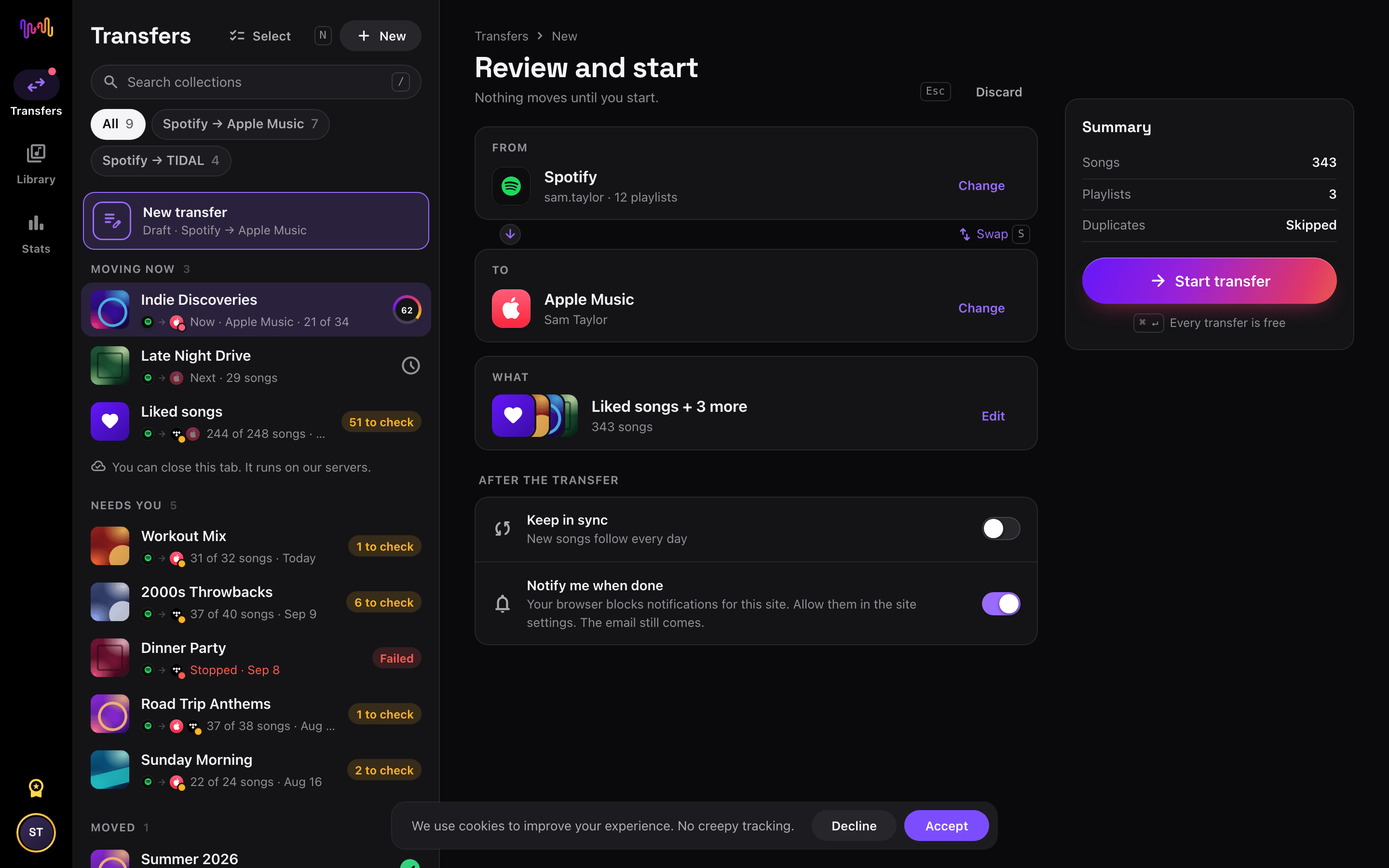
- 1
Connect Apple Music as the source
Open Free Your Music, tap the Apple Music tile on the "Select source" screen and sign in on the Apple Music sign-in page. Free Your Music does not store your Apple Music password.
- 2
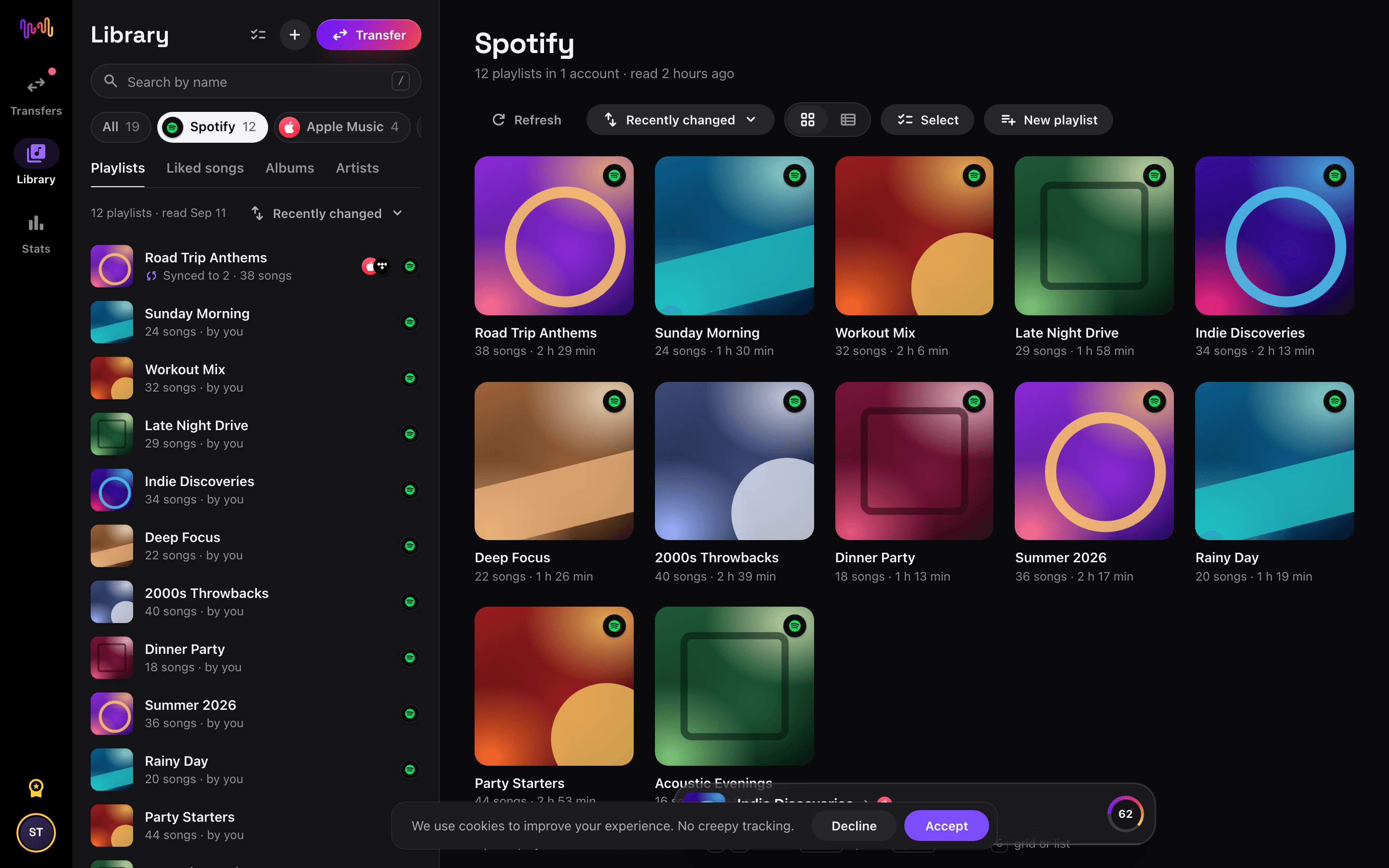
Choose YouTube Music as the destination
On the "Select destination" screen, tap YouTube Music and sign in. Free Your Music needs access to your YouTube Music library to create the playlists there.
- 3
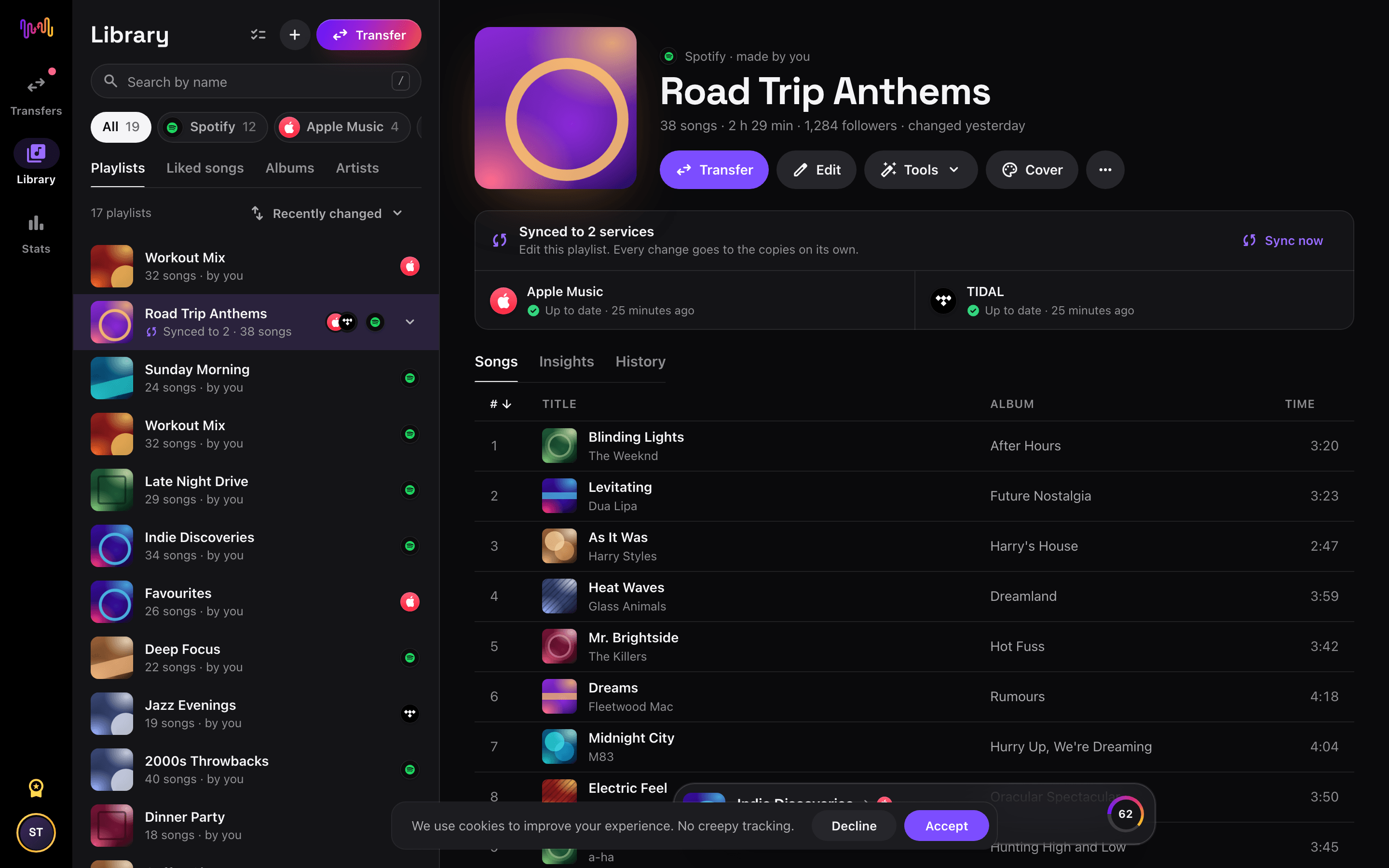
Select what to move
Tick the playlists you want on YouTube Music. Use the filters and the search field to find them, or select everything to move your whole Apple Music library at once.
- 4
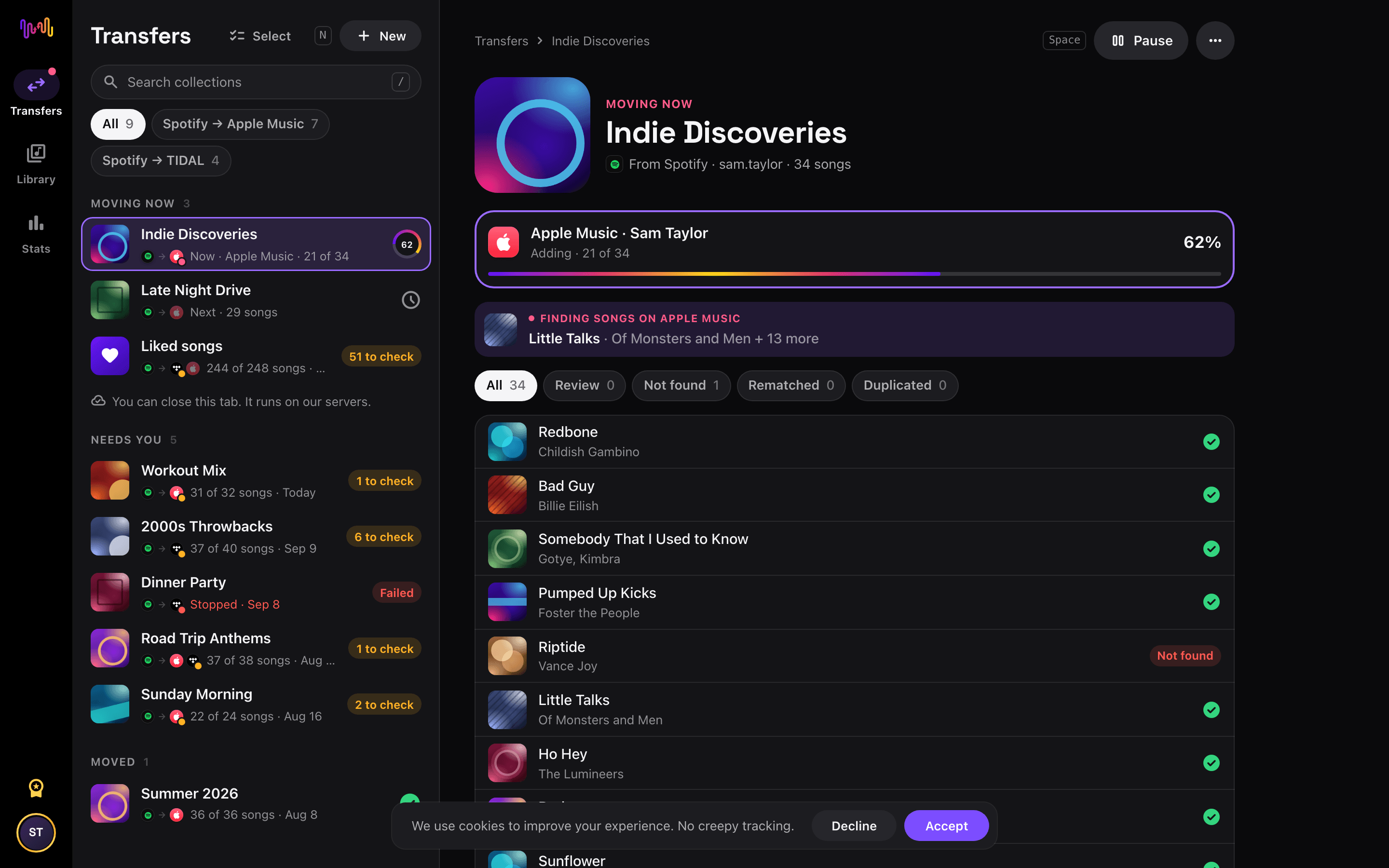
Start the transfer and check the results
Tap "Begin transfer". Free Your Music matches every song on YouTube Music, keeps the playlist names and the song order, and shows a confidence score for each match. Use Rematch to fix any song it could not find.


Apple Music to YouTube Music with Siri Shortcuts
Move a Apple Music playlist to YouTube Music from its link. You build no new playlist by hand.
- In Apple Music, tap Share on a playlist, then Copy link.
- Run the Transfer a link shortcut of Free Your Music and pick YouTube Music.
- The whole playlist moves to YouTube Music. We tell you when it is done.
Watch your Apple Music to YouTube Music transfer from your Home Screen
Start the transfer, close the app and follow it on your Home Screen or Lock Screen. The transfer widgets are free.
- Moving now shows how many songs are on YouTube Music already.
- Last transfer takes you to the songs to check, in one tap.
This transfer is free
Every transfer from Apple Music to YouTube Music is free in your browser and in the new iPhone and Android apps. No card.
Keep them in sync
Still use both? Turn on auto-sync. New songs on Apple Music reach YouTube Music once a day.
YouTube Music playlist tools
Good to know before you move Apple Music to YouTube Music
Apple Music as the source
Some features need an active Apple Music subscription. Turn smart playlists into normal playlists in the Music app before you transfer them.
Read the Apple Music guide →YouTube Music as the destination
Before the first transfer, your Google account needs a YouTube channel and one playlist that you create yourself on music.youtube.com.
Read the YouTube Music guide →What transfers from Apple Music to YouTube Music
On every device
Move, convert or import: one transfer from Apple Music to YouTube Music
Whatever you call it, it is the same job. You can move your Apple Music playlists to YouTube Music, convert a Apple Music playlist into a YouTube Music playlist, or import your Apple Music library into YouTube Music. Free Your Music does all three in one transfer, for one playlist or for a library of thousands of songs.
Keep Apple Music and YouTube Music in sync
Still adding songs on Apple Music? With Pro, Auto-Sync checks your transferred playlists and adds new songs to YouTube Music automatically, so both libraries stay the same. Pricing →
Move Apple Music to another service


See every Apple Music transfer →
Transfer to YouTube Music from another service
Moving from Apple Music to YouTube Music, explained
YouTube Music offers two things Apple Music does not: a free ad-supported tier and a catalogue that stretches past studio releases into live cuts, remixes and rarities from YouTube itself, with room to add your own personal uploads. Moving there keeps your collection while opening that door. Free Your Music reads your Apple Music library through Apple’s official sign-in and rebuilds your playlists inside YouTube Music.
This guide covers what transfers, what cannot, how songs are matched, how long it takes, and how the two services really differ. If you just want to begin, install Free Your Music, connect both accounts and pick what to move — the detail is below.
What transfers to YouTube Music, and what does not
Your playlists move with names and order preserved. Followed artists stay behind. Move everything at once or choose playlists individually, with counts shown before you commit.
A few things stay behind. Apple’s editorial mixes and Replay are unique to Apple Music, and podcasts live in a separate Apple app. Local files or uploaded iTunes tracks are not part of the streaming catalogue — though YouTube Music’s own personal-uploads feature lets you add those manually once you arrive.
How Free Your Music matches your tracks
Each Apple Music song is matched to the same recording in YouTube Music, preferring the ISRC code assigned to every recording and falling back to title, artist, album and duration otherwise. That precision keeps a large library from filling up with the wrong versions.
YouTube Music’s catalogue is huge and varied — the same song can exist as a studio master, a topic upload and a live take — so Free Your Music aims for the closest official match and flags anything uncertain for one-tap Rematch, letting you swap in exactly the version you meant.
How long does an Apple Music to YouTube Music transfer take?
Most transfers finish in minutes. With both accounts connected, around 1,000 tracks usually completes in under ten minutes. Larger libraries take longer, but the transfer runs on its own — start it and walk away.
Free Your Music runs on iPhone, iPad and Android, and in the browser on any Mac, Windows or Linux computer, so the move is not tied to one device. Start it on your Mac and follow progress on your phone; it is the same account and the same transfer.
Apple Music vs YouTube Music: what actually changes
The clearest difference is cost and breadth. YouTube Music has a free, ad-supported tier and a catalogue that reaches into live sets, remixes and rarities pulled from YouTube, plus personal uploads — where Apple Music has no permanent free tier and stays closer to the official studio catalogue, with lossless and Spatial Audio in its favour.
On experience, you trade Apple’s tight device integration and pristine audio for YouTube Music’s reach and its ties to YouTube and Google, where discovery follows your viewing habits. If you often chase versions Apple simply does not carry, YouTube Music is usually where they live.
Do you need to keep Apple Music while you transfer?
Yes — keep Apple Music active until the transfer is finished and checked. Free Your Music reads your Apple Music library while copying it into YouTube Music, and keeping both live means you never lose access mid-move. Cancel Apple Music only once you are satisfied.
YouTube Music has a free tier, so you can receive a transfer without paying, while Premium removes ads and adds background and offline play. Both services connect through their own official sign-in, and your password is never shared with Free Your Music.
Tips for a clean migration
Tidy your Apple Music playlists first so you carry only what you actually play. Transfer a couple of favourites and check them in YouTube Music — because it holds so many versions of popular songs, an early spot-check confirms you are getting studio masters rather than random uploads.
When the transfer finishes, resolve the Rematch list. If you had local iTunes files you cannot live without, add them through YouTube Music’s personal-uploads feature, then download your key playlists for offline listening on Premium.
Keeping Apple Music and YouTube Music in sync afterwards
A one-time move is not your only option. If you keep a foot in both, Free Your Music’s Auto-Sync mirrors the two libraries on a schedule so a song saved on Apple Music appears in YouTube Music without you thinking about it.
And the transfer runs the other way too, from YouTube Music back to Apple Music, if you switch again. Your library stays portable. Download Free Your Music, connect Apple Music and YouTube Music, and see how much comes across. Transferring your music is free.
Frequently asked questions
How do I transfer my Apple Music playlist to YouTube Music?
To transfer Apple Music to YouTube Music, install Free Your Music, select Apple Music as the source and YouTube Music as the destination, choose the playlists you want, and start the transfer. The app finds each song on YouTube Music and lists any track it could not match.
What exactly transfers from Apple Music to YouTube Music?
Free Your Music moves your playlists from Apple Music to YouTube Music. It matches the songs one by one and lists anything that is not on YouTube Music, so you can fix it before you switch.
Can Apple Music move my playlists to YouTube Music?
No. The Apple Music import tool only brings music into Apple Music. It cannot send your playlists to another service. To move your Apple Music playlists to YouTube Music, use Free Your Music.
Can I transfer Apple Music playlists to YouTube Music for free?
Yes. Transfers from Apple Music to YouTube Music are free: your playlists, with no card. Rematch and 30 days of Stats are free too. Pro keeps Apple Music and YouTube Music in sync every day and adds the playlist tools and playlist insights. What is free and what Pro adds →
What happens to songs that are not on YouTube Music?
Catalogs differ between services and regions. Free Your Music lists every song it could not match on YouTube Music, so you can pick another version with Rematch or skip it. Nothing is dropped without you seeing it.
Will my Apple Music playlists be deleted?
No. Free Your Music copies your music to YouTube Music and leaves your Apple Music library as it is. You decide later whether to keep or cancel your Apple Music account. Copy or move: what happens to your playlists →
Can I transfer my liked songs from Apple Music to YouTube Music?
No. One of the two services does not let apps read or save liked songs, so they do not move from Apple Music to YouTube Music. Your playlists move as usual. How liked songs transfer →
Do my playlists keep their song order on YouTube Music?
Not always. One of the two services does not let apps set the song order, so some songs can land in a different place on YouTube Music. Every song that is found still moves. How the song order transfers →
Do I keep my music if I cancel Pro?
Yes. The playlists you moved stay on YouTube Music. They belong to your YouTube Music account, not to Free Your Music. When Pro ends, auto-sync and the playlist tools stop, and your music stays where it is. What happens after you cancel Pro →
How long does a Apple Music to YouTube Music transfer take?
Most playlists move in a few minutes. Large libraries take longer, because the time depends on the number of songs and on the limits of Apple Music and YouTube Music. You can keep using your device while the transfer runs.
Can I transfer Apple Music to YouTube Music on my phone?
Yes. Free Your Music runs on iPhone, iPad and Android, and in the browser on any Mac, Windows or Linux computer. The steps are the same on every device.
Is there a Apple Music to YouTube Music shortcut?
Yes. On iPhone, copy a Apple Music playlist link and run the free Transfer a link shortcut of Free Your Music. It moves the playlist to YouTube Music. You can also ask Siri to do it for you.
Can I follow my Apple Music to YouTube Music transfer on my Home Screen?
Yes. Add the free Free Your Music Moving now widget. It shows how many songs are on YouTube Music already, and the free Last transfer widget takes you to the songs to check when it is done. The widgets work on iPhone and Android.
Find new music for your new library
Deep cuts every Thursday, free. SongsBrew is our weekly music letter: one subject in depth and a playlist at the bottom. 25,000+ readers.
Ready to move to YouTube Music?
Open Free Your Music on the web or on your phone and move your whole library in minutes. Every transfer is free. No card.
Move my music free →