How to Transfer Spotify Playlists to Apple Music
April 7, 2026
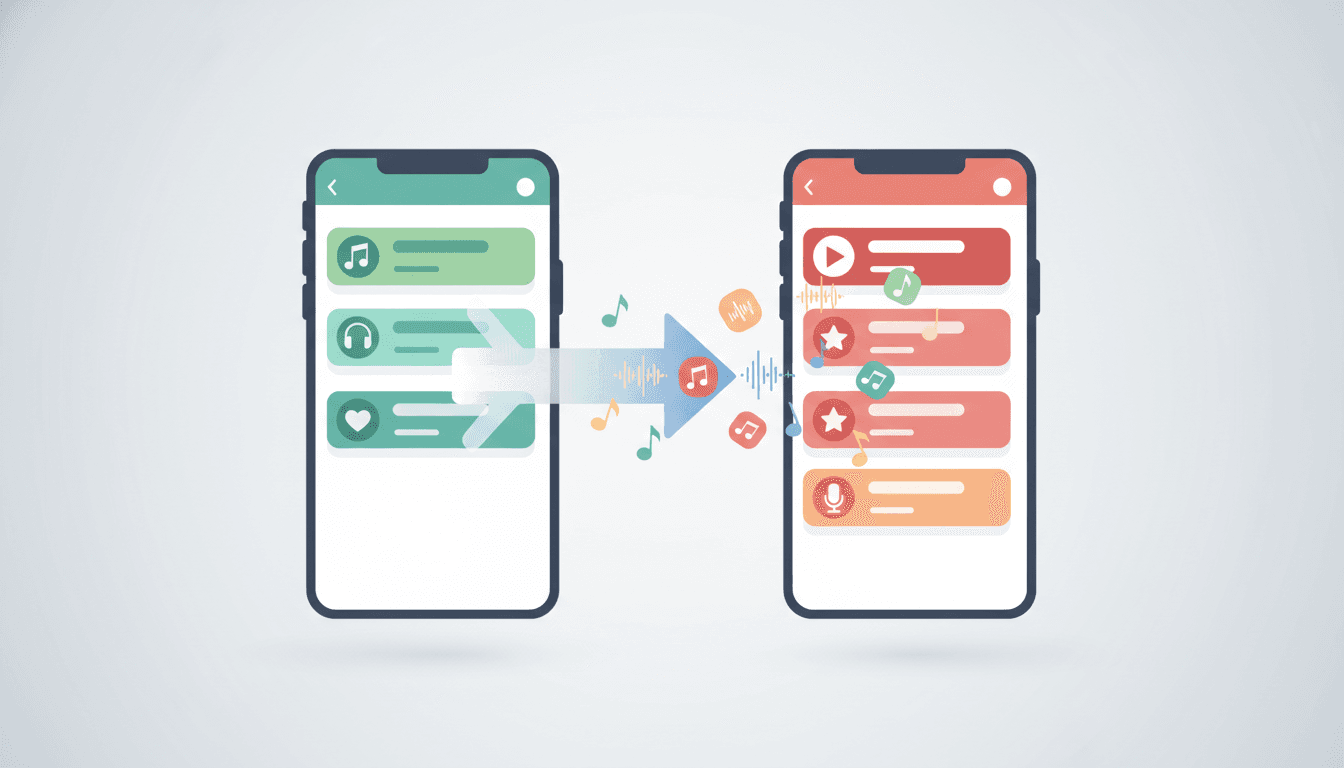
Switching from Spotify to Apple Music? You don't have to rebuild your music library from scratch. With Free Your Music, you can transfer your Spotify playlists, liked songs, and albums to Apple Music in just a few minutes.
This guide walks you through every step of the process, from choosing what to transfer to preserving your metadata and troubleshooting any issues along the way.
Why People Are Switching from Spotify to Apple Music in 2026
Apple Music has gained serious momentum this year, and many Spotify users are making the jump. Here are the top reasons:
- Lossless and Spatial Audio at no extra cost: Apple Music includes lossless audio and Dolby Atmos on every plan. You get studio-quality sound without paying a premium.
- Seamless Apple ecosystem integration: If you own an iPhone, iPad, Mac, Apple Watch, or HomePod, Apple Music works effortlessly across all your devices with Handoff, Siri, and automatic syncing.
- A cleaner listening experience: Apple Music focuses on music, with no algorithm-driven podcast recommendations mixed into your feed.
- Better artist payouts: Apple Music pays artists roughly double per stream compared to other platforms, which matters to listeners who want to support musicians directly.
- Apple One bundles: Combine Apple Music with iCloud+, Apple TV+, and more for significant savings on services you may already use.
Whatever your reason for switching, the big question remains: how do you move your Spotify playlists to Apple Music without manually recreating them?
The Challenge: Spotify and Apple Music Don't Talk to Each Other
Here's the problem every switcher faces. You can't export playlists from Spotify or import them into Apple Music natively. That means years of carefully curated playlists, liked songs, and saved albums could vanish the moment you cancel Spotify.
Rebuilding your library manually takes hours. Searching for each song one by one across a different platform is tedious, error-prone, and frustrating. For a playlist with 50 songs, expect to spend 30 minutes or more. For an entire library of thousands of tracks? You're looking at days of work.
That's exactly why Free Your Music exists.
How to Transfer Spotify Playlists to Apple Music with Free Your Music
Free Your Music automates the entire process. Connect your Spotify and Apple Music accounts, select what you want to transfer, and let the app handle the rest. Most transfers finish in under five minutes, even for large libraries.
Step 1: Download Free Your Music
Visit freeyourmusic.com and download the app for your device. Free Your Music runs on iPhone, Android, Windows, macOS, and Linux.
Step 2: Select Spotify as Your Source
Open Free Your Music and choose Spotify as the source platform. Log in with your Spotify credentials and authorize access. Free Your Music reads your library data only and never modifies or deletes anything on your Spotify account.
Step 3: Connect Apple Music as Your Destination
Choose Apple Music as your destination. Log in with your Apple ID and grant the required permissions. Free Your Music connects through official APIs, so your credentials stay secure.
Step 4: Choose What to Transfer
Free Your Music gives you full control over what moves to Apple Music. You can transfer:
- All playlists at once for a complete migration
- Selected playlists if you only want specific ones
- Liked songs to move your entire saved collection
- Albums to keep your saved albums intact
- Followed artists to maintain your artist preferences
Select your content and tap Begin Transfer.
Step 5: Review and Confirm
Before anything moves, Free Your Music displays a summary of your selected content. Double-check the list and confirm. The smart matching algorithm works in the background to find each track's Apple Music equivalent.
Step 6: Let Free Your Music Work
The transfer runs automatically. For a library with hundreds of playlists, expect just a few minutes. Free Your Music processes everything in batches and generates a detailed report when finished. The report highlights any unmatched tracks so you can find alternatives manually.
Tips for Preserving Metadata During Your Transfer
Your music library is more than just a list of songs. Playlist names, song order, and album groupings all matter. Here's how to make sure everything transfers cleanly:
Keep Playlist Names and Order Intact
Free Your Music preserves your original playlist names and the exact order of songs within each playlist. You don't need to rename or reorganize anything after the transfer.
Watch for Duplicate Versions
Some songs exist in multiple versions on Apple Music, such as remastered editions, deluxe albums, or live recordings. Free Your Music's matching algorithm prioritizes the closest match to your Spotify version, but it's worth scanning your playlists after the transfer to confirm you got the versions you wanted.
Check Regional Availability
Some songs available on Spotify may not exist on Apple Music in certain regions due to licensing differences. If a track doesn't transfer, check whether it's available on Apple Music in your country. The transfer report flags these cases.
Handle Liked Songs and Albums Separately
Free Your Music transfers liked songs and saved albums as distinct categories, just like they appear on Spotify. This keeps your library organized and prevents everything from merging into one giant playlist.
More Tips for a Smooth Transition
-
Transfer before you cancel Spotify: Keep your Spotify account active until the transfer completes. Free Your Music needs access to read your library.
-
Review your transfer report: Check the unmatched tracks list after the transfer. Some songs may exist on Apple Music under a different name or album version.
-
Update your default music app: On iPhone, go to Settings > Apps > Default Apps and set Apple Music as your default music player.
-
Download playlists for offline listening: After the transfer, open Apple Music and download your favorite playlists. This avoids streaming charges on mobile data.
-
Explore Apple Music features: Try Spatial Audio with compatible headphones, check out Apple Music Sing for real-time lyrics, and browse the curated editorial playlists.
-
Keep Free Your Music installed: If you add new playlists to Spotify before fully switching, you can run another transfer anytime.
Frequently Asked Questions
How long does the transfer take?
Most transfers finish in under five minutes. Larger libraries with thousands of songs may take slightly longer, but Free Your Music processes tracks quickly in the background.
Will I lose any songs during the transfer?
Free Your Music matches tracks with high accuracy, typically above 95%. A small number of songs may not have exact matches on Apple Music due to licensing differences between platforms. The app flags these in your transfer report so you can search for them manually.
Does Free Your Music cost anything?
Free Your Music offers a free tier that lets you transfer up to 600 songs at no cost. For full library transfers, affordable premium plans cover unlimited songs and playlists. Visit freeyourmusic.com for current pricing.
Can I transfer playlists back to Spotify later?
Yes. Free Your Music works in both directions. If you decide to return to Spotify or want to keep both services in sync, you can transfer from Apple Music back to Spotify anytime.
Is my data safe?
Free Your Music connects through official platform APIs and never stores your music files. Your login credentials go directly to Spotify and Apple Music. Free Your Music only accesses your library metadata to perform the transfer.
Does it work on mobile?
Yes. Free Your Music has dedicated apps for both iPhone and Android. You can run the full transfer directly from your phone.
What other platforms does Free Your Music support?
Beyond Spotify and Apple Music, Free Your Music supports transfers between YouTube Music, Amazon Music, Tidal, Deezer, SoundCloud, Pandora, and many more. Over 20 platforms are supported in total.
Start Your Transfer Today
Switching from Spotify to Apple Music doesn't mean losing your music library. Free Your Music makes the transition fast, accurate, and hassle-free. Download Free Your Music at freeyourmusic.com, connect your accounts, and move your playlists in minutes.
Your music belongs to you. Take it wherever you go.
What's next?


Migrate from and to any music services


Most popular Apple Music transfers: