Guide till att byta musiktjänst: Flytta dina spellistor smidigt

Att byta streamingplattform för musik kan kännas riskabelt när dina omsorgsfullt sammanställda spellistor står på spel. För DJ:ar och hängivna musikälskare handlar det om mer än bekvämlighet att behålla varje låt på rätt plats – det bevarar timmar av kreativt arbete och musikupptäckter. Studier visar att omsorgsfullt sammanställda musiksamlingar ger större lyssnarglädje och håller lusten att upptäcka nya låtar vid liv. Den här guiden tar dig igenom de bästa stegen för att flytta dina spellistor smidigt och tillförlitligt, oavsett vart musiken tar dig.
Innehållsförteckning
- Steg 1: Gå igenom dina nuvarande spellistor
- Steg 2: Välj en ny streamingtjänst
- Steg 3: Installera och konfigurera Free Your Music
- Steg 4: Flytta spellistor med automatiserade verktyg
- Steg 5: Kontrollera spellistornas innehåll och ordning
Snabböversikt
| Huvudpunkt | Förklaring |
|---|---|
| 1. Gå igenom dina nuvarande spellistor | Inventera dina spellistor efter typ och storlek för att avgöra vad som är viktigt att flytta och rensa bort sådant du inte längre behöver. |
| 2. Välj rätt streamingtjänst | Jämför plattformarnas funktioner, ljudkvalitet, priser och användarvänlighet utifrån dina musikpreferenser. |
| 3. Installera Free Your Music | Ladda ner och konfigurera Free Your Music för att enkelt flytta dina spellistor automatiskt mellan musiktjänster. |
| 4. Flytta spellistorna automatiskt | Starta överföringen med Free Your Music för att snabbt flytta dina spellistor utan att behöva återskapa dem manuellt. |
| 5. Kontrollera att spellistorna är kompletta | Kontrollera antalet låtar, låtordningen och eventuella saknade spår efter överföringen för att säkerställa att inget har gått förlorat. |
Steg 1: Gå igenom dina nuvarande spellistor
Innan du flyttar dina spellistor till en ny streamingtjänst är det bra att skaffa dig en tydlig bild av vad du har. Genomgången förebygger överraskningar under överföringen och hjälper dig att avgöra vilka spellistor som är viktigast för ditt lyssnande. Du ska inventera dina befintliga spellistor, kontrollera deras storlek och se hur de är uppbyggda så att inget går förlorat i flytten.
Börja med att öppna din nuvarande streamingtjänst och gå igenom alla dina spellistor. Räkna hur många du faktiskt har och dela sedan in dem efter typ. Är det träningslistor, samlingar för olika sinnesstämningar, tillbakablickar på artisters karriärer eller gemensamma spellistor? Vissa spellistor kanske har blivit inaktuella eller sällan används, och nu är ett perfekt tillfälle att avgöra om de är värda att flytta. Titta också på spellistornas storlek. En spellista med 500 låtar kräver en annan genomgång än en med 50. Forskning visar att genomtänkta musiksamlingar ger betydligt större lyssnarglädje, så överväg att slå ihop dubbla listor eller ta bort sådana du inte längre lyssnar på. Kontrollera spellistornas beskrivningar och de omslagsbilder du har anpassat. Anteckna viktiga detaljer om ordningen eller särskilda låtföljder som betyder något för dig. Var extra uppmärksam på gemensamma spellistor där andra har lagt till låtar, eftersom dessa behöver hanteras på ett annat sätt vid överföringar.
Undersök sedan vilka plattformsfunktioner dina nuvarande spellistor använder. Vissa streamingtjänster erbjuder unika sätt att organisera musiken, som smarta spellistor eller algoritmbaserade rekommendationer, som kanske inte går att överföra direkt till en annan tjänst. Om du förstår hur algoritmbaserade rekommendationer påverkar ditt lyssnande blir det lättare att veta vad du kan förvänta dig när du byter plattform. Anteckna vilka spellistor som har specialtecken i namn eller beskrivningar, eftersom dessa ibland kan orsaka problem vid överföringar. Notera också om du har lagt till lokala filer eller outgivna låtar i dina spellistor, eftersom de kräver särskild hantering under flytten. Genom att göra den här inventeringen nu vet du exakt vad som ska flyttas vart och kan fatta välgrundade beslut om hur överföringen ska gå till.
Proffstips: Exportera spellistornas namn och storlek till ett enkelt kalkylblad under genomgången och använd det sedan som referens under hela överföringen.
Steg 2: Välj en ny streamingtjänst
Nu när du vet vilka spellistor du ska flytta är det dags att välja vart de ska. Att välja rätt streamingtjänst handlar om att hitta en plattform som passar din musiksmak, budget och dina lyssningsvanor. Jämför funktioner, ljudkvalitet, musikutbud och användarupplevelse för att se till att ditt nya hem för musiken verkligen fungerar för dig.
Börja med att lista de plattformar du överväger på allvar. Spotify, Apple Music, Tidal, YouTube Music och Amazon Music har alla olika styrkor och svagheter. Fundera på vad som är viktigast för din lyssningsupplevelse. Vill du ha riktigt hög ljudkvalitet, eller räcker vanlig streaming? Använder du redan ett visst ekosystem i stor utsträckning, till exempel genom en iPhone eller Android-enhet? Ta hänsyn till funktioner som personliga rekommendationer och innehållsutbud när du väljer, eftersom de påverkar hur väl tjänsten lär sig dina preferenser över tid. Kontrollera också prismodellerna. Vissa tjänster erbjuder familjeabonnemang, studentrabatter eller paket med andra abonnemang. Undersök den geografiska tillgängligheten om du reser ofta, eftersom vissa plattformar fungerar bättre internationellt än andra. Läs användarrecensioner med särskilt fokus på gränssnittet, eftersom du kommer att använda det hela tiden. Var uppmärksam på kommentarer om hur enkel eller frustrerande appen är i vardagen.
Provkör sedan några plattformar om du kan. De flesta erbjuder kostnadsfria provperioder på en till tre månader. Använd tiden till att skapa en testspellista, utforska funktionerna för att upptäcka musik och känna efter hur appen fungerar på dina enheter. Kontrollera också kompatibiliteten mellan olika enheter. Om du lyssnar via mobilen, bilen, datorn och smarta högtalare behöver den valda plattformen fungera smidigt på allihop. Möjligheten att ladda ner musik för offlinelyssning är viktig om du pendlar utan stabil internetuppkoppling. Titta på samarbetsfunktionerna om du delar musik med vänner eller arbetar som DJ. Vissa plattformar gör det enklare än andra att dela spellistor och skapa gemensamma listor. När du har testat får du en tydlig känsla för vilken plattform som faktiskt passar din vardag, utöver att bara se bra ut på papperet.
Proffstips: Starta kostnadsfria provperioder på två eller tre plattformar samtidigt och skapa likadana testspellistor på alla. Använd sedan varje plattform i två veckor innan du bestämmer vilken som känns rätt.
Här är en snabb jämförelse av de största streamingplattformarna för musik som kan hjälpa dig att välja:
| Plattform | Ljudkvalitetsalternativ | Integration med ekosystem | Främsta styrka |
|---|---|---|---|
| Spotify | Standard och hög (320 kbps) | Fungerar på alla vanliga enheter | Spellistor i toppklass |
| Apple Music | Lossless och Hi-Res | Nära integration med iOS | Stor katalog, stöd för Siri |
| Tidal | HiFi och Master (MQA) | Stöd för utvalda smarta enheter | Ljudkvalitet i toppklass |
| YouTube Music | Standard och hög | Kopplat till Googles produkter | Video- och musikinnehåll |
| Amazon Music | HD och Ultra HD | Alexa och Amazons produkter | Rabatt för Prime-medlemmar |
Steg 3: Installera och konfigurera Free Your Music
Nu är det dags att förbereda överföringsverktyget. Det tar bara några minuter att installera och konfigurera Free Your Music, och sedan har du allt du behöver för att smidigt flytta dina spellistor mellan plattformar. Det här steget förenklar flytten genom att ge dig en app som är särskilt utvecklad för att överföra spellistor.
Gå till Free Your Musics webbplats och ladda ner appen för ditt operativsystem. Oavsett om du använder macOS, Windows, Linux, Android eller iOS finns det en version av Free Your Music för dig. Installationsfilen är liten och appen installeras snabbt utan att ta upp onödigt mycket utrymme. Öppna appen när den är installerad och skapa ett konto om du inte redan har ett. Du behöver giltiga inloggningsuppgifter till både din nuvarande streamingtjänst och den nya plattformen, så ha dem till hands innan du börjar. Appen ber om tillåtelse att komma åt ditt musikbibliotek och dina spellistor i den nuvarande tjänsten. Det behövs för att Free Your Music ska kunna läsa dina befintliga spellistor och hitta rätt motsvarigheter till låtarna på den nya plattformen. Du kan känna dig trygg med säkerheten, eftersom externa tjänster för musiköverföring prioriterar att skydda dina uppgifter med kryptering och vedertagna säkerhetsmetoder. När du har gett åtkomst läser appen igenom ditt bibliotek och visar alla tillgängliga spellistor som kan överföras.
Ställ sedan in dina överföringsalternativ. Välj vilka spellistor du vill flytta. Minns du genomgången i steg 1? Nu kommer den till nytta. Du kan välja att överföra alla spellistor eller bara dem som betyder mest för dig. Ange eventuella särskilda alternativ, till exempel om du vill behålla låtordningen, ta med gemensamma spellistor eller bevara omslagsbilder och beskrivningar. De flesta föredrar att behålla allt som det är, men valet är ditt. Ta en stund och granska sammanfattningen innan du startar överföringen. När du är nöjd med inställningarna är du redo för själva flytten.

Proffstips: Gör först en testöverföring med en eller två små spellistor för att kontrollera att allt fungerar som det ska innan du flyttar hela din musiksamling.
Steg 4: Flytta spellistor med automatiserade verktyg
Det är nu det händer. Automatiserade överföringsverktyg tar bort det tidsödande arbetet med att återskapa spellistor låt för låt på din nya plattform. Tekniken hittar motsvarande låtar på de olika tjänsterna, bevarar spellistornas struktur och flyttar allt på minuter i stället för timmar.
När Free Your Music är konfigurerat och klart startar du överföringen genom att klicka på överföringsknappen. Appen börjar läsa de valda spellistorna från din nuvarande streamingtjänst och matchar varje låt mot motsvarande spår på målplattformen. Matchningen använder metadata som artistnamn, låttitel och albuminformation för att hitta rätt versioner på olika tjänster. Vissa låtar kan ha små skillnader i stavning eller formatering mellan plattformarna, men matchningsalgoritmen hanterar de flesta av dem automatiskt. Följ överföringen medan den arbetar sig igenom dina spellistor. Du får uppdateringar i realtid som visar vilka spellistor som är klara och hur många låtar som bearbetas. De flesta överföringar går relativt snabbt, men tiden beror på spellistornas storlek och hastigheten på din internetuppkoppling. Några tusen låtar kan ta mellan 5 och 15 minuter. Automatiserade verktyg har stöd för att överföra flera listor samtidigt och synkronisera dem just för att du ska slippa gå igenom allt manuellt. Appen gör grovjobbet medan du tar det lugnt.
När överföringen är klar tar du en stund för att kontrollera att allt har kommit över korrekt till den nya plattformen. Öppna din nya streamingtjänst och kontrollera att spellistorna visas med rätt namn och antal låtar. Bläddra igenom några spellistor för att se att låtarna finns där och ligger i rätt ordning. Kontrollera särskilt dina gemensamma spellistor, eftersom de ibland kräver särskild hantering. Ingen panik om du upptäcker att några låtar saknas. Överföringsverktyget brukar markera låtar som inte gick att matcha, och du kan lägga till de ovanliga eller mindre kända spåren manuellt efteråt. Det kan hända med outgiven musik, låtar som bara finns i vissa regioner eller helt nya släpp som ännu inte har indexerats. När du har kontrollerat spellistorna är själva överföringen i stort sett klar. Din musik finns nu på den nya plattformen.
Proffstips: Behåll Free Your Music installerat och aktivera automatisk synkronisering så att dina nya spellistor hålls synkroniserade med ditt gamla konto i minst en månad. Då får du tid att komma in i den nya tjänsten innan du säger upp ditt gamla abonnemang.
Steg 5: Kontrollera spellistornas innehåll och ordning
Nu är det dags för kvalitetskontroll. Genom att granska de överförda spellistorna säkerställer du att allt har flyttats korrekt och att lyssningsupplevelsen du har skapat finns kvar. Det här steget fångar upp eventuella luckor och låter dig finjustera hur musiken är organiserad på den nya plattformen innan du slutför bytet.
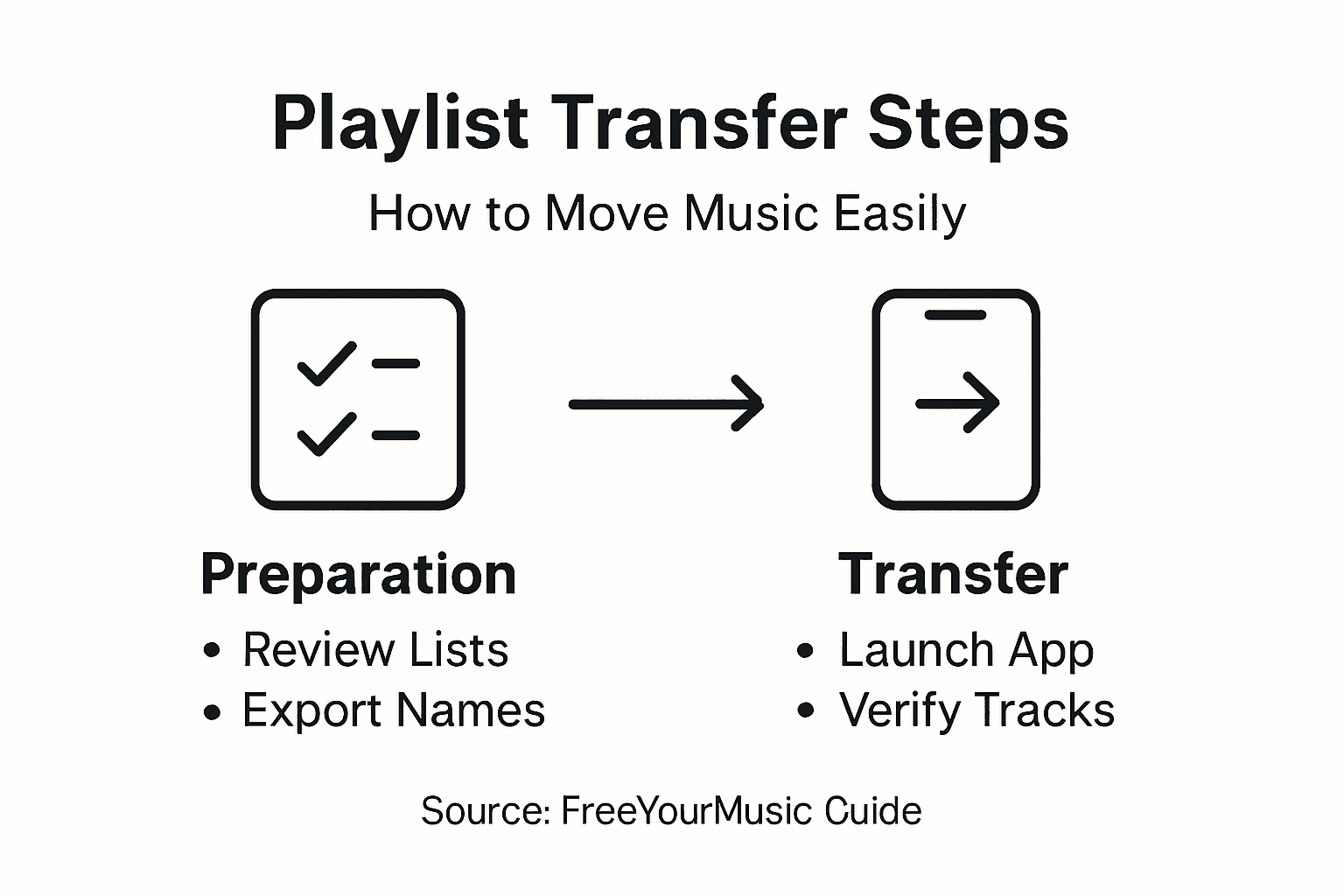
Börja med att öppna din nya streamingtjänst och systematiskt gå igenom de överförda spellistorna. Ta dina viktigaste samlingar först, de du lyssnar på regelbundet. Öppna varje spellista och kontrollera att antalet låtar stämmer med din ursprungliga inventering. Bläddra igenom listan och gör stickprov på olika ställen, inte bara bland de första låtarna. Lyssna på några låtar från olika delar av spellistan för att kontrollera att det är rätt versioner och att ljudkvaliteten är godtagbar. Var extra uppmärksam på spellistor där en viss låtordning är viktig för dig. Ordningen ska ha bevarats från originalet, men kontrollera själv genom att jämföra några nyckellåtar. Om du har skapat spellistor för särskilda sinnesstämningar eller olika faser av ett träningspass kan du testa flödet genom att lyssna på flera låtar i följd. Du märker snabbt om något känns fel i övergångarna. Hur väl en spellista hänger ihop, med smidiga övergångar mellan låtarna, påverkar lyssningsupplevelsen mycket. Ta därför tid att kontrollera att dina noggrant planerade låtföljder har följt med som de ska.
Ta sedan itu med eventuella saknade låtar. Öppna överföringshistoriken eller kontrollera listan över omatchade låtar i Free Your Music. Det är spår som appen inte kunde hitta på den nya plattformen. Ovanliga eller mindre kända låtar kan du behöva söka efter och lägga till manuellt. Ibland finns en låt under ett något annorlunda artistnamn eller som liveversion i stället för studioinspelning. Lägg tid på dina viktigaste spellistor först och gå sedan igenom resten när du hinner. Kontrollera också att spellistornas metadata har överförts korrekt. Se efter att namn, beskrivningar och omslagsbilder har följt med. Vissa egna omslagsbilder kanske inte går att överföra, så du kan behöva lägga till dem manuellt igen. Kontrollera särskilt att alla deltagare i gemensamma spellistor fortfarande finns med och kan redigera. Dina gemensamma listor ska ha samma behörigheter och åtkomst som tidigare.
Viktiga kontroller för en lyckad överföring av spellistor:
| Steg | Varför det är viktigt | Vanliga problem att hålla utkik efter |
|---|---|---|
| Kontrollera låtordningen | Bevarar lyssningsupplevelsen | Omkastade låtar, förlorad ordning |
| Granska metadata | Behåller ordningen i spellistesamlingen | Saknade omslagsbilder, ändrade namn |
| Kontrollera gemensamma listor | Säkerställer att gruppen har kvar sin åtkomst | Borttagna redigerare, förlorad åtkomst |
| Återställ saknade låtar | Gör viktiga spellistor kompletta | Mindre kända eller exklusiva låtar |
Proffstips: Skapa ett kalkylblad där du dokumenterar spellistor med saknade låtar eller formateringsproblem. Börja sedan med dem du lyssnar mest på och återställ dem helt innan du tar itu med samlingar du använder mer sällan.
Byt musiktjänst utan krångel med Free Your Music
Att byta streamingtjänst kan kännas överväldigande när du behöver flytta mängder av spellistor, bevara låtordningen och återställa saknade spår. Om du vill slippa frustrationen med att bygga upp din musiksamling från grunden eller oroa dig för förlorad metadata och saknade omslagsbilder erbjuder Free Your Music den perfekta lösningen. Plattformen är särskilt utvecklad för att göra det enkelt att flytta spellistor och hjälper dig att smidigt bevara din personliga lyssningsupplevelse.
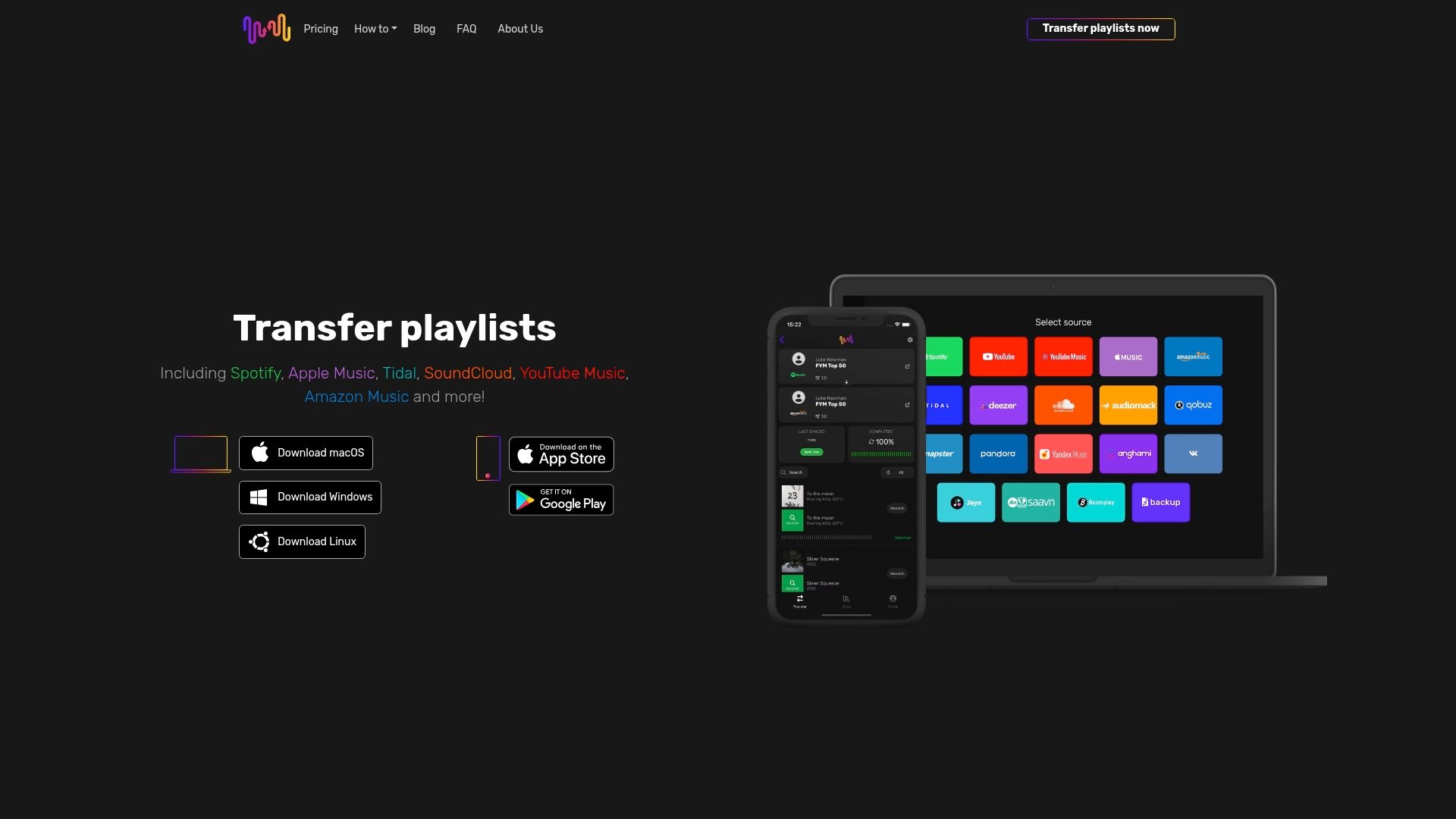
Upptäck möjligheterna med automatisk överföring och synkronisering av spellistor mellan Spotify, Apple Music, Tidal, YouTube Music, Amazon Music och fler tjänster. Med Free Your Music får du träffsäker låtmatchning, bevarad spellistestruktur och säkerhetskopiering i molnet för extra trygghet. Vänta inte tills dina spellistor hamnar ur synk eller du förlorar åtkomsten till dina favoritlåtar. Starta din smidiga flytt redan i dag på FreeYourMusic.com och upptäck hur enkelt det faktiskt kan vara att byta streamingplattform.
Vanliga frågor
Hur går jag igenom mina nuvarande spellistor innan jag flyttar dem?
Öppna din nuvarande streamingtjänst och gå igenom alla dina spellistor. Räkna dem, dela in dem efter typ och anteckna viktiga detaljer som storlek och särskilda låtföljder för att kunna planera överföringen.
Vad bör jag tänka på när jag väljer en ny streamingtjänst?
Jämför sådant som ljudkvalitet, musikutbud, prismodeller och integration med ditt ekosystem. Lista vad som är viktigast för dig och använd kostnadsfria provperioder för att testa några plattformar och hitta den som passar dina lyssningsvanor bäst.
Hur installerar och konfigurerar jag Free Your Music för att flytta mina spellistor?
Ladda ner versionen av Free Your Music för ditt operativsystem från den officiella webbplatsen. Skapa ett konto, logga in med dina inloggningsuppgifter till den nuvarande och den nya streamingtjänsten och ge appen tillåtelse att komma åt ditt musikbibliotek för överföringen.
Hur säkerställer jag att mina spellistor överförs korrekt?
Kontrollera låtordningen, metadata och eventuella saknade låtar när överföringen är klar. Skapa en checklista för att systematiskt granska varje spellista och åtgärda eventuella problem innan du går över helt till den nya plattformen.
Hur återställer jag låtar som saknas efter att jag har flyttat mina spellistor?
Kontrollera listan över omatchade låtar i överföringsverktyget för att se vilka spår som inte hittades. Sök manuellt efter saknade låtar på din nya plattform och lägg till dem i spellistorna där det behövs för att göra din samling komplett igen.
Rekommenderad läsning
Dina spellistor tillhör dig.
Sluta bygga om för hand. Flytta allt på några minuter och ta med dig musiken vart du vill.
Ladda ner gratis →SongsBrew — vårt gratis musiknyhetsbrev
En gratis förmån för FYM-användare. Tips, spellistor, ingen spam.