How to Download Music From YouTube Music: Phone, Computer, and Offline Fixes
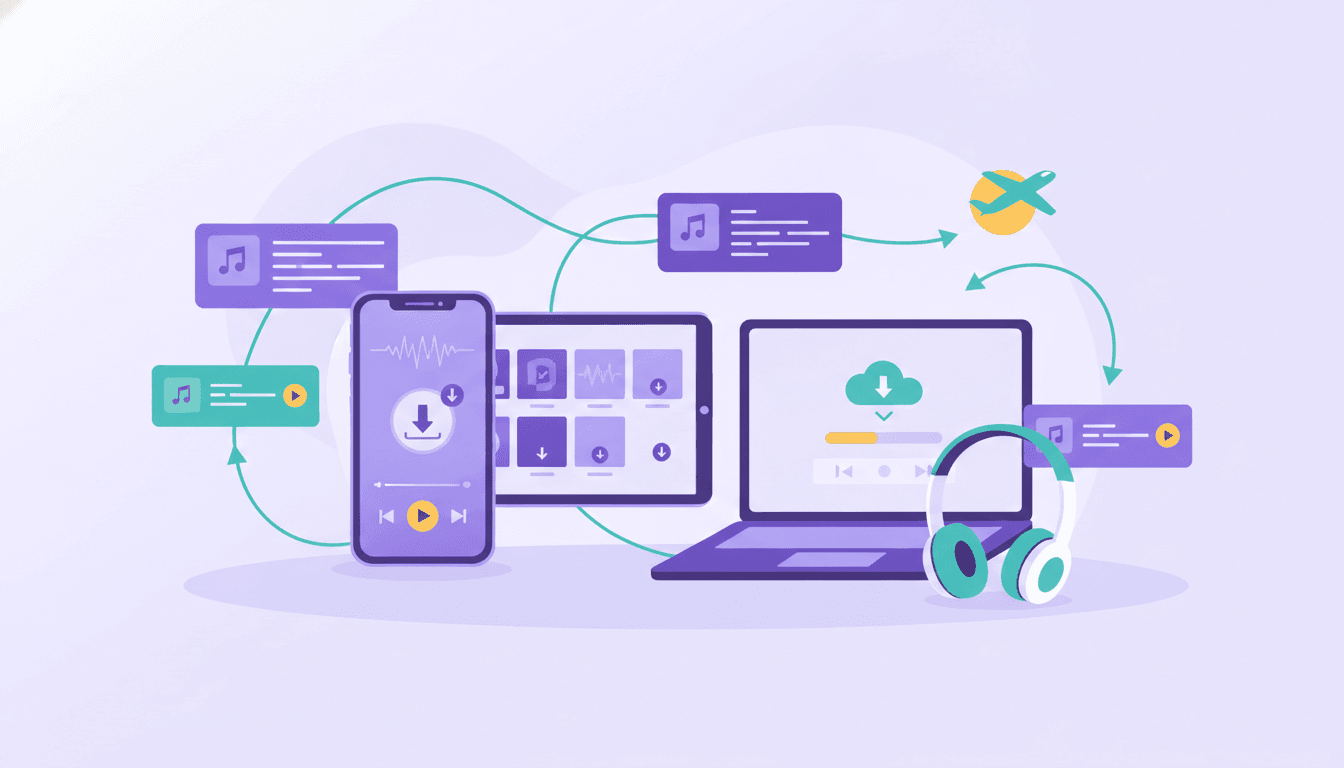
Knowing how to download music from YouTube Music means you can prepare your soundtrack before a flight, commute, or stretch without reliable internet. Start with the playlist or album you want, open its menu, and select Download—then check that it plays offline before leaving.
The important distinction is what you are saving: these instructions cover offline listening through YouTube Music. Playlist transfers and portable audio files serve different purposes, which we explain below.
YouTube Music downloads: requirements and device options
Google documents music downloads for YouTube Music Premium members. You must reconnect to the internet at least once every 30 days to maintain downloads. Check that you are using the account with your membership before preparing your library. Instructions and limits below were checked on September 15, 2026. Google notes that experiences can differ by country or region. See its official offline download guide.
| Device | Manual download route | Automatic selection | Preparation tip |
|---|---|---|---|
| Android | Playlist or album → Menu → Download, or download arrow | Smart downloads | Check storage and the permitted download connection |
| iPhone and iPad | Playlist or album → More → Download, or download arrow | Offline mixtape, enabled through Smart downloads | Manually select essential travel music |
| Computer | Google's Computer tab lists Menu → Download, or download arrow | Use manual selection for this walkthrough | Confirm that the control appears and playback works offline |
For a trip, choose a small essential collection first. Downloading everything at once makes it harder to check whether the music you actually need is ready.
If you are still deciding whether to subscribe, our guide to whether YouTube Music is free provides the broader plan context.
Offline playback, playlist transfer, and audio files
Keep these three tasks separate:
- Offline playback: use YouTube Music's download feature to prepare music for listening without a connection.
- Playlist transfer: recreate a music collection on another service by matching its tracks, for example when you move Spotify playlists to YouTube Music. Review the destination playlist before downloading it there.
- Portable audio files: obtain files intended for use outside a streaming service, such as a download supplied by an artist or music store.
The steps here do not export MP3s. Google's separate YouTube offline FAQ explicitly says the YouTube app cannot download audio or MP3 files. That statement concerns YouTube; its video-download instructions should not be confused with YouTube Music's music-download workflow.
How to download music from YouTube Music on Android
For a playlist or album:
- Open the YouTube Music app and find the playlist or album you want.
- Tap Menu beside the collection.
- Select Download. Alternatively, use the download arrow on its details page.
- Allow time for the download, then try playing your selected music with the internet disconnected.
For an individual song, open its Menu and choose Download. Google's Android download instructions document both individual songs and whole collections.
Before a large download, check the connection setting:
- Tap your profile photo.
- Open Settings.
- Select the connection type allowed for downloads.
If downloads are restricted to Wi-Fi, connect to Wi-Fi before waiting for them to finish. Decide whether you want to allow another connection type before starting a large collection.
Save downloads to an SD card
On a phone with an installed SD card, Google documents this route:
- Tap your profile picture.
- Open Settings → Downloads.
- Turn on Use SD card.
- Check that the card has enough space, then download your music.
Existing downloads cannot move directly between internal storage and the card. Delete the affected downloads, change the storage location, and download them again. Follow Google's SD card instructions, and make this change while you still have time and a connection.
How to download music from YouTube Music on iPhone and iPad
For a specific playlist or album:
- Open YouTube Music and find the collection.
- Tap More.
- Select Download, or tap the download arrow on the collection's details page.
- Before traveling, disconnect from the internet and check playback.
For automatic selections, Google calls the feature an offline mixtape, but the switch is labeled Smart downloads:
- Tap your profile picture.
- Open Settings.
- Tap Downloads & storage.
- Turn on Smart downloads.
That naming difference can make older walkthroughs confusing. Look for the documented switch rather than searching for a separate setting named Offline Mixtape. Google's iPhone and iPad guide supplies this route.
Use manual downloads for anything you would be disappointed to miss. Treat automatic selections as extra listening, and check your chosen albums or playlists individually before departure.
How to download music from YouTube Music on a computer
Google's Computer help tab documents downloads for playlists and albums. However, the page also contains mobile-oriented instructions and does not provide a supported-browser list. It is therefore worth checking the actual download control on your computer before relying on it for travel.
Use the documented collection workflow:
- Open YouTube Music on your computer and find a playlist or album.
- Click Menu and select Download, or click the download arrow on the details page.
- Let the download finish.
- Disconnect from the internet and try playing the collection on that computer.
These are the controls listed in Google's computer download instructions. If they are absent, that page does not establish which browser change would resolve the problem.
For an imminent trip, prepare and check a phone download as a fallback. Do not leave your first offline playback check until you are already away from a connection.
Smart Downloads versus manually selected music
Manual downloads let you choose the exact albums, songs, or playlists to prepare. Smart Downloads choose music automatically. The useful choice is whether you want a particular collection or a changing selection.
Choose manual downloads for a planned listening session. Examples include an album you want to hear in order, a familiar commute playlist, or music selected for a long journey.
Choose automatic downloads for variety. On Android, the setting is under your profile photo → Settings → Downloads & storage → Smart downloads. On iPhone and iPad, that switch enables the offline mixtape described above.
Google's mobile guides describe a setting that downloads up to 200 recently played songs. That figure is not a universal cap on all manual downloads: available storage, content length, and download quality also affect how much you can save.
Downloaded playlists refresh daily in the background over Wi-Fi. Google also says the iPhone offline mixtape refreshes every 24 hours over Wi-Fi. Recheck essential music close to departure instead of assuming an earlier selection is still the one you will hear.
How to find, remove, and manage offline downloads
When checking your offline collection, focus on playback in YouTube Music. A playlist appearing in your library is not the check to rely on before a flight: try playing the music with the connection off.
For mobile download management:
- Tap your profile picture and open Settings.
- Select Downloads & storage.
- Review Audio and Video quality and your automatic-download settings.
- Use Clear downloads only if you intend to clear downloaded content and prepare it again.
On a computer, Google's documented clearing route is profile photo → Settings → Downloads → Clear downloads.
On iPhone and iPad, you can remove an unwanted song from the offline mixtape by swiping left. Google says that song will not be added back to the mixtape, although it can still appear elsewhere in the app.
Storage needs depend on the length and quality of what you download. If space is tight, start with fewer essential collections and review quality settings before trying again. Avoid clearing your whole offline collection shortly before departure unless you have time to rebuild it.
For help deciding what belongs in your travel collection, see our YouTube Music playlist guide.
Why YouTube Music downloads fail or disappear
Work through the symptom that matches your situation. These checks help narrow the problem; they do not guarantee recovery of unavailable content.
| Symptom | What to check | Action |
|---|---|---|
| Downloads stopped working after a long offline period | Google requires reconnection at least every 30 days | Reconnect, open YouTube Music, and retry playback |
| An Android download waits while using mobile data | Downloads may be restricted to Wi-Fi | Connect to Wi-Fi or review allowed connection types in Settings |
| A collection will not finish downloading | Free storage, content length, and quality affect capacity | Free space or reduce the collection, then retry |
| Music is missing after changing to an SD card | Existing downloads cannot move directly | Delete the affected download, select the storage location, and download again |
| A selection changes after reconnecting | Downloaded playlists refresh; content restrictions can change | Review the collection online and check which tracks remain available |
| Downloading fails on a new device | Paid offline features have device limits | Check the device-limit guidance before adding more devices |
| No download control appears on a computer | Google's page does not specify supported browsers | Check your membership account and prepare a verified mobile fallback |
Google allows paid offline features on up to 10 devices at a time. Its device-limit guidance says a new device can replace the oldest authorization after that limit, with four replacements per year. The documented error after those swaps is “Sorry, this video can't be taken offline.” See Google's membership and device limits.
For a track that disappears after reconnection, repeated downloading may not solve the problem. Google's iPhone guide notes that creator restrictions or content changes can affect availability. Check whether the original item remains available before spending time troubleshooting storage.
Before leaving, make one final pass: reconnect, check your essential collections, then test playback offline on the device you will carry.
Moving playlists into YouTube Music before downloading
If your travel playlist is still on Spotify, bring it into YouTube Music first. The same works if you switch from Apple Music to YouTube Music. Free Your Music supports transferring Spotify playlists with their names and order, plus liked songs and saved albums. Catalog differences can leave tracks unmatched, so review the results before preparing your offline collection.
- In Free Your Music, select Spotify as the source.
- Select YouTube Music as the destination.
- Choose the playlists you want to transfer and confirm the selection.
- Review the transfer results for missing or unmatched tracks.
- Open the destination playlist in YouTube Music and use Download to prepare offline playback.
Start with Free Your Music's Spotify to YouTube Music playlist transfer if you want to bring an existing collection across.
Free Your Music handles the playlist transfer; YouTube Music handles the offline download. Once the destination playlist looks right, download it and run the same disconnected playback check before your journey.

Moving away from YouTube Music?
Stop rebuilding by hand. Move everything in minutes and take your music wherever you go.
See the transfer guide →SongsBrew — our free music newsletter
A free perk for FYM users. Tips, playlists, no spam.