How to Transfer Spotify Playlists to Apple Music in 2026
April 7, 2026
Why People Are Switching from Spotify to Apple Music
Every year, more listeners make the jump from Spotify to Apple Music. The reasons vary, but a few stand out in 2026:
- Lossless and Spatial Audio: Apple Music includes lossless audio and Dolby Atmos at no extra cost. If audio quality matters to you, this is a major draw.
- Apple ecosystem integration: If you own an iPhone, iPad, Mac, Apple Watch, or HomePod, Apple Music works seamlessly across all your devices with features like Handoff and Siri voice control.
- Privacy focus: Apple's approach to data privacy appeals to users who prefer less tracking and fewer algorithm-driven recommendations based on behavioral data.
- Better artist payouts: Apple Music pays artists roughly double per stream compared to Spotify, which matters to listeners who want to support musicians directly.
- No free tier distractions: While Spotify's free tier includes ads and limitations, Apple Music's subscription-only model means every user gets the full experience.
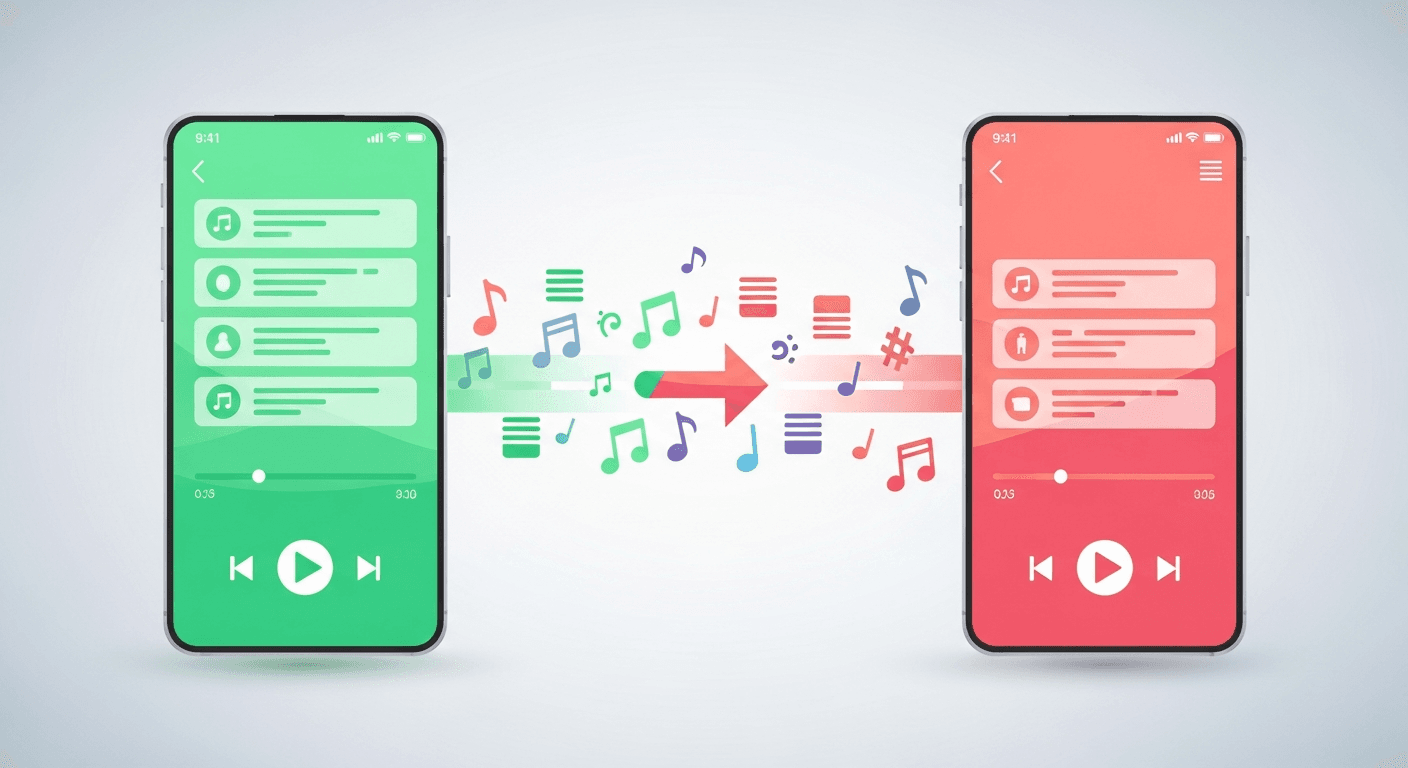
Whatever your reason, the big question remains: how do you move Spotify playlists to Apple Music without manually recreating them?
Methods to Transfer Spotify to Apple Music
You have two main options for moving your playlists.
Option 1: Apple's Built-In Import Tool
Apple introduced a basic playlist import feature that lets you bring over some data when you first sign up for Apple Music. However, this tool has limitations:
- It only works during initial setup
- It may not transfer all playlists or match every song correctly
- There's no way to re-run the transfer or do it selectively
- You can't transfer liked songs or album saves
For a simple library with a handful of playlists, this might be enough. But if you have dozens of playlists, years of saved albums, and thousands of liked songs, you'll want something more reliable.
Option 2: Use Free Your Music (Recommended)
Free Your Music is a dedicated music transfer tool designed to move your entire library between streaming platforms. It supports Spotify, Apple Music, YouTube Music, Tidal, Amazon Music, Deezer, and many more.
Here's why it's the go-to solution:
- Transfers playlists, liked songs, and albums — not just playlists
- High match accuracy — advanced song matching ensures minimal losses
- Works any time — not limited to initial setup
- Selective transfers — choose exactly which playlists to move
- Available on desktop, iOS, and Android
- Free to start — transfer up to 600 songs at no cost
Step-by-Step Guide: Transfer Spotify to Apple Music with Free Your Music
Follow these steps to move your Spotify playlists to Apple Music in minutes.
Step 1: Download Free Your Music
Head to freeyourmusic.com and download the app for your platform — Windows, macOS, Linux, iOS, or Android. Install and open it.
Step 2: Select Spotify as Your Source
On the main screen, choose Spotify as the source platform. You'll be prompted to log into your Spotify account and grant Free Your Music permission to read your library. This is read-only access — Free Your Music never modifies your Spotify account.
Step 3: Select Apple Music as Your Destination
Next, choose Apple Music as the destination. Log into your Apple Music account when prompted. Make sure you have an active Apple Music subscription.
Step 4: Choose What to Transfer
Free Your Music will load your Spotify library. You'll see all your:
- Playlists (with song counts)
- Liked songs
- Saved albums
Select everything you want to transfer, or pick individual playlists. You can also use the "Select All" option to transfer your entire library at once.
Step 5: Start the Transfer
Hit the Transfer button. Free Your Music will begin matching each song from Spotify to Apple Music's catalog and adding them to your Apple Music library. You'll see real-time progress, including:
- Songs successfully matched and transferred
- Songs that couldn't be found (with details)
For a typical library of 500–1,000 songs, the transfer usually takes just a few minutes.
Step 6: Verify Your Apple Music Library
Open Apple Music on any of your devices and check your library. Your playlists should appear with the same names and song order as they had on Spotify. Liked songs and albums will be in their respective sections.
Tips to Avoid Losing Songs During Transfer
Even with the best tools, some songs might not transfer perfectly. Here's how to minimize losses:
1. Check for Exclusives Before You Switch
Some songs are exclusive to one platform. Before transferring, note any Spotify-exclusive tracks you listen to regularly — though in 2026, true platform exclusives are increasingly rare.
2. Review the Transfer Report
Free Your Music provides a detailed report after each transfer showing which songs couldn't be matched. Review this list and manually search for those tracks on Apple Music — sometimes they exist under a different album version or artist name.
3. Transfer in Batches if Needed
If you have a massive library (10,000+ songs), consider transferring in batches. This gives you more control and makes it easier to spot any issues.
4. Keep Your Spotify Account Active Temporarily
Don't cancel your Spotify subscription immediately after transferring. Keep it active for a week or two while you verify everything transferred correctly. This way, you can re-run the transfer if needed.
5. Update Regional Settings
If you've recently moved countries, make sure both your Spotify and Apple Music accounts reflect your current region. Regional catalog differences can cause songs to appear unavailable.
Frequently Asked Questions
How long does it take to transfer Spotify playlists to Apple Music?
With Free Your Music, most transfers complete in under 10 minutes for libraries with up to 2,000 songs. Larger libraries may take a bit longer, but the process is fully automated — just start it and wait.
Will I lose any songs during the transfer?
The vast majority of songs transfer successfully. Free Your Music uses advanced matching algorithms that check song title, artist, album, and duration to find the correct match. Typically, 95–99% of songs transfer without issues.
Is Free Your Music free?
You can transfer up to 600 songs completely free. For larger libraries, Free Your Music offers affordable one-time and subscription plans. There's no commitment — you can use the free tier to test it before upgrading.
Can I transfer playlists from Apple Music back to Spotify?
Yes. Free Your Music works in both directions. If you ever decide to switch back, you can transfer your Apple Music library to Spotify using the same process.
Does Free Your Music work with other streaming platforms?
Absolutely. Free Your Music supports over 20 music platforms including YouTube Music, Tidal, Amazon Music, Deezer, SoundCloud, Pandora, and many more. You can transfer between any combination of supported platforms.
Will my playlist order be preserved?
Yes. Free Your Music maintains your playlist names and the order of songs within each playlist during the transfer.
Ready to Switch? Try Free Your Music Free
Transferring your Spotify playlists to Apple Music doesn't have to be complicated. With Free Your Music, you can move your entire music library — playlists, liked songs, and albums — in just a few minutes.
Try Free Your Music free and transfer up to 600 songs at no cost. Your music belongs to you, not to any single platform.


Migrate from and to any music services


Most popular Apple Music transfers: