File Backup saves your music as a CSV file
In the Free Your Music web app, open a playlist in Library and choose Export to CSV. To save everything, open Account › Music services, pick the account and choose Export library (CSV): your liked songs and all your playlists in one file. It needs Pro. Big files come by email. The iPhone, iPad and Android apps have it too.

Back up Audiomack to a CSV file
Back up your Audiomack playlists and liked songs to a CSV file with the Free Your Music web app. Part of Pro. Export one playlist, or your whole library in one file.
★★★★★ 4.7 · 12M+ downloads · Password never shared


Why move from Audiomack to File Backup (CSV)?
Back up your Audiomack playlists and liked songs to a CSV file with the Free Your Music web app. Part of Pro. Export one playlist, or your whole library in one file.
How to back up Audiomack to a CSV file
Four steps. The same on iPhone, Android, Mac, Windows and Linux.
Quick answer
Open the Free Your Music web app and connect Audiomack. Open a playlist in Library and choose Export to CSV. To save everything, open Account › Music services, pick Audiomack and choose Export library (CSV).
- 1
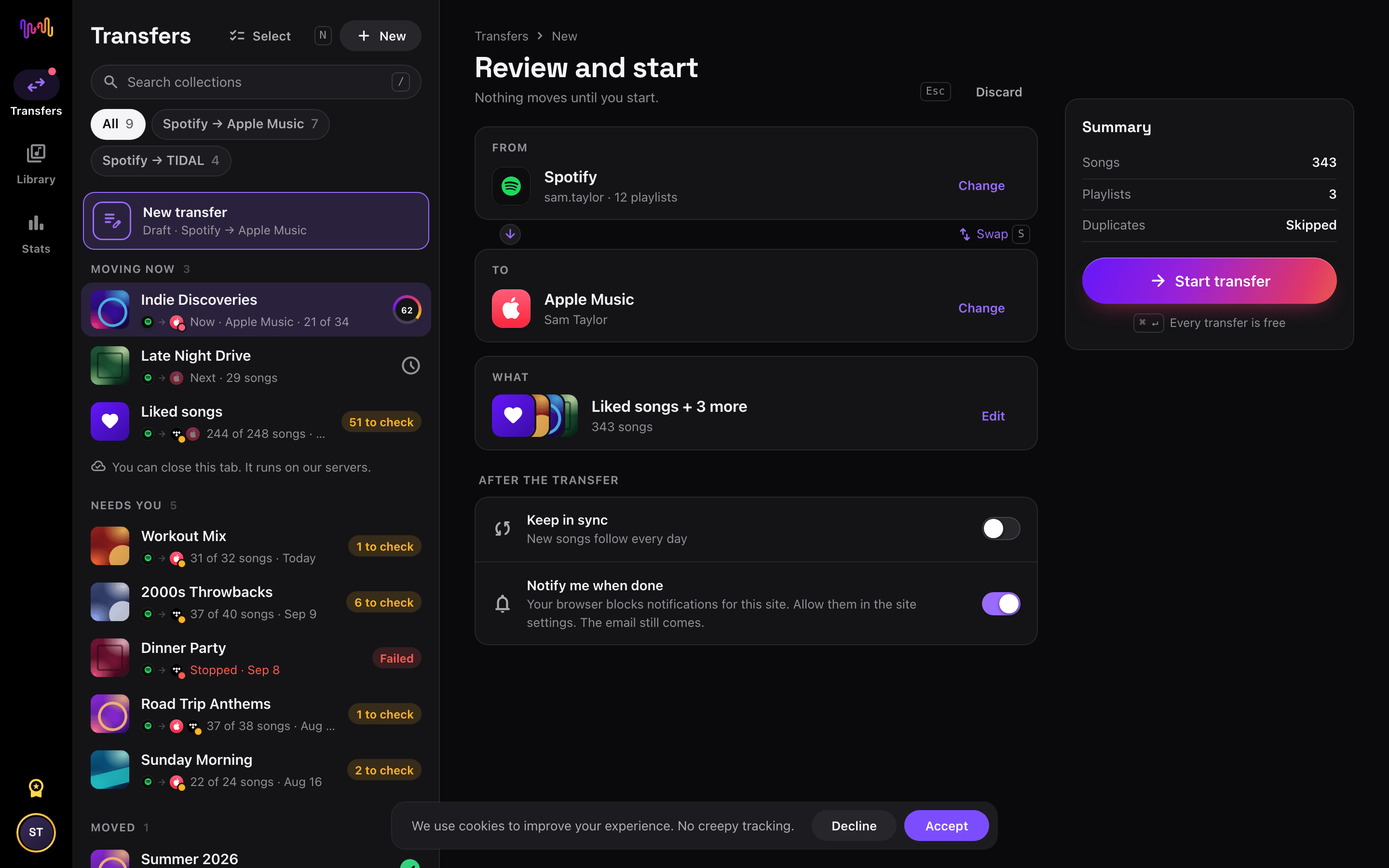
Connect Audiomack
Open the Free Your Music web app at freeyourmusic.com/app and connect Audiomack.
- 2
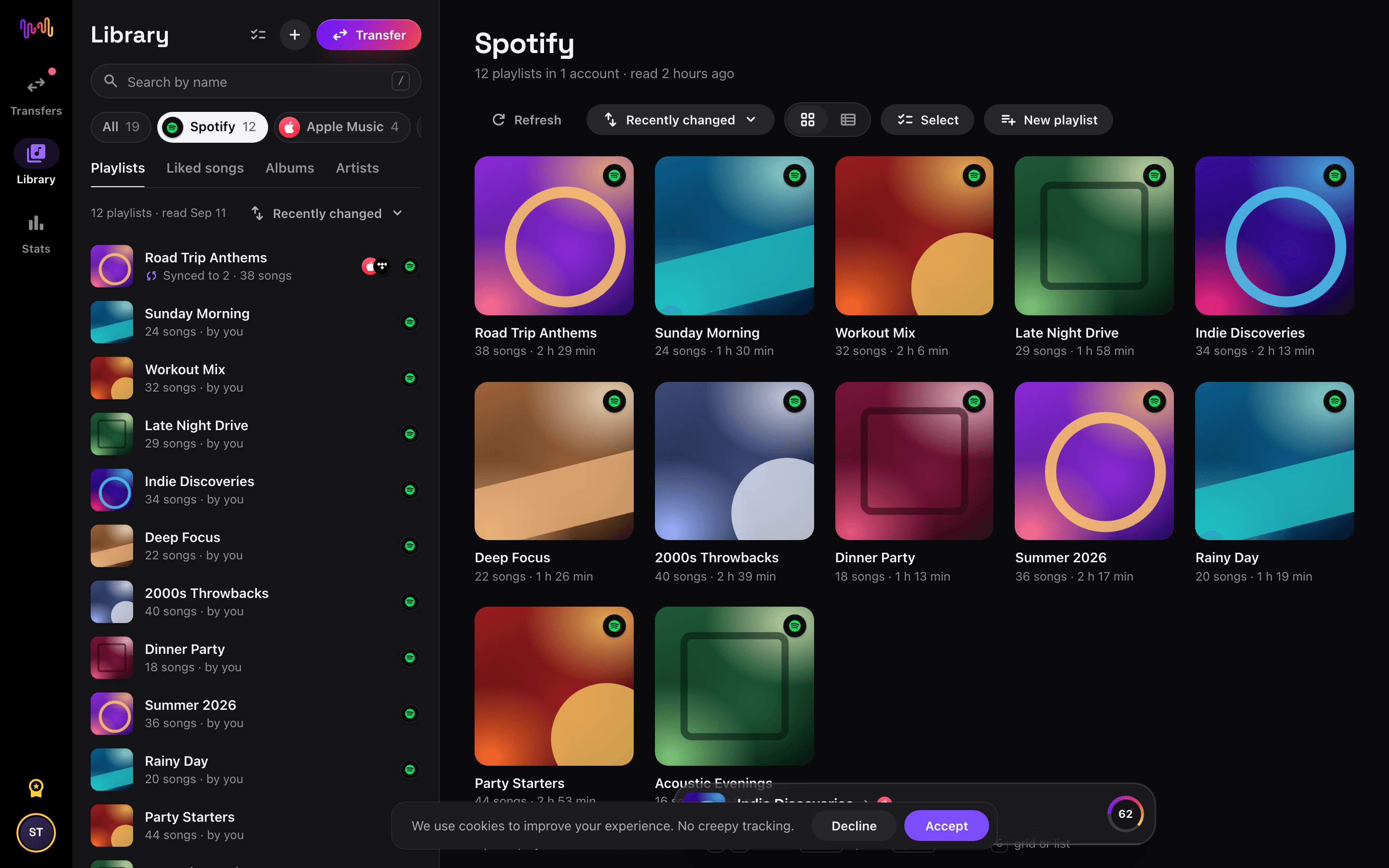
Pick what to save
For one playlist, open it in Library and open its ••• menu. For everything, open Account › Music services and pick the Audiomack account.
- 3
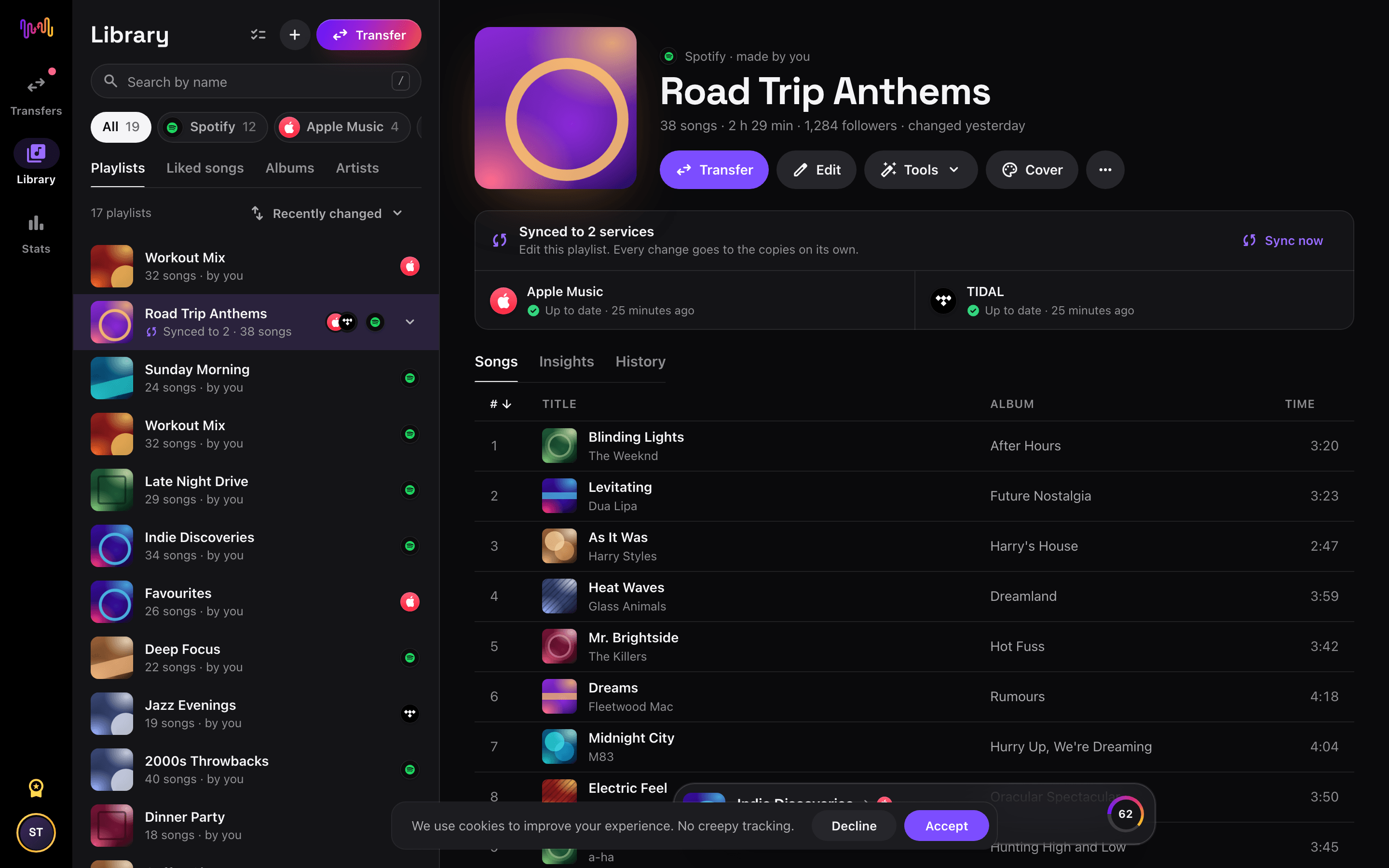
Export to CSV
Choose Export to CSV for one playlist, or Export library (CSV) for your liked songs and all your playlists.
- 4
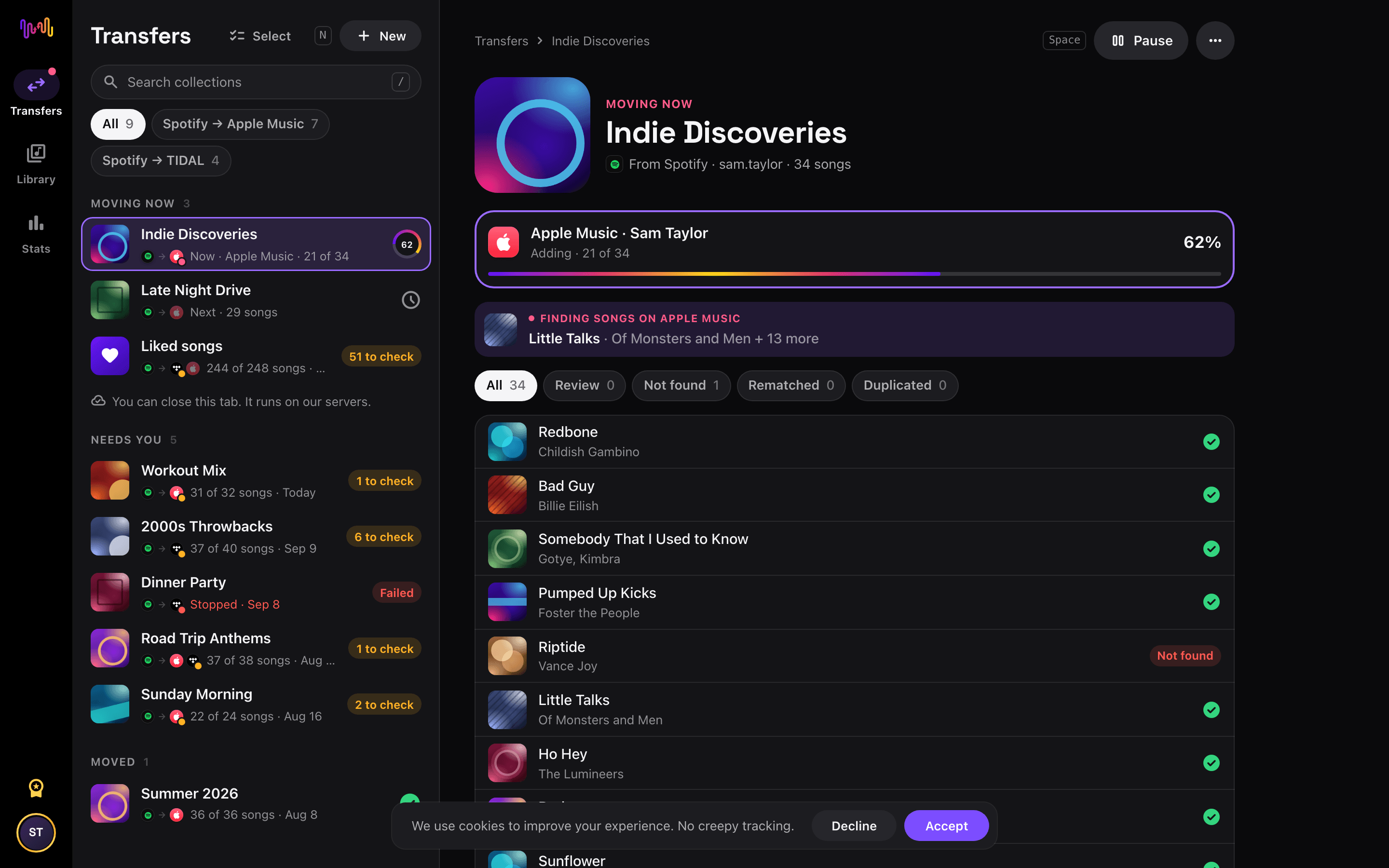
Keep the file
A small file downloads at once. A big one comes by email and waits in Account › Exports for 7 days.


Move Audiomack to another service


See every Audiomack transfer →
Transfer to File Backup (CSV) from another service
Back up Audiomack to a CSV file
Open the Free Your Music web app at freeyourmusic.com/app and connect Audiomack. To save one playlist, open it in Library, open its ••• menu and choose Export to CSV. To save everything, open Account › Music services, pick the Audiomack account and choose Export library (CSV). The library file holds your liked songs and all your playlists, with a Playlist column.
A small export downloads at once. A big one, or one with playlists that Free Your Music has not read yet, comes by email in a few minutes and waits in Account › Exports for 7 days. File Backup is part of Pro.
What the file holds
One row per song: the playlist, the position, the title, the artists, the album, the length, the ISRC, the Audiomack track ID and link, and the date you added the song when Audiomack gives it. The file is UTF-8 with a header row, and it opens in Excel, Numbers and Google Sheets. It holds music information, not audio.
The import of the web app reads the file again (Library › Import playlists from a file). The iPhone, iPad and Android apps export too: Export to CSV in the playlist menu, and Export library (CSV) in Account › Music services.
Frequently asked questions
How do I transfer my Audiomack playlist to File Backup (CSV)?
Open the Free Your Music web app and connect Audiomack. Open a playlist in Library and choose Export to CSV. To save everything, open Account › Music services, pick Audiomack and choose Export library (CSV).
What is in the CSV file?
One row per song: the playlist, the position, the title, the artists, the album, the length, the ISRC, the track ID and link on Audiomack, and the date you added the song when Audiomack gives it. The file is UTF-8 and opens in Excel, Numbers and Google Sheets. It holds no audio.
Is the Audiomack backup free?
No. File Backup is part of Pro. The export of the songs that did not transfer is free.
Can I import the file again?
Yes, in the web app, with Pro. Open Library and choose Import playlists from a file. We find the columns of our own export by ourselves, and the playlists wait in the Library under Imported files until you move them to a service.
Can I back up Audiomack in the phone app?
Yes, with Pro. In the iPhone, iPad and Android apps, choose Export to CSV in the playlist menu, or open Account › Music services, pick the account and choose Export library (CSV).
Are you an artist on Audiomack?
Music24 posts your releases to TikTok, Instagram and YouTube, and pitches them to playlists, blogs and creators.
Find new music for your new library
Deep cuts every Thursday, free. SongsBrew is our weekly music letter: one subject in depth and a playlist at the bottom. 25,000+ readers.
Ready to move to File Backup (CSV)?
Open Free Your Music on the web or on your phone and move your whole library in minutes.
Get started free →